Modern Workplace Mastery – Day 2: Domains, UPNs and Email Addresses
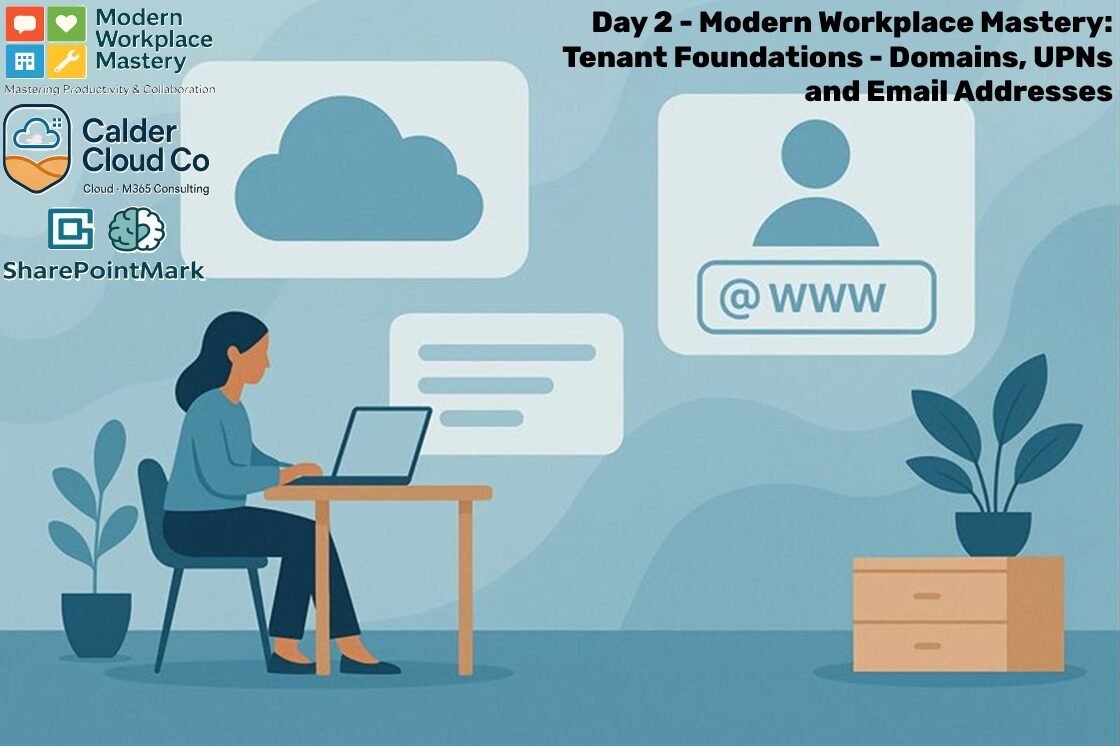
Naming that scales without confusing employees
This Modern Workplace Mastery post follows CalderCloud Co as we move from “we’ve created a tenant” to “we’ve created an identity that people can trust”. You’ll leave with a practical naming standard for domains, sign-in names (UPNs), email addresses, shared mailboxes, rooms, and collaboration spaces; designed to scale for the next ten years without turning into a support nightmare.
Before we touch bigger workloads (Teams, SharePoint, devices, security), we’re doing the boring-but-brilliant work:
making sure the foundation is consistent enough that new starters can sign in without doubt, admins can automate without fear, and the business doesn’t end up rebranding itself every time someone creates “Team (Final)”.
How to read this post:
The deep dive section begins with “The CalderCloud Journey: From Tenant to Identity” warning – it is not short (you will get used to this), and it uses a couple of reading lanes via Tabs in some sections: IT Lead, Management and Curious End User / Sysadmin or Tenant Admin. First up and immediately below is the TL;DR section for those that just like “slides”.
Table of Contents
TL;DR – Modern Workplace Mastery: Day 2 - Domains, UPNs and Email Addresses
Naming CalderCloud for the Next Ten Years
This TL;DR is the fast-track version of Day 2: Domains, UPNs and Email Addresses. If you just need the key decisions and important touch points – not the full deep dive content – work through these slides in order and you’ll see how CalderCloud goes from a bare tenant to infusing a coherent identity and naming model.
The early slides focus on what “good” looks like for domains and sign-in names from an IT leadership and governance point of view.
The middle section dives into UPN and email patterns, aliases and non-user identities for admins who will actually configure the tenant.
The final slides pull it together with mental health and real world impact notes plus a simple checklist of outputs you can adapt for your own organisation.
Use this TL;DR as a decision companion: confirm your own answers, capture them in your foundation charter, and then drop into the full deep dive whenever you need the “why” and the in-depth detail.
Day 2 - From tenant to identity
Day 2 defines CalderCloud’s “official” digital identity Consistent naming reduces friction and future rework Patterns must work for humans and admins
The pain we’re avoiding
Multiple usernames = sign-in confusion and support noise Mixed domains erode trust and look “phishy” Random workspace names create duplicate “places to work”
CalderCloud domain strategy
Primary Domain: orgname.co.uk" (day-to-day identity) Secondary Domain: orgname.com (reserved for future growth) System Domain: orgname.onmicrosoft.com (background actions only)
Day 2 - scope and guardrails
Do: add domains, verify via TXT, set default domain Don’t: change MX, migrate mail, bulk-rename identities Design first, cut over later
UPN model that scales
Standard: firstname.lastname@orgname.co.uk Duplicates: firstname.lastname01@…, firstname.lastname02@… Predictable beats clever (always)
Email formats and aliases
Primary email matches UPN for most people Aliases used for continuity (name change/legacy) Avoid “alias sprawl” as a permanent fix
Admin and break-glass accounts
Admin UPNs are role-based - examples: tenant.admin@…, sec.admin@… Break-glass uses tenant domain: …@orgname.onmicrosoft.com Rolls, not personal mailboxes
Non-user identities: clear prefixes
Shared: sh-
Technical touchpoints (keep it safe)
DNS proves ownership; the internet must “trust” you MX is the big switch (plan it later) Hybrid might appear later; design to avoid traps
Human impact: confusion vs trust
Inconsistent identity creates “username fatigue”, confusion, anxiety and stress Clarity lowers anxiety and boosts confidence Good foundations are practical kindness
Retrofitting when you inherit chaos
Stop the bleeding: fix the model for new objects Discover reality before changing anything Improve in slices, not a full Christmas cake
Day 2 outputs and next step
Decision record + naming standards + Proof-of-work snapshot (screenshots/exports/tenant charter update) Next: implement domains + create a few example objects (Rooms, Shared Mailbox etc.)
The CalderCloud Journey: From Tenant to Identity
Day 0 gave CalderCloud intent and direction.
Day 1 turned that intent into something tangible: a live Microsoft 365 tenant, technically real but still wearing its factory label – <orgname>.onmicrosoft.com.
Today is different. Day 2 is where CalderCloud decides who it wants to be for the next decade in the eyes of staff, customers and partners.
This isn’t just about picking a nice-looking email address. The domains, UPNs (user principal names) and mailbox formats we choose now will shape everything that follows:
- how people sign in,
- how external customers recognise CalderCloud,
- how easy it is to onboard new staff, and
- how painful it will be to evolve or merge in the future.
A poor decision here quietly confuses end users and creates technical debt that has to be paid down later at the worst possible time.
Note!! any reference to caldercloud.co.uk or caldercloud.com domains is for example reference only – both domains are owned by SharePointMark.
Three audiences, one shared story
As with the rest of the Modern Workplace Mastery series, this post has three main audiences travelling together through the same story:
- End Users & Curious Readers – the people who actually send emails, join Teams meetings and sign in every day. They need to understand why their login or email address looks the way it does, and feel confident that there is one “official” identity they can rely on.
- IT Leaders and Managers – the people accountable for risk, reputation and cost. They need to see how naming decisions connect to brand consistency, data protection, cyber security, support load and future change projects.
- Sysadmins and Tenant Admins – the people who live inside Entra ID, Exchange Online and the Admin centres. They need a clear, defensible pattern for domains and identities that doesn’t collapse the moment hybrid, mergers or automation enter the picture.
The way each group consumes this post will be different – end users may focus on the high-level, UI driven narrative, IT leaders on the principles and risks (they are not likely to ever have to do anything admin related), sysadmins on the detailed patterns and tooling, but the story is shared. CalderCloud gets one identity, expressed consistently through all three lenses.
What we will (and won’t) do on Day 2
To keep everyone aligned, it’s important to be consistently explicit about what Day 2 will bring to the CalderCloud journey.
We will:
- Decide which public domains CalderCloud will use now and in the near future (for example, whether we anchor on a .co.uk, .com or both, and how we treat any legacy or dev/test domains).
- Design a UPN pattern that works for everyday sign-in and, if needed later, hybrid scenarios including reserved patterns for admins and break-glass accounts.
- Choose a primary email address format for employees (e.g. firstname.lastname@…) and define how we’ll handle aliases, name changes and duplicates.
- Set out naming rules for non-user identities such as shared mailboxes, services and Microsoft 365 Groups / Teams, so they inherit the same logic instead of becoming a junk bucket.
- Capture these decisions as concrete non-negotiable constraints: a domain strategy, a naming convention reference, and a simple diagram that explains how it all fits together – all can be added to the Tenant foundations Charter.
We will not (yet):
- Cut over external MX records or move live email from an existing system into Exchange Online.
- Bulk-change everyone’s UPNs or primary email addresses.
- Rewire every legacy integration, line-of-business app or on-premises directory in a single hit.
Those things will come later in the beginning posts to the series, once CalderCloud’s identity design is stable, tested and communicated.
Today is about getting the design right “on paper“, understanding the impact on real people, and giving IT leadership and sysadmins a pattern they can implement safely and confidently when the time is right.
By the end of Day 2, CalderCloud won’t just have a tenant; it will have a deliberate, centred identity model that everything else in Modern Workplace Mastery can build on.
What “Good” Looks Like: Naming Principles for the Next Ten Years
Before CalderCloud chooses any specific domains or address formats, we need a clear picture of what “good” actually looks like. Naming in Microsoft 365 isn’t just about what fits into a text box today – it’s about designing an identity model that still makes sense when you’ve doubled headcount, added new services, or survived a rebrand. Done well, naming quietly supports security, compliance and usability. Done badly, it becomes the invisible source of daily friction, confusion and unhappiness.
A good naming strategy starts with employees, not directories. People should be able to look at an email address or display name and instantly understand who or what it represents. That means favouring formats that are readable (firstname.lastname@… rather than opaque IDs), avoiding unnecessary numbers, and keeping special characters to a minimum. It also means being honest about diversity: names change, some are long, some don’t fit neat patterns, and our conventions need to cope with that without forcing people into awkward workarounds.
“Good” naming is also predictable and boring in the best possible way. If staff can reliably guess a colleague’s address or a shared mailbox, they don’t need a directory search for every interaction.
For sysadmins, predictability means new accounts follow a model that’s easy to automate; consistent prefixes for shared and service account identities, and one agreed rule for user UPNs and primary SMTP addresses.
Predictability helps security too: it’s far easier to spot suspicious accounts, orphaned objects or shadow IT when you have a clear sense of what “normal” looks like.
Because we’re designing for a ten-year timeline (initial), the model has to be stable but also be change-tolerant. Some elements should almost never change (core domains, the overall decisive business pattern), while others must be flexible by design (aliases for name changes, room for new brands or regions). We need conventions that survive restructures, mergers and technology shifts without forcing a full identity rebuild every time. That includes thinking about hybrid possibilities even if CalderCloud is cloud-only today; aligning UPNs and email with future Entra Connect or Cloud Sync requirements now is much cheaper than reworking them in five years.
From a governance angle, good naming is policy-backed, not just chaotic imagination. It should be written down, agreed by IT and leadership, and simple enough that new admins and support staff can follow it without debates in every support request / ticket.
The same policy needs to cover not just user accounts, but shared mailboxes, rooms, services, Microsoft 365 Groups, Teams and sites, so the collaboration layer feels coherent. Ideally it then plugs into automation – scripts, provisioning flows and templates – so the “right” naming model is the easiest one to implement.
For our three audience lanes, these principles land slightly differently:
- End users care that their identity is simple and trustworthy,
- IT leaders care that it’s brand-safe and supportable, and
- Sysadmins care that it’s consistent, automatable and hybrid-friendly (where required).
The underlying design, however, is the same for everyone.
Finally, a good naming model is assessed through a mental health lens as much as a technical one. Confusing or frequently changing identities create anxiety:
- people worry about sending to the wrong address,
- missing important messages, or
- not being sure which account is “official”.
Support teams burn out firefighting avoidable login issues and misdirected email. A well-designed identity strategy lowers cognitive load; staff can trust that if something looks like “CalderCloud”, it really is CalderCloud and gives everyone, from front-line users to sysadmins, a little more headroom for their actual work.
CalderCloud Domain Strategy: Primary, Secondary and Future
On Day 1, CalderCloud accepted Microsoft 365’s starter label: <orgname>.onmicrosoft.com. It’s fine as a technical anchor, but it’s not the name you want on invoices, Teams invites or client proposals.
Day 2 is where that changes. A domain strategy decides which names CalderCloud will show to the world, which it will keep quietly in the background, and how it will avoid painting itself into a corner as the business grows.
For CalderCloud, the story starts with geography and brand. This is a UK-born consultancy with realistic ambitions to work beyond a single region. That’s why caldercloud.co.uk becomes the primary domain; the one staff will sign in with, send email from and see on everyday collaboration objects. It clearly signals a UK base to local customers and keeps identity simple: one main suffix for people, groups and shared mailboxes. Alongside that, caldercloud.com is registered and protected early. It may only be used as an alias or not at all, but it prevents brand squatting and keeps the door open for future, less UK-centric branding without forcing a full rename.
The original caldercloud.onmicrosoft.com domain still matters, but in a very different way. Rather than being exposed to customers or staff, it is deliberately pushed into the background as a system domain. It will host the break-glass admin account(s), occasional test objects and the odd internal-only workload requirements, but it will not appear in email signatures or public-facing URLs.
This separation reduces confusion (“why did I get an email from something@caldercloudco.onmicrosoft.com?”) and gives CalderCloud a neutral namespace to fall back on if its branded domains ever need surgery.
A crucial part of the strategy is resisting the temptation to introduce lots of extra “just in case” domains. Every new namespace adds DNS records, certificates, documentation and human doubt:
- Which address should I give this client?
- Why do some Teams invites come from .co.uk and others from .com?
CalderCloud’s Day 2 stance is to standardise on a single primary identity domain for day-to-day work and treat any additional domains as deliberate exceptions: lab environments, legacy migration staging or future brands that come with their own clear purpose and comms plan. That simplicity makes it far easier for IT to govern and for end users to trust what they see.
This domain strategy is also built with change in mind. If CalderCloud acquires another organisation, launches a new service line or expands into other regions, those domains can be added alongside the existing ones rather than replacing them in a panic. Staff can continue using @caldercloud.co.uk as their stable identity while new namespaces are brought in for specific brands or partnerships. Support teams don’t have to field daily questions about “which domain is my real one?”, and customers aren’t left wondering whether different domains represent the same company or not.
By the end of Day 2, CalderCloud’s position on domains is clear and written down: caldercloud.co.uk is the primary identity, caldercloud.com is reserved and ready for growth, and caldercloud.onmicrosoft.com is a quiet system-only safety net. In the sysadmin reading lane for this section, we turn that decision into reality by adding and verifying these domains in Microsoft 365 and setting the correct default for new objects without yet touching live mail routing. Everything that follows in this post, from UPN to group addresses, hangs neatly from that one deliberate choice.
Deciding and Securing CalderCloud’s Domains
Before IT can add anything into Microsoft 365, CalderCloud has to decide which domains it actually wants to own and then confirm that they are available, appropriate and under the company’s control. This is a business and brand decision first, and a technical one second.
For CalderCloud, the requirements are simple:
A domain that clearly represents the brand and feels natural to UK customers.
Room to grow outside the UK without having to rename the entire company.
No confusing onmicrosoft.com addresses landing in customer inboxes.
A clean separation between public identity (what customers see) and system plumbing (what only admins see).
Working from those principles, CalderCloud settles on:
Primary identity domain: caldercloud.co.uk – used for staff email, sign-in and day-to-day collaboration.
Secondary domain: caldercloud.com – registered early to prevent squatters and kept ready for future, less UK-centric branding or services.
Tenant/system domain: caldercloudco.onmicrosoft.com – retained quietly in the background for break-glass admin accounts and internal-only use, not for customer-facing email.
Before this becomes “canon”, there are a few practical checks to complete:
Domain availability and ownership – confirm through a reputable registrar that caldercloud.co.uk and caldercloud.com are available (or already owned by CalderCloud), and that registration details sit with the right legal entity and contact (for me I use www.hostinger.com search – to do a domain search)
Brand and legal checks – a quick scan of Companies House and basic trademark searches to make sure there are no obvious clashes that would cause confusion or legal trouble later.
Operational control – ensure DNS for the chosen domains can be managed centrally (either by CalderCloud directly or by a trusted provider) so changes to MX, SPF and other records don’t depend on one person’s personal account.
Once those checks are done and the registrations / domain purchases are complete, the decision is documented in CalderCloud’s Tenant Foundations charter:
- Primary identity domain: caldercloud.co.uk
- Secondary (reserved) domain: caldercloud.com
- Tenant/system domain: caldercloudco.onmicrosoft.com (system-only, not for human created emailing)
End users don’t need to see any of this detail; what matters for them is that they will have one clear, official email suffix to remember, and they won’t suddenly be asked to trust strange onmicrosoft.com addresses.
For IT leaders, this is the moment where brand, risk and cost are aligned. For sysadmins, this decision is the green light to go into Microsoft 365 and add and verify these domains – which is exactly what the next lane will cover.
Pre-flight: know where DNS is managed
Before touching the tenant, make sure you know where the DNS for the domains is managed. You will need access to that systems control panel.
- Confirm who hosts DNS for caldercloud.co.uk / .com:
- Often this is the domain registrar (where the domain was bought).
- Sometimes DNS has been moved to another provider (for example, a hosting company or dedicated DNS service).
- If you don’t know:
- Ask whoever registered the domain, or
- Run a public lookup (WHOIS / MXToolbox / DNS Checker tools) to see the current name servers (e.g. ns1.examplehost.com) and identify the host.
- Check you can:
- Sign into that provider’s portal.
- Open the DNS / Zone / DNS Manager section for caldercloud.co.uk and caldercloud.com.
You don’t need to change anything yet – just make sure you can get in.
Add domains in the Microsoft 365 admin centre
Now we tell Microsoft 365 which domains CalderCloud owns. You do this in the Microsoft 365 admin centre.
Open the Domains page
Sign in to the Microsoft 365 admin center as a global admin.
In the left navigation, choose Settings -> Domains (use Show all first if needed).
Add caldercloud.co.uk
Select Add domain.
Enter caldercloud.co.uk, select Next.
When asked how you want to verify the domain, choose the TXT record option (this is safest when you already have live mail elsewhere).
Microsoft 365 will show a TXT record something like:
Type: TXT
Host / Name: @ or your domain name
Value: MS=msXXXXXXXX (example)
Leave this browser tab open (or take notes) as you’ll need these values.
Add caldercloud.com
Repeat the same steps for caldercloud.com: Add domain -> enter -> Next -> TXT verification.
Again, note the TXT record details for caldercloud.com.
At this point, Microsoft 365 knows you want to add these domains but will not trust them until DNS is updated.
Add TXT records in the DNS hosting panel
This is the bit that trips up “accidental sysadmins”, so I’ll try to give a meaningful guide:
- Sign into your DNS provider
- Go to the DNS hosting provider’s website (web host, or dedicated DNS).
- Sign into the management portal with appropriate credentials.
- Find DNS settings for your organisation domain
- Look for something named DNS Manager, Zone Editor, Manage DNS, or similar.
- Open the DNS zone or settings for your domain.
- Add the TXT verification record
- Choose Add record (or equivalent).
- Set:
- Type: TXT
- Host / Name: usually @ (meaning the root domain), unless your provider explicitly wants the full domain name.
- Value / Data: paste the MS=msXXXXXXXX TXT value from the Microsoft 365 admin centre.
- TTL: if in doubt, 3600 (1 hour) is fine, or use the domain hosts default.
- Save the record.
- Repeat for your secondary (reserved) domain (if applicable)
- In the DNS panel, switch to the secondary domain.
- Add the TXT record exactly as Microsoft 365 specified for your primary domain.
- Save.
- Do not touch MX records yet
- Do not remove existing MX records.
- Do not add the Microsoft 365 MX record at this stage.
- The TXT verification record alone is enough for Microsoft 365 to prove ownership and does not affect existing email flow.
DNS changes can take a few minutes to propagate, sometimes longer depending on TTL.
Verify the domains back in Microsoft 365
Once TXT records are in place, go back to the Microsoft 365 admin centre tab.
- In Settings -> Domains, select your primary domain (for me that is caldercloud.co.uk.)
- Choose Verify (or Continue setup -> Verify, depending on the wizard).
- If DNS has propagated, Microsoft should confirm that the domain is verified.
- Repeat for your secondary domain.
If verification fails:
- Wait 5–10 minutes and retry.
- Double-check the TXT record in your DNS panel (no extra spaces, correct host name, right domain).
- Make sure you didn’t accidentally create the record under the wrong domain or subdomain.
When both domains show as Verified, you’ve finished the ownership step.
Set your primary domain as the default domain
Now you tell Microsoft 365 which domain to use by default when new users and groups are created. This step does not change existing accounts – only future ones that are created.
- Go to Settings -> Domains in the Microsoft 365 admin centre.
- Select the primary domain (i.e. I selected caldercloud.co.uk) row.
- Click Set as default.
- Confirm the change when prompted.
To sanity-check:
- Go to Users → Active users.
- Choose Add a user (you don’t have to complete the wizard).
- Check the suggested sign-in / email address – it should end with @primarydomain by default.
- Cancel or complete the test user according to your lab approach.
If it still proposes @organisation.onmicrosoft.com, you may not have set the default correctly – revisit the Domains page.
Optional: capture domain state with PowerShell
If you’re comfortable with PowerShell, grab a snapshot as an artefact.
Check out – Using Microsoft Graph PowerShell
After installing, configuring and connecting using Powershell (use the latest version is recommended – I try to ensure all scripts are checked and tested in PowerShell v7.4+) here is an example script-let that as a sysadmin you may find useful:
Connect-MgGraph -Scopes “Directory.Read.All”
Get-MgDomain -All | Select-Object Id, IsVerified, IsDefault, AuthenticationType | Export-Csv “.\My-Domains-Day2.csv” -NoTypeInformation
This CSV will show:
- Id – domain names.
- IsVerified – ownership proved or not.
- IsDefault – which domain is default.
- AuthenticationType – typically Managed for Microsoft 365.
Using Exchange Online PowerShell (accepted domains)
Connect-ExchangeOnline
Get-AcceptedDomain | Select-Object Name, DomainName, DomainType, Default | Export-Csv “.\My-Domains-Day2.csv” -NoTypeInformation
Export/copy this output into your Tenant Foundations documentation. It shows how Exchange Online sees your SMTP namespaces.
Note!! Whilst I try to ensure that all example scripts are clear and accurate – please ensure you check the Microsoft Learn website on all things PowerShell for up to date information – and remember to test all scripts using the:
-WhatIf (-WhatIf = “Show me what you would do, but don’t actually do it.” – It’s the safe “dry run” check switch for many change-making cmdlets.) and if that doesn’t work or throws an error (not all PowerShell cmdlets have it) then consider trying the
-Confirm option (-Confirm = “Before you do each change, ask me to approve it.”)
I will be writing posts on PowerShell as the series grows as I tend to be very “OCD” when it comes to scripts and poor scripts can cause me to “shake my head” in disbelief at a lack of quality.
Capture baseline principles and update the Tenant Foundations Charter
At the end of Day 2’s domain work, you should have:
- Screenshots of:
- The Domains page showing your primary and secondary domains are Verified.
- your primary domain clearly marked as Default.
- A CSV export from Get-MgDomain (and optionally Get-AcceptedDomain).
- An entry in the Tenant Foundations Charter, for example:
Domains
primary domain (i.e. caldercloud.co.uk) – verified, set as default identity domain.
secondary domain (i.e. caldercloud.com) – verified, reserved for future use.
<organisation>.onmicrosoft.com – retained as system-only tenant domain (used for break-glass admin).
No MX/DNS cutover performed; production mail still flows via existing platform.
These baseline / defined and agreed principles make it much easier to plan MX cutover, UPN changes and mail migration in later posts without guessing what you did today.
What you deliberately did not change
For clarity – especially for less experienced admins reading this:
On Day 2 – this post – we did not:
- Change MX records to point at Microsoft 365.
- Remove existing MX records for current mail systems.
- Change SPF, DKIM or DMARC for live domains.
- Rename any existing user UPNs or primary email addresses.
- Remove any domains from Microsoft 365.
Those steps belong to later Tenant Foundations posts. For now, you’ve moved your own “CalderCloud” from a “factory label only” to “wearing its chosen identity” in a safe, meaningful and tried and tested way – this is exactly what Day 2 is meant to achieve.
UPN Design: Logon Names That Don’t Become a Trap
With CalderCloud’s domains decided, the next identity decision is deceptively simple:
“What do people actually type in when they sign in?”
In Microsoft 365 and Entra ID, that’s the User Principal Name (UPN) – the someone@domain that appears on the sign-in screen, in admin portals, and in a lot of app configuration.
When UPNs are left to drift, you end up with classic chaotic traps:
Staff sign in with one thing, but their email address is slightly different.
Older users have initialsurname@…, newer ones have firstname.lastname@….
Hybrid tenants drag along on-premises UPNs that don’t match the email brand.
Third-party apps hard-code the wrong identifier and break the moment you tidy anything up.
Technically, Entra ID doesn’t require the UPN to match the primary email address, and Microsoft is clear that the immutable ID for developers should be the object ID, not the UPN; but in practice, Microsoft still recommends aligning UPN and primary SMTP wherever possible, and the Microsoft ecosystem expects UPN to be “the username that looks like your email”.
Designing UPNs for employees and hybrid
CalderCloud’s agreed naming principles give us the guard-rails:
- Human-readable and guessable.
- Predictable and boring (in a good way).
- Stable over ten years but tolerant of change.
- Ready for hybrid if we ever need Entra Connect later.
From those, a few design decisions fall out naturally:
One identity per person
The UPN should be the same as the primary email address for almost everyone. That means when a user is told “sign in with your email address”, it’s literally true – no mental translation layer required.Consistent pattern, simple collisions
CalderCloud avoids cleverness and sticks with firstname.lastname@primarydomain. When two people share the same name, they get firstname.lastname01, firstname.lastname02, and so on. Numeric suffixes aren’t beautiful, but they’re honest and automatable.Special-case admins, not everyone
Admin and break-glass accounts need to be recognisable as roles, not people. Those can use a slightly different pattern (example – tenant.admin@…, sec.admin@…) and, for the true emergency account, live on the onmicrosoft.com tenant domain where they’re insulated from branding changes.Object IDs for code, UPNs for humans
For developers and integrations, the message is: rely on the object ID as the stable unique key, not the UPN or email. That way, UPN can be improved over time without breaking everything that talks to Entra.
All of this is about avoiding a slow accumulation of little mismatches that collectively become a trap when you finally try to fix them.
The CalderCloud UPN pattern (example)
Putting that into concrete terms, CalderCloud’s decisions are:
- Standard user UPNs
- Format: firstname.lastname@caldercloud.co.uk
- Example: alex.smith@caldercloud.co.uk
- Used as both UPN and primary email address for the vast majority of staff.
- Handling duplicate names
- Format: firstname.lastname01@caldercloud.co.uk, firstname.lastname02@caldercloud.co.uk, etc.
- Suffix kept numeric and minimal – no random middle initials or department codes baked into the username.
- Service accounts (automation & integrations)
CalderCloud prefers workload identities (app registrations, service principals, managed identities) for scripts, Graph and apps – these do not have UPNs and sit outside this “Tenant Foundations” topic in the series.
Where a full Entra user is still required (certain Power Automate connections, legacy tools), service accounts use:- Format: svc.<function>@caldercloud.co.uk for example:
- svc.powershellconnect@caldercloud.co.uk,
- svc.powerautomate.hrflows@caldercloud.co.uk.
- Always named for a function, never a person.
- Least privilege permissions and only licensed if the workload genuinely needs it.
- Interactive sign-in blocked or tightly restricted, with strong credentials and basic monitoring on sign-in activity.
- Format: svc.<function>@caldercloud.co.uk for example:
- Admin accounts
- Role-based admin UPNs, for example:
- tenant.admin@caldercloud.co.uk
- sec.admin@caldercloud.co.uk
- intune.admin@caldercloud.co.uk
- Each mapped to a real person via Entra ID and your RBAC model, but clearly labelled as “admin”, not personal mailboxes.
- Role-based admin UPNs, for example:
- Break-glass account
- Two (recommended max), cloud-only emergency Global Admin accounts using the tenant domain, for example:
- CalderCloud.BreakGlass01@caldercloudco.onmicrosoft.com and CalderCloud.BreakGlass01@caldercloudco.onmicrosoft.com
- Strongly protected (MFA, FIDO Key – recommended), no license, no mailbox, and only used when normal sign-in paths or conditional access policies are misbehaving.
- Two (recommended max), cloud-only emergency Global Admin accounts using the tenant domain, for example:
This model keeps everyday sign-in aligned with what people see on their business cards, while still giving admins a couple of special-case identities for operations and emergencies.
How this lands in each audience reading lane
Even though the pattern is the same, the emphasis is different for each audience.
End users
End users don’t need to know the term “UPN” at all. What matters to them is:
- “Your username is your email address” when you sign in.
- “If your name changes”, IT will communicate any change to your sign-in clearly and give you time to adjust.
That alone removes a surprising amount of low-level anxiety – nobody is left guessing which of three historical usernames is the right one today.
IT leaders and managers
For leaders, UPN design is about risk, cost and future change:
- Changing UPNs later affects sign-in across devices, cached credentials, OneDrive URLs and some app configs.
- Keeping UPNs and primary email aligned massively reduces support volume and confusion, even if it’s technically optional.
- Having clearly named admin and break-glass accounts makes audit and incident response saner.
The outcome they care about is:
“We’ve chosen a pattern we are willing to live with for the next ten years, and we understand the blast radius if we ever need to change it.”
Sysadmins and tenant admins
For sysadmins, UPNs are where theory meets years of messy reality:
- In cloud-only tenants, the priority is to start as we mean to go on – create new accounts using the aligned firstname.lastname@caldercloud.co.uk agreed naming convention now and onwards into the future.
- In hybrid or future-hybrid scenarios, UPN must also respect on-premises AD and Entra Connect rules; that’s why matching the email domain and making it a valid UPN suffix in AD early is strongly recommended.
- Any plan to fix historical UPNs later needs data: an export of displayName, userPrincipalName and mail for all users via Microsoft Graph PowerShell, so mismatches and oddities can be identified safely.
Mental health and “username fatigue”
UPNs sound dry, but they shape how safe and competent people feel using their tools. If staff have to remember that:
- they sign into Windows with one name,
- Teams with another,
- and email shows a third,
…then every login becomes a small stress test. People second-guess themselves, worry they’re “bad with technology”, and flood support with issues that aren’t really about skill at all, they’re about inconsistent design.
By giving CalderCloud one clear, boring, well-documented UPN naming convention / format, and treating changes as rare events to be planned, communicated and supported properly, the Day 2 approaches quietly lowers that background tension. Staff can focus on the work, not on which version of their own name the system wants this week.
Email Address Formats and Aliases: Built for Humans
If UPNs decide what people type in to sign in, email address formats decide what they hand out to the world. For most staff, these two are the same, but the way we present and evolve addresses has its own rules.
This is where brand, culture and practicality meet:
What do CalderCloud addresses look like on business cards, in Outlook, and in the “From” line of a sensitive email?
The first rule is simple: one primary address per person, and it looks like a normal person name. CalderCloud leans into the same pattern chosen for UPNs – firstname.lastname@caldercloud.co.uk – because it is readable, easy to say on the phone, and globally familiar. That means a new starter like Alex Smith doesn’t have to remember a random combination of initials and numbers; their address is exactly what they expect it to be. When collisions happen, CalderCloud uses small numeric suffixes (firstname.lastname01@…, 02@…) rather than embedding departments or special characters into the address itself, keeping the pattern predictable and future-proof.
From the outside, what really matters is consistency. Customers and partners should see CalderCloud emails coming from a single, coherent namespace: the same primary domain, the same basic format. Internally, Display Names in Exchange and Teams can carry extra context – job titles, departments, locations; but the actual SMTP address stays clean. That separation keeps the identity stable even when roles or team structures change, and reduces the temptation to keep renaming addresses every time someone gets a new job title.
Name changes are where many organisations quietly create chaos. People marry, divorce, change names for personal reasons, or decide that the way they were represented in legacy systems no longer fits. CalderCloud’s rule is that the person comes first, the pattern flexes to follow. When a legal name change happens, IT will create a new primary SMTP in the updated form and keep the old address as an alias for a sensible period, so external replies and existing contacts continue to work. Internally, this is treated as both a technical change and a wellbeing moment: comms are handled sensitively, directories updated promptly, and the person isn’t left in limbo between two identities.
Aliases themselves are a powerful tool when used deliberately instead of as a dumping ground. CalderCloud uses them for a few clear purposes:
- supporting name changes,
- smoothing migrations from legacy systems, and
- handling rare cases where someone needs a role-based address in addition to their personal one (for example, dpo@caldercloud.co.uk delivered to the current Data Protection Officer alongside their individual mailbox).
What aliases are not used for is hiding messy design – if the only way a pattern works is with a huge pile of aliases on every mailbox, the pattern is wrong.
All of this is backed by one simple test: could a new starter confidently email anyone in the company without looking up their details?
- If the answer is “yes, I can probably guess it”, the format is doing its job.
- If the answer is “no, there are three different formats and I don’t know which one is real”, the format is adding friction and anxiety every time someone hits Send.
By standardising on a end-user-centred primary address and treating aliases as carefully controlled safety nets rather than default solutions, CalderCloud turns email from a low-level stressor into something people can trust without thinking about it.
Non-User Identities: Shared Mailboxes, Rooms and Service Accounts
So far, Day 2 has focused on people: how CalderCloud shows up in domains, UPNs and email addresses for individual humans. The tenant, however, is full of identities that aren’t people at all – shared functions, meeting rooms, devices and background processes. If these non-user identities don’t follow a clear pattern, they quickly become a junk drawer of mysterious objects that nobody wants to touch.
In Microsoft 365, the most visible non-user mailboxes fall into three broad categories:
- Shared Mailboxes,
Designed for teams that need a common inbox – finance, HR, a service desk; where multiple people can read and respond to messages without pretending to be each other. - Resource Mailboxes (rooms and equipment),
Room and equipment mailboxes represent physical spaces and assets: meeting rooms, labs, loan laptops or presentation kits, and - Service-style identities used by systems and automations.
These handle the background work: automated notifications, connectors, scripts and platform-level integrations that need to send or receive messages or authenticate to other systems.
CalderCloud’s principle is that you should be able to tell what something is just by looking at its address. That’s why non-user mailboxes use simple prefixes on the same primary domain rather than scattering across extra namespaces.
- Shared mailboxes follow a sh-<function>@caldercloud.co.uk pattern
- Examples: sh-finance@caldercloud.co.uk, sh-hr@caldercloud.co.uk, sh-servicedesk@caldercloud.co.uk.
- Rooms and equipment use rm- and eq- prefixes with short location or type codes,
- Examples: rm-hx1-101@caldercloud.co.uk for a Halifax meeting room or eq-surface-01@caldercloud.co.uk for a pool device.
- Service accounts that must be user-style identities use svc-<function>@caldercloud.co.uk, clearly signalling that they belong to a system, not an end user (person or agent/bot), and tying back to the service account format agreed.
Sticking to these prefixes does more than make the address list look tidy. It makes automation and governance easier. Admins can search for “sh-” to review shared mailboxes, “rm-” for rooms, “svc-” for service identities, or build policies and scripts that target only those objects without risking user accounts. It also supports least privilege and audit: when you see svc-graph-reporting@caldercloud.co.uk with a specific set of permissions, it’s obvious that it exists for reporting automation, not for a person who happens to like scripting. Over time, this cuts down on “mystery objects” that nobody dares delete because nobody remembers why they were created.
From an end-user point of view, non-user identities are part of the psychological landscape of collaboration. A well-named shared mailbox like sh-servicedesk@caldercloud.co.uk, with a clear display name such as “Service Desk (Shared Mailbox)”, tells staff they’re dealing with a team, not an individual they might overburden. Room names that match the physical signage and follow a consistent structure make booking less stressful, especially in busy offices or hybrid setups. Conversely, opaque addresses like room1@… or info2@… create uncertainty: people aren’t sure where their message will end up, or whether they’re about to spam the wrong team. Every small doubt nudges anxiety up and trust down.
CalderCloud’s Day 2 outcome for non-user identities is therefore twofold:
- First, the naming rules are written down: “sh-” for shared mailboxes, “rm-” and “eq-” for rooms and equipment, “svc-” for the small number of user-style service accounts that remain after preferring app registrations and managed identities.
- Second, a handful of concrete examples are created in the tenant using these patterns – one shared mailbox, one or two rooms, and at least one service account reserved for future automation – so that admins and support staff can see and reuse the naming formats in real objects. Later posts will go deeper into how these identities are provisioned, delegated and monitored; Day 2’s job is to make sure they start on the right footing, with names that normal humans can understand and that future admins can manage without guesswork.
Collaboration Naming: Microsoft 365 Groups, Teams and Sites
Nearly there – Yes this is a very long detailed, thought-provoking (hopefully inspiring) post, but it is essential – get it right at the beginning and the future for everyone is better and easy to navigate, if we fudge this bit, Future CalderCloud ends up living in “Project 3 (new-new-final)” hell.
By the time a user sees a Team, a SharePoint site or a Planner board, they don’t think “Microsoft 365 group object”; they just see a place where work happens. Under the hood, though, Microsoft 365 Groups, Teams and SharePoint sites are tightly linked. If their names drift apart, people lose trust in the workspace: “Is Marketing Hub the same as MKT-UK-Main? Why does the URL say something else again?” A good collaboration naming standard removes that guessing game.
Microsoft’s own guidance for group and Teams naming boils down to a few simple ideas:
- keep names short and meaningful,
- use prefixes or suffixes sparingly to indicate purpose or department,
- avoid special characters, and
- block obviously bad or confusing words.
Entra ID’s group naming policy exists specifically to enforce this sort of structure across Microsoft 365 Groups – which in turn back Teams, Planner, Viva Engage and more. For SharePoint, both Microsoft and community guidance stress concise names that work well as URLs and give a clear “information scent” for users navigating the intranet.
CalderCloud’s approach is to treat a Microsoft 365 Group, its associated Team and its primary SharePoint site as one collaboration space with three faces. Each space gets a short, structured address and a more useful display name, both built from the same model. For mail and group ID, CalderCloud uses an <area>-<purpose>@caldercloudco.co.uk structure; for example:
- ops-projects@caldercloud.co.uk,
- sales-hub@caldercloud.co.uk,
- client-contoso@caldercloud.co.uk.
For display names in Teams and Outlook, those become Ops – Projects, Sales Hub, Client – Contoso (Delivery): still recognisable from the address, but nicer to look at and say aloud. The linked SharePoint site uses the same display name, with a trimmed, URL-friendly version (no emojis, minimal punctuation) so addresses stay within SharePoint’s length limits and don’t break when folders get deep.
Behind that sits a small but powerful taxonomy. Prefixes like DEPT- for formal departments, PRJ- for projects and CLI- for client spaces can be applied consistently where they help – especially as the environment grows, but CalderCloud deliberately keeps them short and avoids turning every name into a code soup. If self-service creation is enabled, an Entra ID group naming policy and a blocked-words list is an option to back this up: users can still create what they need, but they’re nudged into patterns that match the overall design and prevented from using reserved names or unhelpful labels like “Test”, “General” or competitor brands.
For end users, the benefit is psychological as much as practical. When every departmental Team, SharePoint site and email-enabled group follows the same logic, it’s far easier to find the right place to put a document or start a conversation. Team names that match site names reduce the “which space is the real one?” anxiety, especially for new starters and people who don’t live in the tools all day. For IT leaders and sysadmins, a consistent pattern turns governance from a forensic exercise into a quick filter: searches by prefix or area can surface all the workspaces in a given domain, and policies or lifecycle rules can be targeted more safely at whole categories of groups.
Day 2 doesn’t attempt to catalogue every future collaboration space CalderCloud will ever need. Instead, it sets the rails: short, structured email-style addresses; friendly but aligned display names; SharePoint sites that follow the same pattern; and a plan to enforce those rules with Entra naming policies and templates as self-service grows. Later posts in the Tenant Foundations and future topic arcs will extend this into channel naming, hub site hierarchies and client-specific patterns, but the core idea will remain the same: if you can’t tell what a space is for from its name, the naming convention hasn’t finished its job.
Technical Touchpoints: DNS, MX and Hybrid Constraints
So far this post has been all about identity: names that employees can recognise and admins can govern. This is the moment where we admit something slightly annoying but very important:
Microsoft 365 identity lives in two worlds at once.
- Inside the tenant (Entra ID, Exchange, Teams, SharePoint) where everything feels tidy and controlled.
- Outside the tenant, in public DNS, where the internet decides whether it believes you.
If you do not understand domains, DNS and MX records here is an alternative meaning to help:
If domains are your shop sign, DNS is the landlord, and MX is literally the postal redirection for your business email.
You can redesign the shop interior all you like; if you change the address label without sorting the landlord paperwork, you’ll spend Monday morning explaining to customers why emails vanished.
So this section exists for one reason:
To stop Day 2 becoming a future incident report.
In summary: What Day 2 touches and what Day 2 deliberately does not touch.
On Day 2, CalderCloud looks to achieve the safe, foundational steps:
- Proves domain ownership using a TXT verification record (low-risk; it doesn’t reroute mail).
- Sets caldercloud.co.uk as the default domain for new identities going forward.
On Day 2, CalderCloud does not do anything that can affect anything else:
- No MX cutover (that’s the “change where the world delivers your mail” moment).
- No “quick” changes to Autodiscover or mail authentication in a rush.
- No bulk UPN renames (because there are downstream effects in collaboration tools and links).
This separation is intentional. It keeps Day 2 as “design and prepare”, not “migrate and pray”.
Your real dependency: control of the domains
This is where we get honest about ownership and risk.
The most important question isn’t “can Microsoft 365 do this?” It’s:
“Do we control the DNS for these domains, and can we change it safely?”
If DNS is managed through someone’s personal domain host platform login, you’ve created a single point of failure.
If DNS changes are “we’ll ask Dave when he’s back from holiday,” that’s not a technical problem – that’s a business continuity problem.
Mail cutover is a planned event, not a tick-box
Changing MX is like telling the world:
“send all our post to a new building starting now.”
Microsoft’s own DNS guidance for Exchange Online makes it clear that MX and related records are part of the core mail setup journey. Leadership should treat MX cutover as a separate decision point with:
- a test plan,
- a comms plan,
- and a rollback story (even if the rollback is “pause and route mail back temporarily”).
In a brand-new tenant, testing and rollback are simpler (and more brutal) than in an enterprise:
- You don’t have Teams or an intranet yet, and
- You may not have an existing mail platform to fall back to.
For CalderCloud, the practical approach verified the domains safely (TXT), then will test mail readiness by using a single pilot mailbox (the founder) before the domain is used publicly. If anything breaks, comms happens out-of-band via the founder’s personal email and/or SMS, and DNS changes are paused or reverted until stability is restored.
Hybrid is a “maybe”, but it still shapes today
Even if CalderCloud is cloud-first, hybrid often arrives later unexpectedly – an acquisition, a legacy app, a client requirement, or inherited AD DS. Microsoft’s hybrid guidance makes it clear that UPN suffixes should align to verified domains for sign-in, and non-routable suffixes like .local are a trap you eventually have to climb out of.
So the leadership-level takeaway is simple:
- Own the domains properly.
- Separate identity design from mail cutover.
- Assume hybrid could exist one day, and don’t design yourself into a corner.
The two-tab reality: Microsoft 365 tells you; DNS host does it
This lane is where the “accidental sysadmin” gets protected from common foot-guns.
Microsoft 365 will show you the records you need, but the actual change happens in your DNS hosting panel. That two-tab workflow (admin centre + DNS provider) is literally how Microsoft expects you to do it.
For Day 2, we have kept it boring:
- purchase the domains,
- add the domains,
- verify with TXT,
- set default domain,
- document what you did.
The “don’t do this casually” list
Three changes are particularly good at causing rapid, user-visible pain:
- MX: changes delivery destination. If you flip it early, mail goes to the wrong place.
- Autodiscover: influences client behaviour and can trigger widespread Outlook weirdness if wrong.
- UPN changes: can have knock-on effects in collaboration services and sharing links, which is why we plan it rather than “tidy it live”.
CalderCloud’s rule is blunt: no high-blast-radius DNS changes without a window, comms, and rollback.
Hybrid constraint in one sentence
If you ever sync identities from on-prem AD, the UPN suffix needs to be something Entra recognises and can verify – Microsoft calls this out in hybrid identity guidance.
That’s why we chose @caldercloud.co.uk as the identity anchor: it’s not just pretty; it’s compatible.
Human Impact and Mental Health: Identity, Confusion and Trust
On paper, Day 2 is about domains, UPNs and email formats. In real life, it’s about something much more personal:
people’s sense of “who am I in this system?”
Identity design is one of those invisible foundations that either makes work feel calm and predictable, or quietly turns every login, invite and email into a small moment of doubt. When identity is consistent, most people never think about it. When it isn’t, people don’t just get inconvenienced, they start to feel uncertain, annoyed, and in some cases genuinely anxious. Not because they’re “bad with technology”, but because the system keeps shifting the rules.
What happens to people when identity is done badly?
A few very common patterns show up in organisations where naming and identity were left to chance:
- “Username fatigue”
People end up with multiple sign-in identities across Windows, Microsoft 365, and third-party apps (“Is it my email? My old email? The one with the number?”). Each mismatch adds friction, and the brain starts treating sign-in as a stressor rather than a routine action. - Fear of getting it wrong
If staff aren’t sure whether alex.smith@… and a.smith@… are the same person, they hesitate. They double-check. They avoid sending messages with sensitive information. Decision fatigue creeps in where it doesn’t belong. - Support burnout and learned helplessness
When identity is inconsistent, support tickets spike; not because staff are careless, but because the system is ambiguous. Over time, support teams start firefighting the same problems repeatedly, and end users start feeling helpless (“I’ll just wait for IT, I don’t understand any of this”). - Trust erosion and “is this phishing?”
Messages that arrive from unexpected domains (especially onmicrosoft.com addresses) can look suspicious. People either ignore legitimate messages or fall for the wrong ones because the “what looks normal?” baseline is fuzzy.
None of this is dramatic in isolation. But stacked day after day, it becomes background noise that drains focus.
What CalderCloud is optimising for
CalderCloud is early enough in its journey that it can make a rare choice:
design identity to reduce cognitive load from day one.
That’s why Day 2 decisions lean so hard into clarity:
- One primary domain people can trust (example – @caldercloud.co.uk).
- One predictable format for most individuals (example – firstname.lastname@…).
- Clear non-human prefixes (sh-, rm-, eq-, svc.) so people understand what they’re contacting.
- A deliberate policy of keeping system-only domains out of everyday communication wherever possible.
This isn’t just tidiness. It’s a practical form of kindness.
Psychological safety for new starters and “accidental admins”
In SMEs especially, people wear multiple hats. A founder might be the managing director in the morning and the IT admin at night. A “sysadmin” might be the most technical person in the building, not a career infrastructure engineer. In that context, a consistent identity model does two things:
- It makes onboarding calmer: new starters can sign in with the same identity they email with.
- It makes administration safer: patterns are easy to follow and harder to misconfigure by accident.
That’s a quiet contribution to psychological safety: fewer “gotchas”, fewer moments where someone feels embarrassed asking what should be a simple question.
Communication is part of the design
When identity does need to change because of a name change, a rebrand, or a future migration; the mental health impact is often determined by how it’s communicated, not just what was changed.
CalderCloud’s stance is:
- changes are rare,
- changes are explained in plain language,
- and people get a clear “what do I do now?” instruction, not a vague warning.
Aliases and forwarders aren’t just technical tools; they’re part of making change feel safe and reversible.
The Day 2 litmus test
Here’s the simplest “human” success measure for Day 2:
Would a new starter, on their first day, confidently sign in and contact colleagues without feeling stupid or uncertain?
If the answer is yes, then CalderCloud’s identity choices are doing what good foundations should do: disappearing into the background so people can focus on the work and on each other instead of wrestling with the system.
Retrofitting and Recovery: When You Didn’t Start at Day 0
CalderCloud has the luxury of doing Day 2 “the right way” because the tenant is new. Most organisations don’t get that clean start. They inherit a tenant created years ago by someone who has since left, with naming patterns that grew organically like ivy:
persistent, tangled, and surprisingly hard to remove without damaging the wall underneath.
This section exists for the reader who is thinking:
“Great… but Mark my tenant already has three domains, five email formats, and a bunch of accounts nobody understands or remembers why they were created.”
The aim isn’t to shame that reality, it’s to show that you can still recover, as long as you treat identity changes as a planned improvement, not a heroic clean-up done live on a Friday afternoon.
Step one: stop the bleeding (set a standard for everything new)
The fastest win in an inherited tenant is not “fix all the old stuff”. It’s to ensure nothing new makes the problem worse.
That usually means:
- Set the correct default domain for new users and groups.
- Document a single UPN and email pattern for new starters.
- Define prefixes for non-user identities (sh-, rm-, svc.) and enforce them going forward.
- Put a basic approval gate around new Teams / Groups / Sites if self-service creation is producing chaos.
This creates a clean “from this date onward” boundary. The environment starts getting healthier immediately, even before you touch legacy accounts.
Step two: build a map of reality (before you touch anything)
Retrofitting identity without an approved plan is how you break things that looked unrelated.
A basic discovery of your existing (or inherited) tenant should answer:
- How many domains exist today (and which are actually in use)?
- How many users have UPNs that don’t match their email address?
- Which accounts are privileged (admin roles, break-glass, automation)?
- Which Teams / Groups / Sites have names that don’t match their purpose or owner?
- Are there any “mystery” mailboxes or service accounts that run critical processes?
For sysadmins, this is where a read-only export (UI or script) becomes gold: you’re not changing anything, you’re building an evidence pack that supports later decisions.
Step three: decide what “good” means for your environment
In a retrofit scenario, the perfect pattern may not be achievable immediately, or ever. That’s fine. The goal is to define:
- The target standard (what you want everything to look like eventually).
- The acceptable exceptions (what you’ll tolerate and why).
- The migration rules (how you’ll move people safely over time).
This is where Day 2’s “good naming principles” become a practical tool. You’re not copying CalderCloud’s exact format; you’re applying the same logic to your reality.
Step four: change in small slices, not in one huge Christmas cake
Identity changes have side effects. Some are technical (cached credentials, app bindings, sharing links). Some are human (confusion, stress, loss of trust). The safest approach is incremental:
- Start with a small group: IT staff and a handful of volunteers.
- Fix the obvious high-value items first (e.g. UPN/email alignment for new users; tidy up the worst offenders).
- Keep old addresses as aliases where appropriate to avoid broken contact paths.
- Communicate changes with plain language and clear “what you need to do” actions.
This is how you avoid turning identity remediation into a helpdesk crisis.
Step five: plan for the hard cases
Some identity mess is trivial to clean up. Some is genuinely hard:
- Tenants with multiple brands and legal entities.
- Tenants with hybrid AD where UPN suffixes are tied to on-prem conventions.
- Organisations that use email addresses as keys in third-party systems.
- Long-lived shared mailboxes and Teams that have become business-critical “systems”.
In those cases, “recovery” often means designing a stable future state and then using bridging tactics (aliases, routing rules, phased domain use) rather than trying to force everything into compliance overnight.
The CalderCloud lesson for everyone else
Even if you didn’t start at Day 0, you can still take the Day 2 mindset and apply it:
- Choose a clean standard.
- Stop making it worse.
- Discover reality.
- Improve in safe slices.
- Communicate like a human.
Identity retrofits succeed when they’re treated as a programme with empathy and evidence; not as a one-time tidy-up. That’s the real “recovery” story: not perfection, but steady reduction of confusion, risk and cognitive load over time.
Outputs: What CalderCloud Walks Away With
A good Day 2 doesn’t just leave CalderCloud with a feeling of “we understand identity better now.” It leaves CalderCloud with output – practical, reusable outputs that make the decisions real, repeatable and governable. This is how you avoid the most common Tenant Foundations failure:
brilliant intentions that aren’t written down, aren’t shared, and quietly get replaced by whatever the next admin happens to do.
So, at the end of Day 2, CalderCloud walks away with three kinds of output: a decision record, a naming standard, and a proof-of-work snapshot.
The Day 2 Decision Record (the “we agreed this” page)
This is a short, leadership-friendly summary that answers:
- What domains CalderCloud will use (primary, secondary, system-only)
- What user identity pattern CalderCloud has chosen for UPN and email
- What prefixes and patterns apply to shared mailboxes, rooms, equipment and service identities
- What collaboration naming pattern applies to Groups / Teams / SharePoint sites
- What is explicitly out of scope for Day 2 (MX cutover, bulk UPN changes, full email authentication rollout)
These are the decisions that gets referenced later when someone asks, “Why did we choose this format?” or “Can’t we just change it?”
The CalderCloud Naming Standard
This is the “no debate” reference that admins and support staff can apply consistently. It should be short enough to fit into the foundations charter.
Domains
- Primary identity: <organme>.co.uk
- Secondary reserved: <organme>.com
- Tenant/system: <organme>.onmicrosoft.com (system-only, break-glass)
People
- UPN + primary email: firstname.lastname@<organme>.co.uk
- Duplicates: firstname.lastname01@…, 02@…
Admins
- Role-based admin accounts (examples): tenant.admin@…, sec.admin@…, intune.admin@…
- Break-glass example: emergency.admin@<organme>.onmicrosoft.com
Non-user identities
- Shared mailboxes: sh-<function>@<organme>.co.uk
- Rooms: rm-<site><number>@<organme>.co.uk
- Equipment: eq-<type><id>@<organme>.co.uk
- Service accounts (only if a user is required): svc.<function>@<organme>.co.uk
Collaboration spaces
- Group/Team address: <area>-<purpose>@<organme>.co.uk
- Display names: human-friendly equivalents (e.g. Ops – Projects)
- SharePoint site names: aligned to the same pattern, URL-safe and concise
Proof-of-work snapshot (evidence you can trust later)
This is what separates “we meant to” from “we did”.
At minimum, CalderCloud captures:
- Screenshot of Microsoft 365 Domains showing:
- <organme>.co.uk verified and set as default
- <organme>.com verified (reserved)
- A simple exported list of current domains and status (CSV or admin centre evidence)
- A short entry in the Tenant Foundations Charter stating:
- what was configured today,
- what was intentionally deferred,
- and who approved it.
This is especially valuable six months later, when you’re planning mail cutover or identity tidy-up and you need to know what “baseline truth” was at the start.
The real outcome: a foundation that stays solid.
Day 2 is successful when CalderCloud has done two things:
- Reduced cognitive load for humans (one clear identity people trust).
- Increased operational clarity for admins (one standard that can be enforced).
The tenant is now wearing CalderCloud’s identity in a deliberate way; not just technically correct, but end-user-centred, future-proofed and documented so the next ten years don’t become a guessing game.
Are we Finished Yet!! Outcomes – What you now have
By the end of Day 2, CalderCloud has a clean, repeatable identity baseline:
- A domain strategy that separates “public identity” from “future flexibility” and “system-only safety net”.
- A single sign-in and email pattern for end-users (UPN + primary domain SMTP aligned), plus a simple rule for duplicates.
- A naming approach for non-user identities (shared mailboxes, rooms/equipment, service-style identities) that is readable and automation-friendly.
- A convention for collaboration workspaces (Microsoft 365 Groups / Teams / SharePoint sites) so names match and drift is reduced over time.
Risks and rollback – What could go wrong, and how you recover
Key risks (especially in SMEs):
- Setting the wrong default domain too early can create avoidable renaming later.
- Rushing “mail readiness” (MX / Autodiscover / SPF) can cause inbound delivery and client configuration issues if done without planning.
- Letting naming become “everyone does their own thing” leads to duplicated Teams/Sites and trust issues (“which space is the real one?”).
Rollback / mitigation:
- If you’ve only verified domains (TXT): you can pause safely – TXT verification doesn’t reroute mail.
- If something is created with the “wrong” format early: treat it as a learning lesson, finalise the standard, then rename once (don’t churn names repeatedly).
- If you later cut over mail and issues appear: rollback is usually “stabilise first” (often reverting the last DNS change) and use the founder’s out-of-band contact route (personal email/SMS) until fixed.
Resources – Correct to 15th December 2025
- Microsoft Learn – Add a domain to Microsoft 365.
- Microsoft Learn – Domains FAQ (including setting/changing the default domain).
- Microsoft Learn – External DNS records for Microsoft 365 (core records and why they matter).
- Microsoft Learn – Add DNS records at any DNS hosting provider.
- Microsoft Learn – Microsoft 365 Groups & Teams naming policy.
Mental Health impact reminder
Identity clarity is quiet mental health work: fewer “which username is it?” moments, less hesitation, and less support burnout. The goal is a tenant people can trust without thinking about it.
Next steps – What to do after Day 2
For a brand-new tenant:
- Verify your domains (TXT) and set caldercloud.co.uk as default for new objects.
- Create a few exemplar objects that follow the standard (one shared mailbox, one room, one “real” collaboration space).
- Leave MX/email cutover and full mail-authentication hardening for the later Tenant Foundations posts, once you’re ready.
For an existing tenant:
- Stop the bleeding (apply the standard to everything new), map current reality, then retrofit in safe slices.
Next in Tenant Foundations Journey – the roadmap naturally moves to:
- Day 3: Licensing CalderCloud – choosing Microsoft 365 SKUs (so the tenant can actually “do work”)
Then: - Day 4: Safe by Default – baseline security and sharing settings
And: - Day 5: Tenant branding, help links, and first user experience
🧭 Follow the full journey: You’re welcome to follow along quietly, Questions, disagreements and “we tried this and it hurt” stories are all part of the point. You can catch each post right here and can follow along on LinkedIn, Instagram, or Bluesky.
Thank you for joining me on this journey.
🔗 SharePointMark – Modern Workplace Mastery
#ModernWorkplace #ModernWorkplaceMastery #MentalHealthAtWork #SharePointMark