Modern Workplace Mastery – Day 3: Licensing Strategy & First Purchases
 A practical guide to what each licence actually unlocks, what it costs in the UK, and how to avoid “licence sprawl” before it starts.
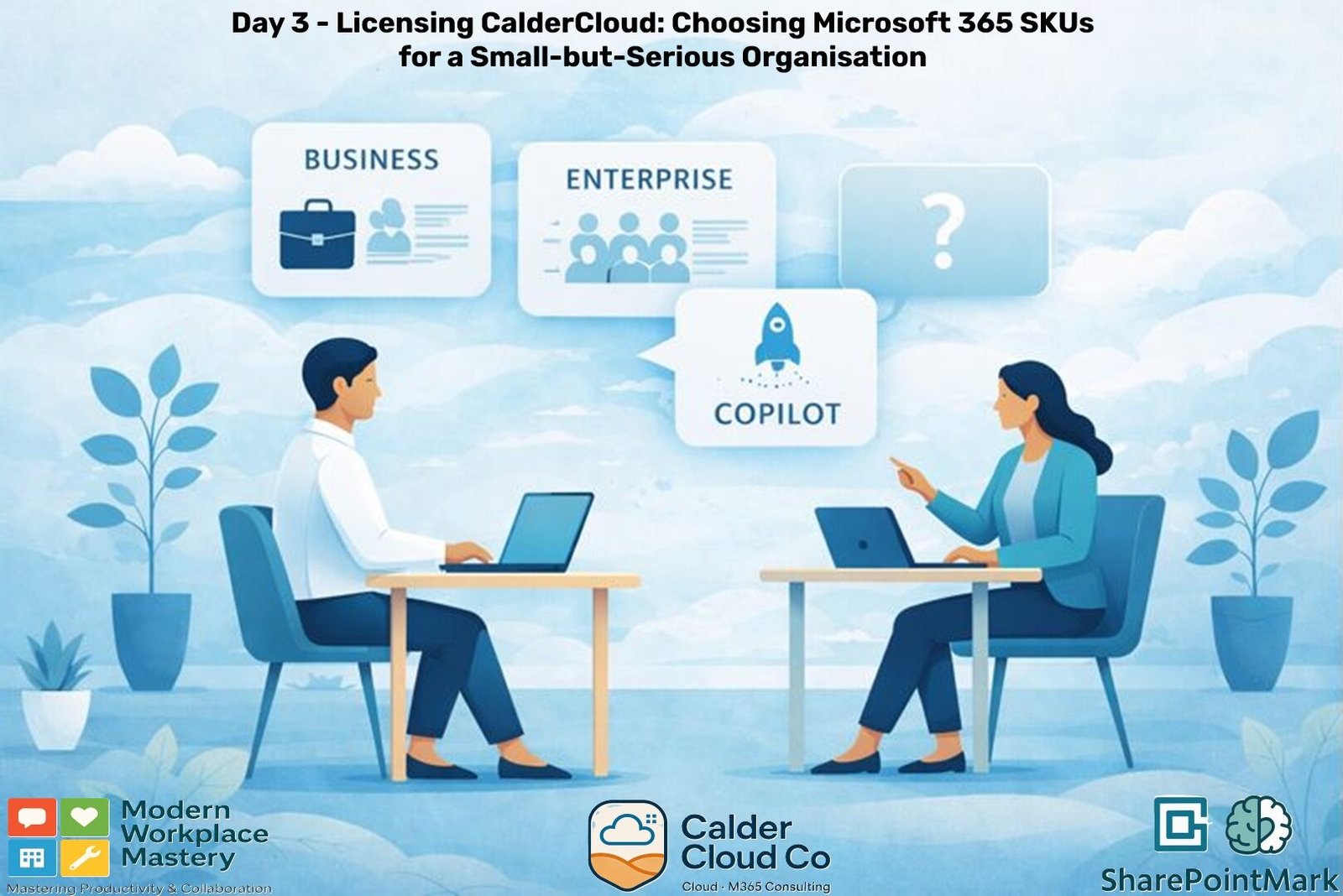
Microsoft licensing isn’t just “how do I get Word and Teams?”. It’s a set of application and services bundles that quietly decide how secure you can be, how easily you can manage devices, and how painful your support queue becomes six months from now.
As part of the Modern Workplace Mastery series and for CalderCloud, we’re starting with Microsoft 365 Business Premium because it’s one of the cleanest “all-rounder” bundles for a growing SME: productivity plus a meaningful security and management baseline (including Microsoft Entra ID P1 and Intune-class device management, alongside Defender protections).
But here’s the trap: most organisations buy licences like they’re picking snacks at a petrol station. One here, one there, a “quick add-on” for a single user… and suddenly nobody can answer the simplest question:
“What do we pay for — and what do we actually use?”
Table of Contents
TL;DR – Licensing CalderCloud without the fluff
Licensing is where strategy meets real life. If it’s inconsistent, people don’t experience “a different plan”; they experience blocked work, weird surprises, and constant “why can’t I do what they can do?” moments.
These slides summarise Day 3’s CalderCloud approach:
- pick a strong baseline,
- keep choices predictable, and
- operate licences day-to-day in a way that prevents sprawl and protects your support team’s sanity.
Pricing shown is a snapshot (December 15th 2025) and should be rechecked before budgeting (Microsoft has announced suite list-price changes effective 1 July 2026).
The aim is simple: you should be able to mirror this journey in your own tenant or dev environment, learning from CalderCloud’s choices without exposing any real organisation or real people, and without wading through yet another pile of shallow “how-to” snippets.
The decision in three lines
CalderCloud baseline: Microsoft 365 Business Premium as the default foundation. Fewer SKUs = fewer surprises = fewer support tickets. Exceptions exist, but they’re explicit and reviewable (not “special forever”).
The problem we’re actually solving
Licensing drives predictability, not just spend. Sprawl creates confusion; confusion becomes interruptions; interruptions become burnout. The goal: “same role, same tools, same expectations”.
CalderCloud’s decision rules
Start with secure-by-default capabilities, not “we’ll bolt it on later”. Keep the SKU set small: baseline + named exceptions. Re-check assumptions at renewal points and when needs change.
A simple understandable mental model
Base licence: what most people get. Add-ons: only when tied to an outcome and an owner. Commercial wrapper: where you buy + commitments/renewals you’re agreeing to.
Business plans compared (UK list price December 2025 snapshot)
Business Basic: £4.60 user/month (paid yearly); Basic (no Teams): £3.40. Business Standard: £9.60; Standard (no Teams): £7.10. Business Premium: £16.90; Premium (no Teams): £14.40.
What those plans mean in plain English
Basic: email, files, web/mobile apps; lighter desktop needs. Standard: desktop apps + collaboration for most knowledge workers. Premium: the “small-but-serious” baseline for stronger security/management posture.
The Teams packaging wrinkle
Many suites have “with Teams” and “no Teams” variants (pricing differs). Confirm what you’ve bought before you communicate rollout expectations. If you’re “no Teams”, treat Teams as a deliberate, separate decision.
Operating model: assign licences through groups
Default: group-based licensing (not one-by-one assignments). One baseline group per SKU (e.g., LIC-M365-Business-Premium). Exceptions are separate groups with obvious names (and a review date).
“Groups” means one thing here
In this post, “licensing groups” = Entra ID groups used for licence assignment (usually security groups). Don’t confuse with “Microsoft 365 Groups” created for Teams/SharePoint. Clear naming (LIC-*) reduces mistakes during onboarding and change.
Exception example: Viva Engage/Yammer
Default group: Premium with Viva Engage off; an exception group: Premium with Engage on. You don’t buy licences per group; you buy licences per unique user. Overlap rules matter: keep exceptions tight to avoid accidental “re-enables”.
Buying route reality: Direct vs Partner (CSP)
Direct vs CSP changes billing, support path, and flexibility. Commitments are operational risk: know your renewal dates and ownership. Many cancellation/reduction scenarios hinge on a seven-day window.
Add-ons that matter most in the first 90 days
Buy add-ons only when there’s a clear outcome you can measure. Track: who needs it, why, owner, review date (prevents “add-on creep”). Keep the baseline stable while the tenant stabilises.
Copilot: A programme, not a toggle
CalderCloud stance: no paid Copilot rollout in Day 1–90. Treat it as governance + adoption + data risk, not a button. Plan it as a programme with guardrails, training, and controls.
Checks, gotchas, and change radar
Monthly hygiene: seats vs users, group overlaps, errors/issues, Exceptions review. Pricing ages: UK prices above are a snapshot; partner pricing may differ. Microsoft has announced commercial suite pricing/packaging updates effective 1 July 2026 (plan renewal impact early).
The licensing problem we’re actually solving
What this post will cover
In plain English, we’ll compare the Business (Basic / Standard / Premium) set first, then explain where Enterprise (E3 / E5) and Education (A3 / A5) typically fit when an organisation outgrows Business licensing. We’ll also explain how add-ons (like Copilot for Microsoft 365) should be treated as a governed decision, not a surprise line item.
UK list prices we’ll reference (to set the scene, not to “sell”)
Accurate up to and including 15th December 2025:
- Business Basic: £4.60 user/month (paid yearly, VAT excl.).
- Business Standard: £9.60 user/month (paid yearly, VAT excl.).
- Business Premium: £16.90 user/month (paid yearly, VAT excl.).
- Copilot add-on (business): shown on Microsoft’s UK pricing page as £16.10 user/month (paid yearly, VAT excl.).
(Real-world note we’ll reinforce later: many organisations buy via a Microsoft partner (CSP), so invoice pricing and terms can differ, even when the underlying entitlements are the same.)
Who this is for
- End Users: “What do I get?” (apps, email, storage, meetings and what might not be included).
- IT Leads / Management: “What’s the sensible default licence mix for our size and risk profile?”
- Sysadmins / Tenant Admins: “What does this unlock in Entra, Intune, security controls, administration and what needs extra configuration?”
What you’ll leave with
A decision framework you can defend: baseline licence choice, upgrade triggers, and a simple way to explain licensing to non-technical stakeholders without lying or oversimplifying.
Here’s the actual reality: inconsistent licensing creates inconsistent experiences.
Two people doing the same job can end up with different apps, different prompts, and different “why doesn’t mine do that?” moments. That confusion is not harmless, it’s a productivity leak, a trust leak, and (over time) a morale leak.
From the management side, licensing is where cost and risk collide. A cheaper plan that forces messy workarounds can cost more in the long run:
- More support tickets,
- More shadow IT,
- More exceptions,
- More “just give them admin rights so it works”.
So the licensing problem we’re solving is alignment across four areas:
- Capability alignment: people get what they need to do their role (and you can explain it in one sentence without waffling).
- Security alignment: the security posture you intend is actually possible with the licences you’ve chosen.
- Operational alignment: the tenant can be managed at scale without constant manual fiddling; exactly why group-based licensing exists.
- Communication alignment: end users aren’t surprised by tool changes, and IT aren’t left doing apology tours for decisions they didn’t make.
Under the hood, licences aren’t a single on/off switch. Each product contains multiple service plans, and the admin portals expose that complexity (sometimes politely, sometimes like a horror film).
This is where “licence sprawl” usually begins:
- ad-hoc per-user assignment,
- inconsistent choices between admins,
- undocumented toggles, and
- six months later nobody can explain why two “similar” users get different outcomes.
The fix is not “be more careful”. The fix is designing a baseline and then automating consistency where possible. In CalderCloud terms, that means deliberately named licensing groups such as:
- LIC-M365-Business-Premium
- LIC-M365-Business-Standard
Onboarding becomes:
Add the new employee to the right licensing group → Microsoft applies the right licence automatically.
Licensing is the bit of Microsoft 365 that quietly decides how your organisation behaves.
People often think it’s just “who gets Word, Outlook and Teams”, but a Microsoft 365 licence is really a bundle of services (Exchange Online, SharePoint Online, Teams and more) that are either available or not, depending on what you’ve bought. When you assign a licence to a person, Microsoft 365 turns on the underlying service plans for that account and starts making those services available (or unavailable) accordingly.
That’s why licensing is one of those “boring admin topics” that suddenly becomes not very boring when a new starter can’t access what their manager promised, when a security control you thought you had is actually locked behind a different plan, or when your support desk becomes the emotional punchbag for inconsistent user experiences.
One important word, clearly defined: “groups”
Microsoft 365 uses the word group in lots of places, so for Day 3 i’ll be specific:
- Licensing group (what we mean in this post): an Entra ID security group created specifically to assign licences consistently (“group-based licensing”). Add a user to the group → they get the licence automatically. Remove them → it’s removed.
- Collaboration group (what most people mean day-to-day): a Microsoft 365 Group that powers shared assets like a mailbox/calendar, SharePoint site, Planner, and often a Team.
- Email broadcast group: a distribution group (mailing list) used mainly for sending messages to a set of people.
When you see “group” in the licensing section, read it as “licensing group (Entra security group)” unless we explicitly say otherwise.
Where CalderCloud fits in this Journey
CalderCloud is being set up like an SME: we want a baseline that gives strong productivity and a serious security/management foundation without immediately jumping to enterprise complexity. That’s why we’re starting from Microsoft 365 Business Premium as our initial “default bundle”, then working outward to understand when other plans and add-ons become sensible rather than panic-buying features one ticket at a time.
CalderCloud’s constraints and decision rules
This is where we stop treating licensing like a shopping list and start treating it like governance-by-design.
CalderCloud is being set up as if it’s an SME, even though it sits inside a larger organisation. That gives us freedom (we can be opinionated and tidy), but it also gives us constraints (we need decisions that scale, survive audits, and don’t fall apart the first time someone says “Can we just…?”).
The constraints (what we must design around)
Predictable experience beats “perfect optimisation”.
If five people doing the same job get five different app experiences, you don’t have a licence strategy; you have a slow-moving productivity incident.
We’re designing for “small now, not small forever”.
Microsoft’s Business plans are designed for organisations up to 300 users across the Business family (Basic/Standard/Premium), and Microsoft reserves the right to enforce that tenant limit.
Thus our model must support growth without a painful re-licensing panic at user 301.
Procurement might be direct or via a partner (CSP).
CalderCloud may buy direct from Microsoft or through a Cloud Solution Provider partner; either way, the important thing is that we document entitlements and commitments clearly because billing models and terms can vary by route.
“Licence assignment” has prerequisites.
Some services aren’t available in all locations, and Microsoft requires a user’s Usage location to be set before a licence can be assigned. That’s a real-world onboarding dependency, not trivia.
Features have their own licensing rules.
Even within Microsoft Entra, different features have different licensing requirements so we cannot assume “we bought Premium, therefore everything is available.” We verify per feature as we implement.
The decision rules (how we avoid licence sprawl)
Think of these as CalderCloud’s “licensing charter” – boring on purpose, because boring is stable.
Rule 1 – Start with roles, not products.
We define a small set of personas (e.g., “Consultant”, “Back Office”, “Contractor”, “Admin”) and decide what each persona must have to do their job safely and smoothly.
Rule 2 – Pick one default bundle, then only deviate with a reason.
For CalderCloud, the default starting point is Microsoft 365 Business Premium because it’s built for 1–300 users and adds meaningful security value over Business Standard (not just “more apps”).
Deviations (e.g., Business Basic for limited users) must be deliberate, documented, and reviewed.
Rule 3 – Fewer SKUs is a feature.
We aim to run with as few licence types as possible early on. Every extra SKU increases confusion, support load, and “why do they have that but I don’t?” friction.
Rule 4 – Licensing must be assignable by group, not by mood.
Licences are assigned using Entra ID group-based licensing, via clearly named licensing groups (e.g., LIC-M365-Business-Premium). That keeps onboarding consistent and auditable.
Rule 5 – Exceptions are real… but they’re still governed.
If a single person needs a different service plan state (for example, Viva Engage/Yammer enabled when it’s disabled for most), we treat that as an approved exception and implement it via an explicit exception mechanism (typically a separate licensing group with different options), not an undocumented one-off.
Rule 6 – Growth trigger:
When CalderCloud approaches the Business-family ceiling (practically, when planning headcount pushes past ~250 seats), we start modelling Enterprise licensing options for users so we don’t hit the 300 boundary as a surprise.
A simple mental model: base licence vs add-ons vs contracts
Licensing gets easier the moment you stop thinking in product names and start thinking in layers. CalderCloud will use this mental model everywhere we talk about “what do we get?” and “what do we buy next?”:
The 3-layer model (the “layer cake” you can actually explain)
Base licence (your foundation)
This is the main per-user plan you assign to people; for CalderCloud, we’re starting with Microsoft 365 Business Premium. Base licences are designed to bundle the everyday services (email, files, Teams, apps, identity features, etc.) into one predictable package.
Add-ons (bolt-ons that extend the base)
Add-ons are extra subscriptions layered on top of the base to unlock a specific capability (think “voice”, “advanced security”, “AI”, “archiving”, etc.).
In the Microsoft 365 admin centre, add-ons are managed like subscriptions: you can buy/remove seats, manage recurring billing, and so on.
Contract / commercial wrapper (how you buy and what you’re committed to)
This is the route and terms: buying direct from Microsoft vs via a partner (CSP), monthly vs annual commitments, renewal dates, and cancellation/refund rules. Those rules matter because they affect cost predictability and how painful a “we changed our mind” moment becomes.
Why this matters
Most licensing stress happens when someone mixes these layers up:
- “We bought the base plan so we must have feature X” (not always true).
- “We enabled the add-on, why isn’t it working?” (licence ≠ configuration).
- “We’ll just trial it for a month” (your contract term and cancellation window decide if that’s real).
So the CalderCloud rule is:
decide the base licence first, add add-ons only with a named business outcome, and treat the contract as part of governance, not procurement admin.
How it maps to what admins actually do
Under the hood, each base licence contains multiple applications / service plans. When we use group-based licensing, we’re assigning that base licence to a group and (optionally) toggling application / service plans at the group level. Microsoft is explicit that if you need different licence options for one user, you handle it by creating another group with the different options.
Also: before you can even assign licences, Microsoft requires the user’s usage location to be set; a small detail that becomes a big onboarding blocker if missed.
Notes!!
- A licensing group is a delivery mechanism, not a “bag of extra licences”.
- You only need to buy licences for the number of unique people who will be assigned that product.
If a person is in two groups that assign the same product with different options, they still use one licence, but they can inherit the most permissive set of enabled services.
Real-World Example
I have 10 users, I buy 10 business premium licenses.
I have two licensing groups – one with Viva Engage disabled (main) and all 10 users are part of that group.
The second group has Viva Engage enabled, so I add 3 users to this group and they are the only 3 that will see Viva Engage as an application.
The assignment of the base license to the groups does not consume any of the licences you purchase – only when users are added to the groups will the license usage count change.
Remember:
- Business base plans are built for up to 300 users, and Microsoft reserves the right to enforce that tenant limit across the Business family.
- When we talk about add-ons, we’ll treat them as separate subscriptions that must be tracked (who has it, why, and what
- success looks like).
CalderCloud baseline: Microsoft 365 Business Premium (why it’s the starter pack)
If CalderCloud were a house, Business Premium is the point where you stop buying nice furniture and start fitting locks on the doors.
It’s designed for small and medium-sized organisations (1–300 users) and is positioned as a combined productivity + security solution. In the UK list pricing, it’s shown as £16.90 per user/month (paid yearly, VAT excl.)
Why Business Premium, specifically?
Business Premium is a strong “starter pack” because it includes everything in Business Standard and adds security capabilities that change how you operate day-to-day, not just what apps you can open.
At a high level, Microsoft calls out the security add-ons included in Business Premium such as:
- Microsoft Defender for Business (device protection)
- Microsoft Defender for Office 365 Plan 1 (email and collaboration threat protection)
It also includes Microsoft Entra ID P1, which enables things like Conditional Access (policy-driven access controls). It also includes Microsoft Intune Plan 1 for endpoint and mobile device/application management.
That combination is why it’s a sensible default when you want your business to be “small but serious” rather than “small and hoping for the best”.
What Business Premium gives you | Why it matters | Who feels it most |
Desktop apps (Word/Excel/PowerPoint/Outlook) plus core cloud services | Consistent working, online + offline, fewer “I can’t open that” moments | End Users |
Entra ID P1 (incl. Conditional Access) | You can enforce safer sign-in patterns, not just “please use MFA” | IT Lead + Sysadmin |
Intune Plan 1 | You can manage devices properly (policies, compliance, app deployment) | Sysadmin |
Defender for Business + Defender for Office 365 P1 | Better protection against modern threats (device + email/collab) | Everyone (usually after the first incident) |
The “don’t get caught out” realities
It’s a foundation, not an autopilot.
Buying Business Premium doesn’t magically configure your tenant. Conditional Access, Intune policies, and Defender settings still need deliberate setup.
Business plans have a real ceiling.
Microsoft states business plans are designed for up to 300 users, and they reserve the right to enforce a tenant limit across the business family.
So Business Premium is a brilliant baseline until growth pushes you toward Enterprise planning.
“Teams / no Teams” variants exist.
You’ll see “no Teams” plan variants on UK pricing pages for some business subscriptions, so procurement conversations need to be explicit about whether Teams is included in what you’re buying.
This is why we start here: one default bundle that gives CalderCloud a stable productivity baseline and the right security/management building blocks before we start arguing about edge cases, add-ons, and “special snowflake” exceptions.
Business plans compared: Basic vs Standard vs Premium (UK list price snapshot)
Here’s the simplest way to think about Microsoft’s Business family:
The plans mainly differ on two levels – how you use the apps (web/mobile vs installable desktop) and how “grown-up” your security + device management baseline is.
UK list price snapshot (paid yearly, VAT excl.)
These are Microsoft’s UK list prices for the “with Teams” plans, plus the “no Teams” variants shown on the same pricing pages:
Plan | Best one-line description | UK price (with Teams) | UK price (no Teams) |
Business Basic | Web/mobile apps + core cloud services | £4.60 user/month | £3.40 user/month |
Business Standard | Desktop apps + core cloud services | £9.60 user/month | £7.10 user/month |
Business Premium | Standard + security & device management baseline | £16.90 user/month | £14.40 user/month |
Microsoft also shows monthly subscription options at higher per-user cost (useful for flexibility, less great for predictable budgeting).
What’s the real difference between the three?
The most visible change is desktop apps:
- Business Basic gives lightweight web and mobile versions of Office apps (you’re working in the browser/app).
- Business Standard and Business Premium include installable desktop applications you can use offline.
So the quick “business” decision tends to be:
- Basic for people who genuinely live in browser/mobile and mainly need email, meetings, and files.
- Standard for knowledge workers who need the full desktop apps, but you’re not ready (yet) to standardise endpoint management/security at scale.
- Premium when you want a baseline that supports “small but serious” operations; fewer security gaps, fewer unmanaged devices, fewer surprise IT problems later.
Why the “no Teams” variants matter
You’ll see “no Teams” versions listed on Microsoft’s UK pricing pages. That’s not trivia: it changes what you’re buying, what users expect, and what your rollout plan looks like.
Mixing Basic/Standard/Premium across a small tenant is easy to do and it’s also how you end up with “same job, different buttons, different protections, different device controls”. The best operational goal is to keep the number of plans low and make assignment consistent (usually via licensing groups), then introduce exceptions only when there’s a documented reason.
Next up, we’ll cover the moments when the Business family stops fitting; the 300-seat ceiling, feature / complexity triggers, and why some organisations move to Enterprise (E3/E5) or other plan families.
When a Business stops fitting: Enterprise (E3/E5), Education (A3/A5) and Nonprofit
Business plans (Basic / Standard / Premium) are a great runway for CalderCloud; fast to adopt, easy to explain, and (with Business Premium) “small but serious”. But there are clear moments where the shape of Business licensing stops matching the reality of the organisation.
The hard stop: the Business family ceiling
Microsoft states the Business family is designed for up to 300 users, and it reserves the right to enforce a tenant limit of 300 provisioned licences across Business plans.
So the first trigger is blunt and practical: if your growth forecast starts pushing towards that ceiling, you plan your Enterprise path early (calm planning beats cliff-edge licensing).
The “risk profile” trigger (what we actually mean)
When we say risk profile, we mean two things:
- Likelihood: how likely you are to face compromise or loss (phishing success, account takeover, unmanaged devices, accidental sharing).
- Impact: what it costs if it happens (downtime, client loss, regulatory exposure, contractual penalties, reputational damage).
Licensing matters because it decides which controls you’re allowed to use. Two organisations can have the same policy statement (“we protect data”, “we enforce secure access”), but very different outcomes depending on whether the plan includes the capabilities required.
End User Perspective
A healthier risk profile usually feels like fewer malicious emails landing, fewer surprise sign-in dramas, and less “why is my toolset different to theirs?” frustration.
Business Premium is a strong baseline because Microsoft includes security components like Defender for Business and Defender for Office 365 Plan 1, plus the identity and management building blocks that support safer ways of working.
IT Lead / Management Perspective
At some point, the conversation shifts from “tools” to assurance: can we prove controls exist, are enforced, and are monitored? E5 is positioned by Microsoft as bringing advanced security and compliance compared to E3, i.e., it’s built for organisations where risk and governance expectations are higher.
That’s why Enterprise upgrades are often driven by things like: regulated data, client assurance questionnaires, cyber insurance requirements, mergers/acquisitions, or simply operating at a scale where “best effort” stops being acceptable
Sysadmin / Tenant Admin Perspective
A good example is identity. Business Premium includes Entra ID P1 (enough for solid baseline access controls), but in Enterprise land you can move into P2-class capabilities like Identity Protection and Privileged Identity Management (PIM) (Microsoft lists these as part of EMS E5).
Similarly on the compliance side, Office 365 E5 includes capabilities like Communication Compliance, Information Barriers, Customer Lockbox, and Privileged Access Management value areas; tools you typically only need when the risk and governance bar is higher.
Also important: Microsoft’s licensing guidance is explicit that specific Entra features have specific licence requirements (so we don’t assume “we bought a suite so everything is included”).
The CalderCloud takeaway
We start with Business Premium because it’s a strong “small but serious” baseline.
We will consider Enterprise (E3/E5) when the organisation’s risk profile changes – not because we fancy shinier features, but because we need stronger assurance and controls that match the reality of our data, devices, people, and obligations.
The operational complexity trigger (even below 300 users)
Sometimes a Business “stops fitting” because you’re stacking too many bolt-ons and exceptions just to meet your baseline. At that point, Enterprise can be cleaner; not necessarily because it’s cheaper, but because it’s simpler to operate and easier to govern across a growing tenant.
Education and Nonprofit: valid routes, but eligibility-gated
- Education (A3/A5) sits in a separate eligibility-based family with its own entitlements.
- Nonprofit has specific offers/pricing for eligible organisations (including Business Premium nonprofit staff pricing in Microsoft’s published licensing posts).
For CalderCloud, we’ll park these for a future section in the series and keep today’s story anchored on the Business → Enterprise decision signals.
The Teams packaging wrinkle (and “no Teams” variants)
Ok, Ok – Yes I have mentioned this wrinkle above, but now for the details. This is the bit that catches people out because it looks like a small pricing detail… but it can change your rollout plan, your user expectations, and even your procurement conversations.
Microsoft now offers two flavours of several Microsoft 365 subscriptions in the UK:
- “With Teams” (Teams included in the suite)
- “No Teams” (Teams not included in the suite, at a lower price)
You can see the “no Teams” pricing clearly on Microsoft’s UK pages:
- Business Basic (no Teams) £3.40 user/month (paid yearly, VAT excl.)
- Business Standard (no Teams) £7.10 user/month
- Business Premium (no Teams) £14.40 user/month
Why does this exist at all?
In simple terms: it’s a packaging change driven by competition / regulatory pressure around bundling Teams with productivity suites. The EU accepted commitments in 2025 that included offering suites without Teams at reduced prices.
What it means in practice
If your organisation buys a “no Teams” suite, people may still have Word/Outlook/OneDrive etc., but they won’t automatically have Teams as part of that bundle. That can create instant confusion (“Why can’t I join meetings the same way?”) unless you communicate it early and clearly.
This is a procurement clarity problem as much as an IT problem. Your invoices, renewals, and partner quotes need to explicitly say with Teams vs no Teams, otherwise you can end up unintentionally shifting collaboration tooling mid-year.
If you want Teams in a “no Teams” world, you typically buy Teams separately. For small businesses, Microsoft positions Teams Essentials as a standalone option (UK pricing shows £3.10 user/month, paid yearly, VAT excl.). That creates a very real decision: Do we want Teams as our primary collaboration/meeting platform, or are we intentionally choosing something else?
Treat Teams packaging as a baseline dependency for any steps that assume Teams exists (meetings policy, Teams apps, Teams governance, voice/Teams Phone planning, etc.). Make it a checklist item: confirm what was actually purchased before you design “Teams-first” processes.
CalderCloud stance (for this post): we’ll call out the packaging explicitly in the “what you get” tables, so readers don’t accidentally assume Teams is always included just because “it used to be”.
Add-ons that matter most in the first 90 days (optional and My Opinion)
Business Premium is a strong baseline, but the first 90 days is where organisations either stay tidy… or start “just adding stuff” until nobody remembers what’s included, what’s extra, and what’s actually being used.
So CalderCloud’s rule is simple:
We only add an add-on when it buys a specific outcome we can name (and measure), not because it looks shiny in a comparison table.
The short list worth considering early
Voice and calling in Teams (when you’re replacing a phone system)
If CalderCloud needs Teams to be the phone system, Teams Phone is usually the first real add-on conversation. Microsoft lists Teams Phone Standard at £7.70 user/month (paid yearly, VAT excl.), with variants that include calling (for example domestic calling) at higher prices.
Better email & collaboration threat protection (when phishing is already biting)
Business Premium includes strong security building blocks, but if you want more advanced investigation/automation and attack simulation training, Microsoft prices Defender for Office 365 Plan 2 at £3.80 user/month (paid yearly, VAT excl.) (Plan 1 is £1.54).
Advanced endpoint management (when “managed devices” becomes mission critical)
Business Premium includes Intune Plan 1, but if CalderCloud quickly needs more advanced endpoint capabilities, Microsoft prices Intune Suite at £7.70 user/month (paid yearly, VAT excl.), and calls it an add-on to Intune Plan 1.
Identity step-up (when privileged access and risk detection must be stronger)
Business Premium includes Entra ID P1. If the organisation’s risk profile increases (or you need more advanced identity protection/governance), Microsoft prices Entra ID P2 at £6.90 user/month and Entra Suite at £9.20 user/month, and notes Entra Suite requires P1 (which Business Premium already includes).
Meetings “quality of life” upgrades (when meetings are core to service delivery)
If CalderCloud runs lots of customer meetings/webinars or needs more advanced meeting features, Microsoft lists Teams Premium at £7.70 user/month (paid yearly, VAT excl.).
Add-ons we deliberately don’t rush in the first 90 days
We’ll signpost them but not pile them on while the baseline is bedding in:
- Copilot (we cover it in its own subsection immediately after this, because it deserves governance, not impulse-buying).
Copilot: treat it like a programme, not a toggle
Copilot is not a “tick the box and everyone gets smarter” feature. It’s closer to hiring a new colleague who can “read very fast” and “write very fast…” but only using the information your organisation already exposes to employees.
Microsoft is explicit that Microsoft 365 Copilot only surfaces organisational data a user already has at least view (reader) permission to. That’s brilliant when permissions are tidy, and terrifying when you’ve got years of “everyone can see everything” permission sprawl.
What you’re buying (and what it costs in the UK)
For licensing clarity, Copilot sits as an add-on on top of a qualifying Microsoft 365 base licence.
- Microsoft 365 Copilot Business (for up to 300 users) is listed as £13.80 user/month, paid yearly (VAT excl.), with Microsoft also showing the previous “originally starting from £16.10”.
- It requires a separate qualifying Microsoft 365 plan.
CalderCloud position (Day 1–90)
We are not purchasing or rolling out paid Microsoft 365 Copilot in the first 90 days. The priority is foundations: identity, device management, and information governance. AI doesn’t create chaos out of thin air; it amplifies what’s already there.
That doesn’t mean Copilot and “free AI chat” disappears as a risk.
The awkward reality: users will try the “free” Copilot / Copilot Chat and paste work data into prompts – “free” Copilot is now built into all Windows 11 devices as standard.
So CalderCloud’s first-90-day goal isn’t “ban curiosity”. It’s: reduce data leakage risk with technical guardrails and clear guidance.
End Users
Simple rule: don’t paste confidential/customer/HR/financial data into any AI chat unless it’s explicitly approved for work use.
IT Lead / Management
We treat Copilot as a later programme with readiness criteria (permissions, labels, DLP, comms, training). Until then, we make “approved vs not approved” unambiguous.
Sysadmin / Tenant Admin
Practical guardrails we can apply early
- Manage Copilot Chat availability/pinning in Microsoft 365 apps: in the Microsoft 365 admin centre (including the ability to not pin Copilot Chat and reduce/limit availability in key apps).
- Browser controls (Edge): you can disable the Edge sidebar (which also impacts other sidebar apps), and you can control whether Copilot can access Edge page context.
- Purview DLP for Copilot and Copilot Chat: Microsoft provides a dedicated DLP policy location to restrict processing of prompts containing sensitive info types and to protect labelled content in Copilot experiences.
- Tenant restrictions v2 (advanced): for organisations that need it, Entra tenant restrictions can help prevent sign-in to external tenants/identities from managed networks/devices (useful for reducing “work data in personal contexts” pathways).
When we do roll out Copilot later, it’s a programme
When CalderCloud is ready, we pilot in cohorts, clean up the high-traffic SharePoint/Teams permissions first, define success measures, and train in a psychologically safe way (share wins and failures without shame). Microsoft’s privacy guidance also states prompts/responses and Graph-accessed data aren’t used to train foundation models, which helps, but doesn’t replace governance.
- Start with a pilot cohort (10–30 people) across a few roles, not “all managers”.
- Do a permissions sanity pass on the top collaboration sites (SharePoint/Teams) they’ll rely on most. (This is usually where the real work is.)
- Define success measures: time saved on doc drafting, meeting follow-ups, email triage, knowledge discovery etc. and track support impact (tickets, confusion, resistance).
- Train in a psychologically safe way:
“try → share wins → share failures without shame”.AI rollouts can trigger anxiety (“Will this replace me?” / “Am I being judged?”). Your programme should reduce that, not accidentally inflame it.
- Scale by role: expand to the next cohort only when your first cohort’s hygiene + habits are stable.
Operating licences day-to-day: assignment, group-based licensing, and dynamic groups
Licensing only stays “simple” if the day-to-day operation is simple. The moment you’re assigning licences user-by-user under pressure, you’re basically rolling dice with consistency.
So CalderCloud’s operating model is: standardise licence assignment through “licensing groups” in Microsoft Entra ID, then use dynamic membership where it genuinely reduces admin effort (and doesn’t create mysterious, self-inflicted outages).
The three ways licences get assigned (and why we prefer one)
- Direct assignment (per user): quick for 1–2 people, messy at scale.
- Group-based licensing: consistent and auditable; when someone joins a group, they inherit the same entitlements as everyone else. Microsoft describes this as assigning one or more product licences to a group; members automatically get the licence and lose it when they leave.
- Automation (scripts/Graph): powerful, but it belongs with Sysadmins and only after we’ve nailed the fundamentals. (We’ll use it later; we don’t start there.)
CalderCloud default: Group-based licensing.
What “group-based licensing” actually requires (important, and often missed)
Microsoft is explicit that group-based licensing has licensing requirements: each user who benefits must have an eligible licence such as Microsoft Entra ID P1 or a suite that includes it (Microsoft lists options including Microsoft 365 Business Premium). Also, you must have enough licences for each unique member of licensed groups (groups don’t “consume” licences; people do). If a user gets the same licence from multiple sources, it’s consumed only once.
The CalderCloud pattern (naming + consistency)
We keep it boring on purpose:
- LIC-M365-Business-Premium
- LIC-M365-Business-Standard
- Exception groups when needed (rare, documented), e.g.
- LIC-M365-Business-Premium-EngageOn
Microsoft also notes you can assign a product licence to a group and disable specific service plans (they literally use Yammer as the example of something you might temporarily disable).
The “don’t trip over your own feet” rules
- Usage location matters. Some services aren’t available everywhere; before a licence can be assigned you must set a user’s location. In group-based licensing, users without a set location can inherit the tenant’s location, and Microsoft recommends setting location as part of user creation especially if you have users in multiple locations.
- Nested groups don’t work the way on-prem AD brains expect. Group-based licensing doesn’t support nested groups for assignment; only the first-level members get licensed.
- Expect small delays and occasional errors. Microsoft notes licence changes are typically effective within minutes, but you should still check status and resolve issues like “not enough licences” or conflicting assignments in the admin centre.
Dynamic groups: when membership updates itself
Dynamic groups are where you stop thinking “add Mark to the group” and start thinking “Mark matches the rule, so he belongs”. It’s brilliant when your user attributes are reliable (department, job title, location, employee type). It’s a disaster when those fields are messy.
Microsoft’s rule-based dynamic membership requires Microsoft Entra ID P1 (or Intune for Education) for each unique user who’s a member of one or more dynamic membership groups.
CalderCloud guidance:
- Use dynamic groups for obvious, stable scenarios (e.g., “All employees”, “All contractors”, “All UK users”), if the attributes are governed.
- Keep licensing groups simple. If dynamic rules make membership unpredictable, keep them manual and controlled.
My CalderCloud takeaway: licences are a service entitlement, not a vibe. We assign them through clearly named Entra licensing groups, use dynamic membership only where the data is clean, and we treat exceptions as explicit, documented “this is why” decisions not invisible one-offs.
Checks, gotchas, and alternatives (aka “how to avoid licence sprawl”)
Licence sprawl isn’t just a cost problem; it’s a confidence problem. When people can’t predict what a colleague can do (or why something “randomly” vanished), trust in IT takes a dent, and your support queue turns into an emotional sponge.
CalderCloud’s aim is boring (in the best way):
A few SKUs, clear groups, documented exceptions, and a regular review cadence.
Checks that keep you sane (weekly/monthly hygiene)
- Seat reality check: In Microsoft 365 admin centre, go to Billing > Licences, select a product, and review which users and groups are consuming seats.
- Business-family ceiling check: If you’re using Business plans, keep one eye on the “300 provisioned licences across the Business family” limit.
- Errors & issues check: Look for common problems: not enough licences, conflicting service plans, and missing dependencies (all called out in Microsoft’s group licensing troubleshooting guidance).
- Usage location sanity: If users are in different countries, make “Usage location set correctly” part of onboarding. Microsoft notes it’s required before licence assignment, and users without a set location can inherit the directory’s location (which can be wrong in multi-geo orgs).
Gotchas that cause the most damage (and how to avoid them)
“Nested groups will save us!” (they won’t, for licensing).
Group-based licensing doesn’t support nested groups for licence assignment; only first-level user members are processed.
Overlapping groups can quietly re-enable things you meant to disable.
Microsoft explicitly says a user can be in multiple licensed groups; overlapping licences for the same product result in all enabled services being applied, while still consuming only one licence for that product.
Practical outcome: if any assignment enables a service (e.g., Viva Engage), the user can end up with it enabled even if your “default” group disables it.
You can’t “just tweak it for one person” when the licence is inherited.
If a user inherits a licence from a group, Microsoft notes you can’t directly remove or modify that inherited licence at the user level. If someone needs different options, you create another group with the right options and add them to it.
Dynamic groups are powerful… and a bit sharp.
Microsoft warns that changing a dynamic membership rule triggers re-evaluation; users who drop out can lose licences during processing, potentially causing service disruption (and, in some scenarios, data impact). Test changes on a small group first.
Dynamic group feature licensing also requires Entra ID P1 (or equivalent) coverage for users in dynamic groups.
New services can appear, and they’re enabled by default.
Microsoft states that when a new service is added to a product, it’s enabled by default in groups assigning that product meaning you need a process to review and (if needed) disable it in the relevant groups.
Planned Microsoft 365 price changes from 1 July 2026
Microsoft has announced global list price updates effective 1 July 2026 (with local market adjustments). In Microsoft’s published list-price table, Business Basic and Business Standard increase, while Business Premium and Office 365 E1 are shown as unchanged (at the time of writing – December 2025); several Enterprise and Frontline plans also increase. The table shown by Microsoft is for “with Teams” SKUs, and “no Teams” suites will see an equivalent increase.
Action for IT Leads: re-check budgets ahead of renewals, especially if you’re on Business Basic/Standard or Frontline; ask your CSP/partner to model the renewal impact and capture the new costs in your licence decisions.
Alternatives (when the “ideal” model isn’t the right tool)
Direct assignment (use sparingly):
Good for temporary exceptions, emergency access, or very small tenants. Microsoft documents direct assignment and per-user “Apps and services” toggles in the admin centre.
My CalderCloud rule: don’t build a strategy out of exceptions. If you keep doing it, it’s a signal your group model needs tightening.
Two-group exception pattern (preferred):
- Default licence group (e.g., LIC-M365-Business-Premium) plus a
- Clearly named exception group (e.g., LIC-M365-Business-Premium-EngageOn).
This aligns with Microsoft’s documented “create another group for different licence options” approach.
The mental health impact: reducing confusion, decision fatigue, and support burnout
Licensing looks like a finance/IT admin topic on paper. In real life, it’s an experience design topic.
When licensing is inconsistent, people don’t experience “a different SKU”. They experience:
- blocked work,
- unclear expectations, and a
- steady drip of micro-frustrations the kind that quietly drains energy and confidence over weeks, not minutes.
Predictability is a wellbeing feature
End users rarely care what plan they’re on. They care about three things:
- Can I do my job today?
- Can I collaborate without embarrassment? (joining meetings, sharing files, opening documents)
- Can I trust that tools won’t randomly change?
Licence sprawl breaks all three. Two people in the same role end up with different buttons, different prompts, different “available features”, and suddenly the workplace feels non-consistent. That leads to hesitation (“Should I even try this?”), workarounds (shadow IT), and avoidable anxiety especially for people who already feel stretched.
The CalderCloud antidote: one clear baseline, a small number of licence types, and a plain-English “what you get” guide that matches reality.
Decision fatigue is real (and expensive)
Every “quick exception” creates future work:
- More decisions, more approvals, more explaining.
- More edge cases that only exist because the model isn’t stable.
- More support tickets that aren’t technical problems; they’re expectation problems.
That’s decision fatigue in action: the team spends time re-deciding the same thing in slightly different forms. Over time, it becomes a burnout engine: constant low-grade urgency, constant “just sort it”, constant interruptions.
The CalderCloud antidote: treat licensing like a product with rules:
- Default plan + defined personas
- Named exceptions with an expiry/review date
- A monthly/quarterly “licensing hygiene” review (15–30 minutes) to catch drift before it becomes chaos
Protect the support team from emotional labour overload
Support burnout isn’t just about volume, it’s about ambiguity. If licensing is messy, every ticket becomes a detective story:
- “Are they entitled to this feature?”
- “Which group gave them which service plan?”
- “Why is it enabled for them but disabled for others?”
- “Is this a licence issue or a configuration issue?”
That’s cognitively expensive work, and it turns routine onboarding into repeated firefighting.
The CalderCloud antidote (operational):
- Licensing groups with clear naming (LIC-*) and a short “purpose” description
- A simple exception pattern (and very few exceptions)
- A tiny internal register: “who has what add-on and why” (owner + review date)
- A standard onboarding sequence: usage location → group membership → verification check
When licensing is done well, it’s quietly boring. And boring is underrated. Boring is what lets people focus, trust the platform, and get their work done without feeling like the ground is shifting under them.
Outcomes, risks and where to go next
What you now have
By the end of Day 3, CalderCloud has a licensing approach you can explain, run, and defend:
A clear baseline decision: start with Microsoft 365 Business Premium (including the “with Teams” vs “no Teams” awareness).
A simple mental model you can reuse: base licence → add-ons → commercial wrapper/commitments.
A practical operating model for consistency: group-based licensing (licences are assigned to Entra groups; users inherit entitlements through membership).
A set of decisions you can keep using:
Business plan comparison table (UK pricing + Teams/no-Teams)
“Licensing Charter” decision card (personas, defaults, exceptions, growth triggers)
Licensing group naming/taxonomy sheet (LIC-* + exception pattern)
90-day add-on checklist
- Monthly licence hygiene checklist
Risks and rollbacks
Common ways licensing goes sideways (and how we unwind it without drama):
- Not enough seats → assignments error out.
Fix: buy/add seats, then re-check group assignment status and errors. - Group overlap re-enables services you meant to disable (exception groups, test groups).
Fix: simplify membership, document the exception pattern, and keep one “default” group per base plan. - Dynamic group rule changes accidentally remove licences.
Fix: test rules, stage changes, and monitor assignment errors/audit signals. - Bought the wrong “with Teams / no Teams” variant.
Fix: confirm subscription names in billing before rollout comms and training. - Commercial commitment surprise (seat reductions/cancellation windows).
Fix: treat renewal dates and cancellation windows as governance, not trivia. - Approaching the Business-family ceiling: plan the Enterprise path early (Microsoft notes the 300 provisioned licences across Business plans position).
- Planned Prices change; July 2026 update announced; verify at license renewal.
Rollback principle: when something’s wrong, roll back group membership first (remove user from the mis-targeted licensing group), then reapply the correct baseline via the right group, then confirm the user’s effective entitlements in the admin centre.
Sources and last verified
Microsoft 365 Business plans & pricing (UK) + Business family 300-seat position.
Microsoft 365 Business Premium (UK) pricing incl. “no Teams” variant.
Microsoft Entra ID: group-based licensing (concepts + behaviour).
Microsoft Entra ID: troubleshoot/resolve group licence assignment problems.
Microsoft Learn: cancelling subscriptions in Microsoft 365 admin centre (seven-day window).
Partner Center (NCE): seven-day cancellation / seat reduction policy details.
What happens next in the Modern Workplace Mastery series
- Confirm CalderCloud’s Business Premium variant (“with Teams” or “no Teams”).
- Create the baseline licensing groups (e.g., LIC-M365-Business-Premium) and implement group-based licensing.
- Define your exception rules (rare, documented, review-dated).
- Schedule a monthly licence hygiene review so licensing stays boring and boring is what keeps people calm, productive, and supported.
Coming Next:
- Day 4 – Baseline Tenant Security & Defaults
- Day 5 – Tenant Branding, Help & User-Facing Touchpoints
- And onwards into identity and devices in Week 2 of the Modern Workplace Mastery series
🧭 Follow the full journey: You’re welcome to follow along quietly, Questions, disagreements and “we tried this and it hurt” stories are all part of the point. You can catch each post right here and can follow along on LinkedIn, Instagram, or Bluesky.
Thank you for joining me on this journey.
🔗 SharePointMark – Modern Workplace Mastery
#ModernWorkplace #ModernWorkplaceMastery #MentalHealthAtWork #SharePointMark