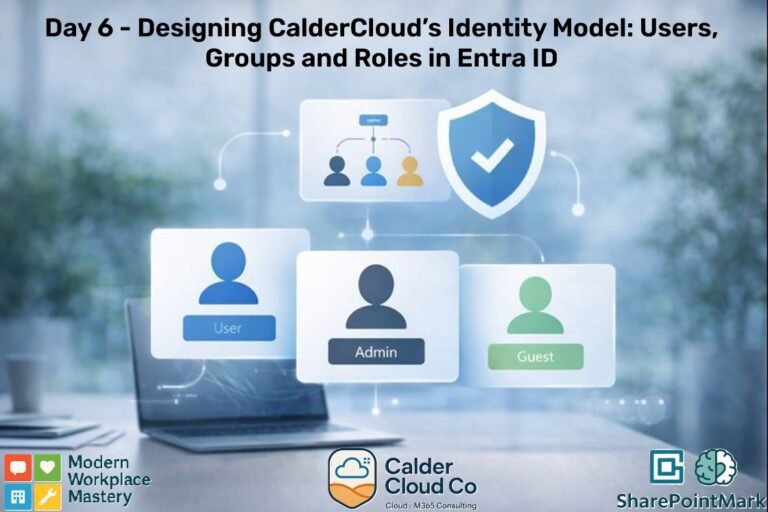
Modern Workplace Mastery: Day 6 – Identity Model – Users, Groups and Roles
In this Modern Workplace Mastery post, CalderCloud stops treating identity as “admin plumbing” and designs it as the foundation for everything that follows: access, support, onboarding, and security that doesn’t wreck productivity. You’ll leave with a practical model for accounts, groups and roles that you can actually run in the real world.
This is the start of Week 2, so it assumes Week 1 Tenant Foundations already exist (admin accounts, break-glass accounts, initial tenant configuration etc.) It deepens those choices rather than rewriting them.
Table of Contents
TL;DR – Modern Workplace Mastery - Designing CalderCloud’s Identity Model
Identity work in Microsoft 365 rarely fails because the technology is missing. It fails because the tenant never agrees what “a person”, “a team”, and “an admin” actually mean in practice – so access becomes a string of exceptions, and security becomes a blunt instrument.
This post takes CalderCloud from “we have a tenant” to “we have a tenant we can run”. The goal isn’t to build something fancy. It’s to build something that still works when a new starter arrives tomorrow, a contractor needs access today, and your support queue is already busy.
The aim is simple: you should be able to mirror this journey in your own tenant or dev environment, learning from CalderCloud’s choices without exposing any real organisation or real people, and without wading through yet another pile of shallow “how-to” snippets.
The point of an identity model
• Security controls only work properly when they target the right people and groups. • Without an identity model you get ad-hoc access, role sprawl, and “security” that frustrates staff. • CalderCloud’s model focuses on being consistent, auditable, and survivable under pressure.
The three building blocks: Users, Groups, Roles
• Users: clear account types (employees, contractors, guests) and consistent attributes. • Groups: the main engine for access; avoid granting permissions to individuals. • Roles: admin capability; delegate deliberately and avoid “Global Admin by convenience”.
CalderCloud’s minimum viable group model
• Security groups: permissions/access control (department and role access). • Microsoft 365 groups: collaboration workspaces (projects/teams). • Exception groups: “loud” and time-bounded with owner + reason + review date.
Admin roles done safely (without slowing work)
• Use the narrowest Entra role that fits the task. • Where possible, assign roles to role-assignable groups (Entra ID P1/P2 License) rather than individuals. • Use PIM (often Entra ID P2 License) for just-in-time elevation. • Keep break-glass accounts truly separate.
Access requests that don’t turn into Teams DMs
• Good identity reduces stress: colleagues know how to request access, and owners know how to approve. • Options include group join requests (self-service), My Access access packages, and app access requests. • The rule: requests go to an owner/workflow, not to a stressed admin’s inbox.
Checks before moving to Post 2 (MFA + Conditional Access)
• Group ownership and naming are consistent and searchable. • Privileged roles aren’t scattered across individuals; admin access is reviewable. • Exceptions are visible and expiring; break-glass is protected and tested. • You can explain onboarding and access requests in under a minute without improvising.
What you’ve achieved and what comes next
• CalderCloud now has a repeatable identity blueprint that makes security targeted and fair. • Next up: Day 7 - Implement MFA + Conditional Access based on clean populations (admins, staff, guests, contractors).
Why CalderCloud needs an identity model before “doing security”
Security controls in Microsoft 365 (MFA, Conditional Access, sensitivity labels, device compliance, sharing restrictions) only work properly when they’re aimed at the right people, in the right groups, with the right roles. Without an identity model, “security” becomes a patchwork of emergency fixes, exceptions, and overly-broad admin access.
The real-world pain (what happens when identity is vague)
In most tenants, the first warning sign isn’t a breach – it’s friction:
- People can’t access what they need on day one, so work starts with a string of “can you just add me?” messages.
- IT ends up granting access ad-hoc, then forgets why it was granted, and nobody owns the clean-up.
- Admin permissions slowly spread “temporarily”, until you’ve got a few accidental superheroes (and a lot of risk).
- Guests, employees and shared accounts blur together, and audit trails become a detective novel written with frustration and tears.
This creates a nasty loop: the more chaotic access becomes, the more urgent security feels, and the more likely you are to apply heavy controls that annoy users and overload support. The tenant becomes “secure-ish” but brittle; brittle systems are the ones that snap at 4:55pm on a Friday.
What “good” looks like for a small, real IT team
For CalderCloud, a good identity model isn’t a 60-page masterpiece. It’s a few clear rules that scale:
- People are consistent:
People accounts are created the same way, named the same way, and carry the attributes we’ll actually use later (department, role, location). That makes automation possible and reduces guesswork. - Access is group-led, not person-led:
Most permissions should be granted to groups, not individual users. Users move roles, join projects, or leave; groups are the stable structure that keeps a tenant sane. - Admin power is deliberate:
Roles are assigned for a reason, for a minimum scope, and reviewed. “Global Admin because it’s easier” is how organisations quietly build their own incident. - Ownership is explicit:
Groups and role assignments have named owners. If nobody owns something, it becomes everyone’s problem and everyone’s problems become nobody’s priority.
Continuity with week 1 (we already laid the foundations)
In Week 1, we did the minimum viable identity setup needed to create and operate the tenant safely – including admin accounts and the concept of break-glass account access, plus early tenant hygiene and branding.
Week 2 doesn’t replace that. It builds on it and formalises it:
- Week 1: “We have the right starter accounts and can run the tenant.”
- Week 2: “We can scale access safely without drowning in exceptions.”
Think of it like building the frame of a house (Week 1), then putting in the doors, locks, and keys that match how teams actually work day to day (Week 2).
Why this comes before MFA and Conditional Access (Day 7 Post)
MFA and Conditional Access are powerful, but they’re also blunt if you don’t know who you’re targeting.
An identity model lets you say things like:
- “These admin roles must use stronger authentication and tighter access rules.”
- “These employees only need access to specific apps and can be time-bounded.”
- “These departments have predictable access needs and can be managed through groups.”
So this post is the “map”. Day 7 is the “rules of the road”. If you try to write rules without a map, you get roadblocks, detours, and a support queue that quietly eats everyone’s wellbeing.
Identity design principles for CalderCloud (the rules we won’t break)
An identity model only stays useful if it has a few “hard rails” – rules that stop the tenant drifting into exception-land.
CalderCloud doesn’t need perfect. It needs consistent, auditable, and survivable under pressure (because identity work always gets tested on the worst day, not the best one).
Least privilege without turning IT into a bottleneck
Least privilege means people get the access they need to do their job and no more. The trap is implementing it in a way that makes IT the gatekeeper for every small change. CalderCloud’s approach is:
- Use groups to grant access, not one-off user assignments.
- Prefer role-based access (job function) over person-based access (“just add Mark”).
- Time-bound elevated access where possible (especially for admin work), rather than permanent “because it might be needed”.
The goal isn’t to slow people down. It’s to prevent the common pattern where a temporary fix becomes a permanent risk and the only record of why it happened is a Teams message from three months ago.
Simplicity beats cleverness (future-you is a stakeholder)
Identity models fail when they become “beautiful” in theory and exhausting in practice. CalderCloud is biased towards a model that a tired admin can understand at 08:30 on a Monday.
That means:
- Minimum viable structure first, then iterate.
- Fewer group types, fewer naming patterns, fewer exceptions.
- No magical logic that only one person understands (dynamic rules are brilliant when they’re clear, and brutal when they’re not).
If the model needs a 20-minute explanation every time a new admin joins, it’s too clever.
Naming, ownership, and “who approves what”
Naming sounds boring until you’ve got 300 groups and no one can tell which one controls what. CalderCloud will standardise:
- Clear, predictable names that tell you the purpose at a glance (department / function / scope).
- Two owners per group (where practical): one IT owner for governance and one business manager for legitimacy.
- A default approval path for access changes, so requests don’t end up in private DMs.
This is where governance stops being a document and becomes a habit. If nobody owns a group, it becomes abandoned. If nobody approves access, it becomes accidental. Either way, the support queue pays the price.
Make exceptions visible (and slightly painful)
Every tenant has exceptions; executives, edge-case roles, short-notice contractors, urgent projects. The mistake is letting exceptions happen silently. CalderCloud treats exceptions like this:
- They must have an owner
- They must have a reason recorded (even if brief)
- They must have a review date (so “temporary” doesn’t mean “forever”)
Not because I love process, but because invisible exceptions are how identity sprawl happens, and identity sprawl is the hidden root cause of messy Conditional Access (or worse – breaches) later.
Design for joiners, movers, and leavers – not just day one
An identity model isn’t judged by onboarding alone. It’s judged by what happens when:
- someone changes department
- someone takes on a temporary responsibility
- someone leaves under awkward circumstances
So CalderCloud has designed the model to support:
- fast onboarding (assign group memberships based on role/department)
- clean role changes (remove old access as part of the move, not “later”)
- reliable offboarding (access removed predictably, audit trail intact)
That’s not bureaucracy. That’s operational resilience.
Users: turning people into accounts without creating chaos
Before we start building groups and delegating roles, we need to be clear about the types of accounts CalderCloud will use; and just as importantly, which ones will be avoided. In week 1, we created the minimum set of admin and safety accounts to get the tenant live. Week 2 is where we turn that starter setup into a repeatable identity pattern that scales as the business grows.
Account types CalderCloud will support (and when not to use each)
CalderCloud will keep a small, explicit catalogue of account types:
- Employee accounts – the default “Members”
Used for permanent staff. These accounts should be the “normal case”: licensed appropriately, added to role/department groups, and protected by standard security controls. - Contractor accounts – default to Guest, promote to Member only when necessary
Short-term contributors often don’t need full internal identity privileges. Where possible, keep them as a Guest (B2B) with narrowly-scoped access. If a contractor genuinely needs “like-an-employee” access (apps, device enrolment, or line-of-business systems), treat that as a named exception with an owner and review date. - Guest accounts (B2B) – for external collaboration
Guests are for partners, suppliers, and clients collaborating in Teams/SharePoint. Keep their access project-scoped, reviewed, and owned by a business sponsor; not “floating around forever”. - Shared access – avoid shared user accounts; use shared mailboxes instead
If multiple colleagues need a shared inbox (e.g., “sales@”, “support@”), use a shared mailbox with delegated access. Shared user accounts kill accountability and create audit blind spots. - Service access – preferably use app identities over “service user accounts”
For automation and integrations, use app registrations / service principals (certificate-based auth where possible). Individual-style service accounts tend to become permanent, over-privileged, and poorly monitored.
Week 1 continuity note: the break-glass and admin identities we introduced remain valid – they simply become part of this catalogue with stricter governance and clearer separation from day-to-day admin work.
The minimum attributes to standardise early (so groups and policies can work)
If we want group strategy (and later Conditional Access) to be clean, we must make user data consistent. CalderCloud will standardise a minimum set of user account attributes that we plan to use, such as:
- Department (drives departmental access groups)
- Job title / role family (helps role-based patterns and exceptions)
- Location / office (useful for site-based access and comms)
- Manager (useful for approvals and lifecycle checks)
- Usage location (licensing and compliance behaviours depend on it)
The goal isn’t “perfect HR data”. It’s consistent identity metadata so we can automate membership, reduce mistakes, and avoid IT becoming the routing layer for every access request.
Lifecycle intent: join → move → leave (identity consequences, not HR theory)
Identity design succeeds or fails on “movers” and “leavers”, not onboarding day.
- Joiners: a new starter should get baseline access through role/department groups, not a string of one-off grants.
- Movers: role changes must remove old access as part of the move otherwise people accumulate permissions like stickers on a laptop.
- Leavers: access removal must be predictable and auditable, with mailbox/data handling aligned to the business need.
This is also where wellbeing quietly shows up: when identity is messy, access becomes stressful (“I can’t do my job”), support becomes reactive, and IT absorbs the pressure. A clean account model reduces those avoidable “panic pings” and keeps security from feeling like punishment.
Groups: the backbone of access (and where most tenants go wrong)
If user accounts are the “who”, then groups are the “what can they access”. Most Microsoft 365 tenants don’t struggle because they lack features; they struggle because access is granted directly to individuals, then nobody can remember why, and it becomes risky (and exhausting) to change anything later.
For CalderCloud, groups are the main tool for keeping access predictable, auditable, and scalable – without turning IT into the gatekeeper for every minor request.
Security groups vs Microsoft 365 groups (what each is for at CalderCloud)
CalderCloud uses two core group types for two different jobs:
Security groups – for access control
- Use these when the goal is permissions: SharePoint sites/libraries, apps, and other resources where you need a clean “allow this set of people” control.
- They’re the backbone for access patterns that don’t need a collaboration workspace.
Microsoft 365 groups – for collaboration workspaces
- Use these when the goal is a shared workspace: group membership linked to things like shared resources in Microsoft 365 (and commonly Teams/SharePoint experiences created around that group).
Two practical limitations worth knowing early
- Microsoft’s own comparison guidance notes that Microsoft 365 Groups can’t be members of security groups. That matters when people try to nest everything into everything.
- “Mail-enabled security groups” have their place, but Microsoft notes they can’t be dynamically managed through Entra ID (and have limitations). CalderCloud avoids them (at this time) unless there’s a clear need.
Dynamic membership: where it saves you, and where it bites you
Dynamic groups are brilliant when you have decent user attributes (department, location, job title) because membership updates automatically as people join, move, or change roles. Microsoft confirms dynamic membership rules can be built on user/device attributes, and dynamic membership is a standard Entra ID capability.
Where it bites:
- Bad attributes = bad automation. If “Department” is empty or inconsistent, dynamic rules become a confidence trick.
- Overly-clever rules become fragile. If only one admin understands the logic, the model won’t survive staff change or holidays.
CalderCloud’s rule of thumb: dynamic membership is a multiplier once the basics are consistent – it’s not a substitute for discipline.
Group naming and ownership standards (so people can actually find the right group)
This is where most tenants go wrong: they create groups freely, name them inconsistently, and nobody knows who’s responsible.
CalderCloud will standardise:
- Naming that encodes purpose, not personality (e.g., “Finance – Shared Access” beats “FinTeam2”).
- Two owners per group where practical (an IT owner for governance + a business manager for legitimacy and access intent).
- Clear “what this group grants” descriptions so support doesn’t have to guess.
Ownership isn’t bureaucracy; it’s what stops the tenant becoming a graveyard of abandoned groups.
Self-service group management (use it carefully, not casually)
Self-service can reduce IT workload if it’s governed. Microsoft confirms Entra ID supports self-service group management for security groups and Microsoft 365 groups, including owner approval/denial of membership requests.
Important constraint: Microsoft also notes self-service group management features aren’t available for mail-enabled security groups or distribution lists.
The CalderCloud approach:
- Allow self-service only for approved group categories (e.g., project collaboration groups), not anything that grants broad access.
- Keep access-control groups (especially anything tied to sensitive data) under tighter change control.
The minimum viable group model CalderCloud will start with
To keep things scalable and not over-designed, CalderCloud starts with three buckets:
- Role/Department Access Groups (Security)
- Purpose: permissions to core resources by job function (Finance, Sales, Operations).
- Membership: assigned or dynamic (once attributes are clean).
- Project Collaboration Groups (Microsoft 365)
- Purpose: teams/projects that need collaboration space and shared membership.
- Ownership: business-led, with IT guardrails.
- Exception Groups (Security)
- Purpose: documented “special cases” (short-term access, transitional roles).
- Must include: owner, reason, review date (so “temporary” doesn’t become permanent).
This model is intentionally boring; but boring is maintainable, and maintainable is secure.
Roles: separating “can do” from “should do” in Entra ID
Groups decide what people can access. Roles decide what someone can change in the tenant. That distinction matters, because admin roles are effectively “keys to the building” and in Microsoft Entra ID there are lots of keys, each opening different doors. Microsoft maintains a large catalogue of built-in roles for exactly this reason: you’re meant to delegate, not default everyone to the master key.
Admin roles 101 (why Global Admin is not a lifestyle choice)
It’s tempting in a small team to think: “We’re only a few of us – Global Admin everywhere will be fine.” In reality, that’s how small environments end up with big blast radius.
CalderCloud’s principle is simple:
admin work should be possible, but not permanently powerful.
Microsoft’s own role best-practice guidance reinforces this: apply least privilege, and use Privileged Identity Management (PIM) to grant just-in-time access rather than standing privilege.
The Practical CalderCloud rule:
- Everyday accounts are for everyday work.
- Admin privilege is separate, scoped, and time-limited.
- Global Administrator is reserved for true “tenant-wide emergency / configuration” needs, not routine tasks.
Microsoft also publishes guidance in privileged-role best practices that includes limiting the number of Global Administrators and keeping privileged role assignments tightly controlled. I treat that as a direction of travel, not a rigid magic number.
Delegation patterns that fit small teams (without creating shadow admins)
The good model created for CalderCloud is “small team, clear lanes”:
- Delegate by task, not by job title
Microsoft provides a “least privileged roles by task” reference. That’s gold for avoiding accidental over-privilege (e.g., using a reader role where possible; choosing a specific admin role rather than Global Admin). - Use role-assignable groups where it makes sense
Instead of assigning roles to individuals one-by-one, Entra supports role-assignable groups (licensing applies), which makes onboarding / offboarding admin responsibilities far cleaner and more auditable. - Scope admin power with Administrative Units (AU) when appropriate
If CalderCloud needs delegation limited to a subset of users (e.g., a specific location or department), Administrative Units let you scope certain role assignments to that boundary (licensing considerations apply).
The goal is not to create complexity. It’s to stop the “everyone is an admin because it’s quicker” drift that turns into permanent risk.
Role assignment hygiene: auditing, break-glass thinking, and limiting blast radius
This is where we keep the model survivable long-term.
Make privilege time-bound wherever possible
PIM is designed specifically for time-based, approval-based role activation, reducing the risk of excessive or misused access.
For CalderCloud, this supports a sane default: eligible by default, active only when needed.
Keep privileged access reviewable
If roles are assigned via groups and/or PIM, it becomes much easier to answer: Who can do what right now? Who could do what if they activated access? Microsoft explicitly frames role-to-group assignment as improving consistency and auditing.
Break-glass stays sacred
Week 1 introduced break-glass accounts as a safety net. Week 2 makes it part of governance: break-glass accounts should be rare, well protected, and not used for routine admin. That’s how you preserve a genuine emergency option without turning it into a daily shortcut.
Why roles matter before we touch MFA and Conditional Access
Once roles are clean, MFA and Conditional Access becomes dramatically easier because you can target stronger protections at the right populations (admins, privileged groups, external collaborators) without punishing everyone else.
Microsoft’s privileged-role best practices explicitly call out MFA for admin accounts and using PIM/least privilege to reduce standing risk. That’s the bridge between this post and the next one.
CalderCloud’s first-pass blueprint (the model we’ll implement now)
This is the point where the post becomes practical. CalderCloud’s identity model needs to be easy to run, hard to misuse, and ready for Day 7 post (MFA + Conditional Access) without rewriting everything later.
At a high level two layers are built:
- Access layer (Groups): who gets access to what (permissions and collaboration membership). Microsoft’s own comparison guidance is a useful anchor for when to use security groups vs Microsoft 365 groups.
- Change layer (Roles): who can change what in the tenant (Entra admin roles), ideally managed through role-assignable groups and (where available) Privileged Identity Management (PIM).
Blueprint at a glance
The account catalogue (from earlier): employee / contractor / guest / shared mailbox / app identity.
Approved Group buckets:
- Role/Department Access groups (Security)
- Project Collaboration groups (Microsoft 365)
- Exception groups (Security + owned + review-dated)
Approved Role pattern:
- Use role-assignable groups for privileged role assignment (Entra ID P1/P2 required).
- Use PIM for just-in-time elevation where available (often Entra ID P2 for broader PIM scenarios).
What colleagues will notice (brief, but important)
- New starters get access more consistently (less “DM an admin and hope”).
- Access changes become clearer because they’re tied to groups with owners, not hidden one-off grants.
- Fewer surprise lockouts later, because MFA and Conditional Access – Day 7 post – can target controls properly (admins vs standard users vs guests) instead of blanket policies.
IT Lead – the decisions that stop identity sprawl
These are the “small decisions” that prevent a future clean-up project:
- Group ownership model: every access group has an owner and a deputy owner (business + IT where practical).
- Creation rules: define which group categories can be created freely (usually project collaboration) versus controlled (anything that grants sensitive access).
- Exception discipline: every exception must have owner + reason + review date (so “temporary” doesn’t become forever).
- Delegation boundary: agree which admin roles are routine (delegated) and which remain tightly held.
This is the governance layer that keeps Sysadmin work predictable instead of reactive.
This is the “minimum build” to make the model real. I’m keeping it UI-first here (more stable for readers); scripts can follow as a dedicated artefact once the design is locked.
Implement the blueprint (UI steps + sanity checks)
Step 1 – Create the three core group categories
Create a small starter set before anyone gets creative.
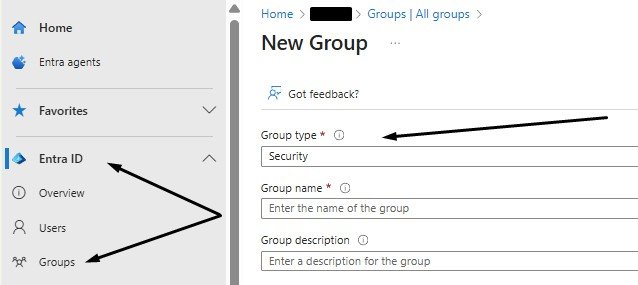
A) Role/Department Access groups (Security groups)
Use for permissions to sites, libraries, apps, and other resources.
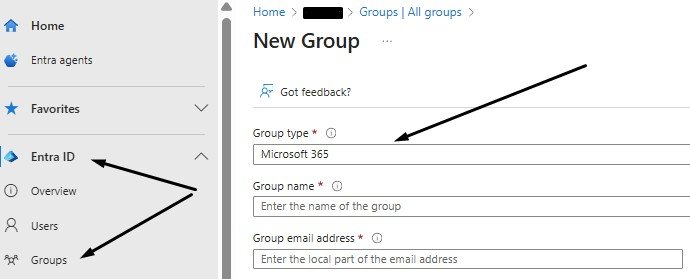 B) Project Collaboration groups (Microsoft 365 groups)
Use where the group represents a working space (and may become a Team).
C) Exception groups (Security groups)
Only for documented edge cases. These must be visibly labelled as exceptions.
Sanity check: can an admin (and your future self) tell what the group does from its name + description in 5 seconds? If not, rename it now.
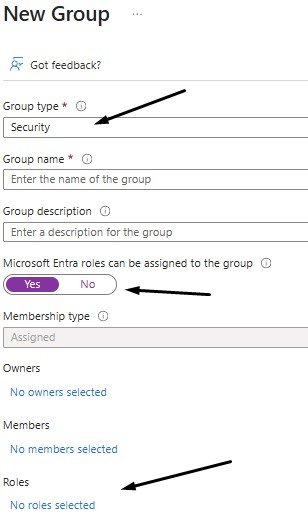
Step 2 – Create role-assignable groups for privileged roles (instead of assigning roles to individuals)
With Entra ID P1 or P2 you can create role-assignable groups and assign Entra roles to them.
In the Entra admin centre you should see a switch like “Microsoft Entra roles can be assigned to the group” when creating the group.
Important constraints (these matter):
- A role-assignable group can’t be dynamic membership, and it must be “securityEnabled = true”; visibility is restricted to Private when created via Graph.
- There’s a tenant limit (Microsoft notes a maximum of 500 role-assignable groups).
Gotcha check: if you can’t see the role-assignable option, Microsoft’s troubleshooting notes that this is commonly permission-related (Privileged Role Admin can create these).
Step 3 – Assign Entra roles to those groups (not to people)
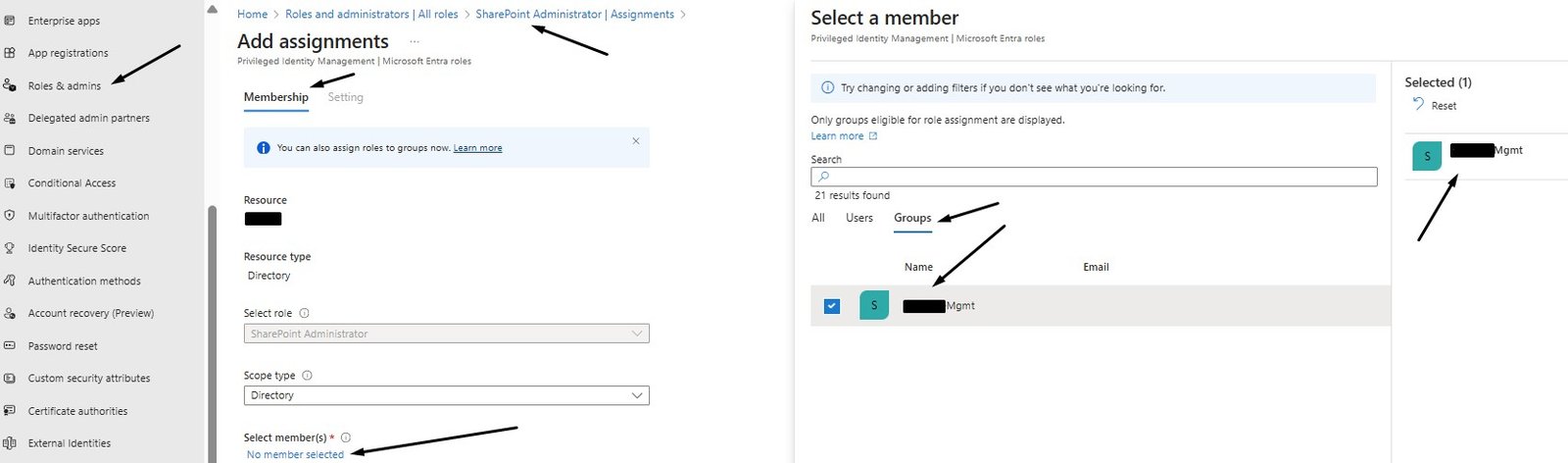
Assigning Entra roles to users and groups via the Entra admin centre.
Outcome:
- Pick one admin role and confirm the assignment appears in the role’s assignments list.
- Add a test admin user to the role-assignable group and confirm the user shows effective permissions as expected (without giving them Global Admin “just because”).
Step 4 — Optional: use Administrative Units for scoped delegation (when you need it)
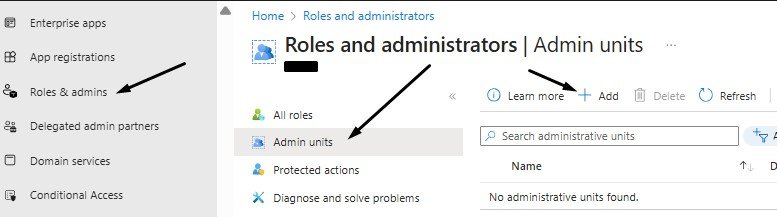
Administrative Units (AUs) let you scope certain role assignments to a subset of objects (useful when delegation must be limited by location/department). However, they have licensing implications (Microsoft notes P1 requirements for AU administrators and other conditions).
When to use: only when you must delegate locally without giving tenant-wide admin scope.
PowerShell option (Graph) - what it can cover
Microsoft PowerShell and the Graph API offers a seasoned Sysadmin the ability to automate the manual steps to ease re-usability and improve productivity – remember to make sure you capture the current settings as part of roll-back planning – just in case!!
So what can you do with the Graph API and PowerShell?
1. Create the groups (Security + Microsoft 365)
You can create both security groups and Microsoft 365 groups using New-MgGroup.
2. Create role-assignable groups (for Entra roles)
Microsoft explicitly supports creating role-assignable groups via Graph PowerShell by setting -IsAssignableToRole:$true (requires Entra ID P1 or P2).
3. Assign Entra roles to groups (not to individuals)
Microsoft provides a Graph PowerShell method using Get-MgRoleManagementDirectoryRoleDefinition + New-MgRoleManagementDirectoryRoleAssignment.
4. Optional: PIM automation
If you’re using PIM, Microsoft also documents Graph PowerShell flows for eligible / active assignments (licensing required is typically Entra ID P2).
Example snippets (PowerShell variant)
# Prereqs: Microsoft Graph PowerShell SDK
# Install-Module Microsoft.Graph -Scope CurrentUser
# Scopes: groups + role assignment
Connect-MgGraph -Scopes “Group.ReadWrite.All”,”RoleManagement.ReadWrite.Directory”
# Create a Security group (Department Access)
$deptAccess = New-MgGroup `
-DisplayName “CC-SEC-Finance-Access” `
-Description “CalderCloud Finance access group (permissions only)” `
-MailEnabled:$false `
-SecurityEnabled:$true `
-MailNickname “ccsecfinanceaccess”
# Create a Microsoft 365 group (Project Collaboration)
$projectGroup = New-MgGroup `
-DisplayName “CC-M365-Project-Aurora” `
-Description “Project Aurora collaboration group” `
-MailEnabled:$true `
-SecurityEnabled:$true `
-MailNickname “ccm365projectaurora” `
-GroupTypes “Unified” `
-Visibility “Private”
# Create a role-assignable group (Entra role via group membership)
# Note: Requires Entra ID P1/P2, and cannot be dynamic membership.
$helpdeskAdmins = New-MgGroup `
-DisplayName “CC-RA-Helpdesk-Admins” `
-Description “Role-assignable group for Helpdesk Administrator” `
-MailEnabled:$false `
-SecurityEnabled:$true `
-MailNickname “ccrahelpdeskadmins” `
-IsAssignableToRole:$true
# Assign an Entra role to the role-assignable group (tenant scope “/”)
$roleDef = Get-MgRoleManagementDirectoryRoleDefinition -Filter “displayName eq ‘Helpdesk Administrator'”
$params = @{
directoryScopeId = “/”
principalId = $helpdeskAdmins.Id
roleDefinitionId = $roleDef.Id
}
$roleAssignment = New-MgRoleManagementDirectoryRoleAssignment -BodyParameter $params
The role-assignment example above matches Microsoft’s own published example (tenant scope /, assign role to a group).
CalderCloud’s first-pass blueprint examples (so you can actually implement it)
This is where the blueprint turns into something you can name, create, and hand over without confusion.
Department-to-group starter map
Role/Department access (Security groups – permissions-first)
Use these to grant access to SharePoint sites/libraries, apps, and other resources without creating a “workspace”.
- CC-SEC-Finance-Access
- CC-SEC-Sales-Access
- CC-SEC-Operations-Access
- CC-SEC-HR-Access (treat as sensitive; tighter governance)
Project collaboration (Microsoft 365 groups – workspace-first)
Use these where the group represents a team/project and may map to Teams/SharePoint collaboration.
- CC-M365-Project-Aurora
- CC-M365-Project-Orion
Exceptions (Security groups – deliberately “loud”)
These are the “yes, but…” cases. The naming should make it obvious it’s an exception, and the description should record owner + reason + review date.
- CC-SEC-EXC-Finance-TempAccess-90d
- CC-SEC-EXC-Contractor-ExtendedAccess-Review
Role map for IT & support (first-pass, not final)
Instead of assigning roles to individuals, CalderCloud assigns roles to role-assignable security groups, then controls group membership and (where possible) uses PIM for just-in-time elevation.
Example role-assignable groups:
- CC-RA-Helpdesk-Admins → Helpdesk Administrator (password resets, basic user support)
- CC-RA-User-Admins → User Administrator
- CC-RA-Exchange-Admins → Exchange Administrator (if/when needed)
- CC-RA-Security-Readers → Security Reader (visibility without power)
Emergency access “break-glass” accounts (continuity from week 1):
These accounts remain rare, monitored, and not used for routine admin work.
End-user experience: what changes for staff once this is in place
Most colleagues won’t “see” the identity model directly and that’s the point. What they will notice is that access becomes more predictable, requests feel less personal and awkward, and the business stops relying on last-minute favours to get work done.
What colleagues will notice (and what they shouldn’t)
What improves
- New starters spend less time stuck in access limbo because baseline access comes through role/department groups rather than one-off manual grants.
- Project work becomes easier to join and leave because collaboration membership is managed through well-owned groups, not ad-hoc “add me” messages.
- Role changes are cleaner: old access is removed as part of the move, reducing “permission creep”.
What shouldn’t happen
- Colleagues shouldn’t need to understand Entra roles or group types. They should just have a clear way to request access and a clear owner who can approve it.
Where access requests go (and how we stop Teams DMs becoming ticketing)
Option 1 - Request to join a group (good for projects and collaboration)
Colleagues request membership; group owners approve/deny (where configured). Microsoft’s self-service group management supports requesting to join security groups and Microsoft 365 groups, with owner approval workflows; it also notes licensing requirements (Entra ID P1/P2) for join requests/approvals in this model.
Sysadmins (enable + govern)
- Configure self-service group management in Entra ID (tenant-level settings and join/approval behaviour).
- Decide which group categories are eligible for self-service (project collaboration yes; sensitive access groups usually no).
PowerShell example – create governed groups at scale
Use Graph PowerShell to create consistent groups and assign owners.
Connect-MgGraph -Scopes “Group.ReadWrite.All”
# Create a private Microsoft 365 group for a project
$g = New-MgGroup -DisplayName “CC-M365-Project-Aurora” `
-MailEnabled:$true `
-SecurityEnabled:$true `
-MailNickname “ccm365projectaurora” `
-GroupTypes “Unified” `
-Visibility “Private”
# Add an owner (repeat as needed)
$owner = Get-MgUser -Filter “userPrincipalName eq ‘owner@caldercloud.co.uk'”
New-MgGroupOwnerByRef -GroupId $g.Id -BodyParameter @{ “@odata.id” = “https://graph.microsoft.com/v1.0/users/$($owner.Id)” }
Option 2 - Request a “bundle” of access via My Access (best for role-based access)
For joined-up access (apps + groups + sites), use Entitlement Management access packages. Users request access in the My Access portal; admins configure what can be requested and how it’s approved.
Sysadmins – enable + build
- Create access packages in Entra ID Governance (least privilege roles apply: Identity Governance Admin / Catalog owner / Access Package manager).
- Configure approval, expiry, and review so access is time-bound by default (reduces “forever access”).
PowerShell example – create an access package
Check out Microsoft documents Graph PowerShell cmdlets for creating access packages (Identity Governance module).
Import-Module Microsoft.Graph.Identity.Governance
Connect-MgGraph -Scopes “EntitlementManagement.ReadWrite.All”
$params = @{
displayName = “Project Aurora – Standard Access”
description = “Access package for Project Aurora collaborators”
isHidden = $false
catalog = @{ id = “<CATALOG-ID>” }
}
New-MgEntitlementManagementAccessPackage -BodyParameter $params
Option 3 - Request access to an application (My Apps self-service)
Where appropriate, users can discover/request apps via the My Apps portal once self-service application access is enabled for supported apps.
Sysadmins – enable + scope
- Enable self-service application access on the enterprise application (supported scenarios include Entra Gallery apps and other supported app types called out by Microsoft).
- Keep “sensitive” apps on controlled assignment, and use groups/access packages for anything that must be governed tightly.
Human impact notes: avoiding identity work that quietly wrecks wellbeing
Identity changes don’t usually announce themselves as “a wellbeing risk”. They show up as small moments that accumulate:
- a new starter who can’t access anything on day one,
- a project team blocked five minutes before a client call,
- a manager chasing approvals, and
- a sysadmin drowning in “quick fixes” that are never quick.
The stress patterns are surprisingly consistent:
- Access anxiety: “Will I be able to do my job today?” (especially during role moves, new starters, or security changes).
- Lockout fear: people become hesitant to sign out, switch devices, or travel, because they don’t trust they’ll get back in.
- Support overload: IT becomes the real world router for access decisions, which creates constant interruption and context-switching.
- Social friction: colleagues feel they’re “bothering IT” or needing favours, which turns normal access into a personal negotiation.
The identity model we’re building reduces these pressures when it’s paired with three simple behaviours:
- Predictability beats perfection.
Colleagues cope well with clear rules, even if they’re not ideal. They cope badly with inconsistency (“it worked yesterday”, “it works for someone else”). Groups, owners, and request routes create predictability. - Make the “how” visible.
Every organisation has an informal culture of asking the “right person” for access. Replace that with a visible route: request to join group / request an access package / request an app. When the path is obvious, stress drops for everyone. - Treat exceptions as normal – but managed.
Executives, urgent projects, and short-notice contractors will always exist. The wellbeing problem is when exceptions are handled in private, with no audit trail, and become permanent. Owner + reason + review date keeps exceptions from turning into long-term chaos.
Callouts (small, practical guardrails)
IT Lead / Management – what to decide up front
- Set expectations: “access is owned by management, not negotiated in DMs.”
- Resource the change: identity work creates a temporary support spike; plan for it rather than pretending it won’t happen.
- Communicate in plain language: what’s changing, what colleagues should do, and where to get help.
Sysadmins – what to implement to reduce friction
- Stage changes: pilot with a small group before broad rollout.
- Keep break-glass truly separate and tested (it’s a safety net, not a shortcut).
- Publish a one-page “How to request access” guide in a place everyone can find (and keep it updated).
This section is the “end user contract” for the technical model: if we don’t design for real working life, identity work becomes a stress generator and stressed systems are the ones people bypass.
Checks, gotchas, and alternatives (so you don’t build a brittle tenant)
This is the “stress test” section. The identity model looks great on a calm Tuesday. The real question is whether it still holds up when:
- a new starter begins tomorrow,
- a contractor needs access in two hours,
- someone changes departments mid-project,
- an admin gets locked out,
- and the support queue is already on fire.
Common missteps (the ones that quietly undo your good work)
- Assigning access to individuals instead of groups
It’s quick in the moment, but it makes offboarding and role changes unreliable. You end up with access that’s hard to explain, harder to remove, and miserable to audit. - “Global Admin by convenience”
Microsoft’s own role best practices push least privilege and just-in-time elevation through PIM where possible.
Even without PIM, the principle stands: routine admin work should use the narrowest role that fits. - Creating role-assignable groups and then trying to get clever with membership
Role-assignable groups are intentionally constrained: they must be created as role-assignable from day one (you can’t convert an existing group), the setting is immutable, they can’t use dynamic membership, and there’s a tenant limit of 500 role-assignable groups.
Those constraints exist to prevent “accidental privilege” through membership automation. - No owners, no descriptions, no review dates
If a group doesn’t have a real owner, it becomes abandoned. If an exception doesn’t have a review date, “temporary” becomes “forever”. - Break-glass accounts treated like normal admin accounts
Microsoft’s emergency access guidance is clear: have two or more emergency access accounts, use strong authentication that avoids shared dependencies, and keep their Global Admin assignment active/permanent rather than eligible in PIM.
If you put break-glass into normal Conditional Access patterns without thinking, you can accidentally remove your last safe way back in. - Turning on self-service with no guardrails
Self-service group management can be excellent, but it has licensing requirements (P1/P2 for join requests and owner approvals) and needs scoping to the right kinds of groups.
Self-service should reduce workload — not create uncontrolled access sprawl.
Decision points and safer alternatives (based on maturity and licensing)
If you don’t have Entra ID P1/P2 yet
- You won’t get the full set of features for role-assignable groups and self-service join/approval flows.
Alternative: still build the model, but keep it manual: named owners, documented group purpose, and a simple request route (ticket/form/email) that goes to the group owner.
If you don’t have P2 / can’t use PIM right now
- Microsoft recommends PIM for just-in-time access, but not everyone has it.
Alternative: separate admin identities, narrow role assignment, and a regular review cadence (weekly/monthly) so standing privilege doesn’t silently expand.
If attributes aren’t reliable (department/job title is messy)
- Dynamic membership will behave like a random number generator wearing a suit.
Alternative: assigned membership now, dynamic later; after you standardise the minimum attributes.
If your organisation is small and fast-moving
- Over-design is a real risk.
Alternative: start with the minimum viable group model (department access + project collaboration + exceptions) and add complexity only when you can prove it reduces toil.
Sysadmins – quick validation checks
These are the “how do I know it’s actually working?” checks that prevent brittle builds.
- Confirm every core access group has at least one owner and a clear description.
- Confirm privileged roles are assigned to the intended role-assignable groups, not sprinkled across individual user assignments.
- Confirm break-glass accounts exist, are excluded from risky dependencies, and are monitored.
Quick “don’t build brittle” checklist (pre-Day 7 readiness)
- Role-assignable groups exist only where needed, and privileged roles aren’t assigned ad-hoc.
- Every access group has an owner and a meaningful description (and exceptions have review dates).
- Self-service (if enabled) is scoped and licensed appropriately (P1/P2 for join requests/approvals).
- Emergency access accounts exist and are treated as emergency-only, with a safe authentication approach.
- You can explain, in one minute, how a new starter gets access without “DM IT and hope”.
Conclusion – what you now have – (and why Day 7 will be easier)
At this point, CalderCloud has moved from “we’ll just give access as we go” to a repeatable identity model:
- A clear way to turn real organisational structure into Entra ID users (employee/contractor/guest patterns), without inventing new rules every time someone joins.
- A group-first access approach that scales (permissions and collaboration anchored to groups, not individuals).
- A cleaner separation between collaboration groups (Microsoft 365 Groups/Teams) and access control groups (security groups), with “exceptions” made visible and reviewable.
- An admin approach where roles are deliberate, auditable, and less dependent on “who happens to know how to click the thing”.
That sets us up perfectly for the Day 7 post – MFA + Conditional Access, because we can target protections based on clean populations (admins vs standard users vs guests) instead of using blunt, tenant-wide rules that annoy everyone and still miss edge cases.
Risks and rollback
No identity work is “free”. Here are the common risks this model introduces, plus the safest escape hatches.
Risk 1 – Group sprawl (you rebuild chaos, but in a nicer font)
- Symptom: lots of near-duplicate groups, unclear owners, and “temporary” groups that become permanent.
- Mitigation: naming rules, ownership rules, and a lightweight review frequency (monthly/quarterly).
- Rollback: stop creating new groups, freeze exceptions, and consolidate by moving permissions to the agreed “core” groups.
Risk 2 – Over-permissioning by accident (especially with role-assignable groups)
- Symptom: someone inherits admin power because they were added to a group for a different reason.
- Mitigation: keep role-assignable groups rare, labelled, and tightly owned; assign Entra roles to groups only where it genuinely reduces risk and admin burden.
- Rollback: remove the role assignment from the group (fast), then temporarily assign the role directly to a named admin while you fix membership properly.
Risk 3 – Self-service access becomes “self-service confusion”
- Symptom: people request access in random places, approvals get missed, support tickets increase.
- Mitigation: pick one primary path (group requests or My Access access packages) and publish it as “the way <your business name> works”.
- Rollback: disable join requests / self-service where needed, and route requests back through owners while you tidy the model.
Risk 4 – Lockout edge-cases (break-glass assumptions drifting over time)
- Symptom: emergency access is untested, poorly protected, or doesn’t match Microsoft’s latest enforcement expectations.
- Mitigation: maintain emergency access accounts specifically for lockout scenarios, protect them properly, and test them on a agreed frequency (quarterly, half-yearly).
- Gotcha: Microsoft’s direction on mandatory MFA enforcement has implications for emergency access accounts too, so this must be reviewed as the platform evolves.
- Rollback: there isn’t a “magic undo” for lockout. The rollback is prevention: tested emergency access, documented procedure, and separation from normal admin life.
Scope & caveats (quick and readable): Microsoft cloud behaviour changes; this post reflects current documentation at time of writing and should be validated against your tenant before step-by-step rollout.
Sources (accurate as of 16 January 2026)
- Microsoft Learn – Manage emergency access accounts in Microsoft Entra ID.
- Microsoft Learn – Use Microsoft Entra groups to manage role assignments.
- Microsoft Learn – Create a role-assignable group in Microsoft Entra ID.
- Microsoft Learn – Set up self-service group management.
- Microsoft Learn – What is the My Access portal?
- Microsoft Learn – Entitlement management: overview / create an access package / request an access package.
- Microsoft Learn – Planning for mandatory multifactor authentication (includes break-glass implications).
Next steps and related posts
- Day 7: Sign-In Without Meltdown: MFA and Conditional Access Baselines for CalderCloud – now that your user/group populations are clean, we can build sign-in policy with fewer surprises.
- Day 8: Devices Are Not An Afterthought: CalderCloud’s Entra Join and Intune Strategy – where identity meets real endpoints.
Helpful back-links to week 1 tenant foundations:
- Day 2: Domains, UPNs and Email Addresses: Naming CalderCloud for the Next Ten Years – Naming conventions that this identity model relies on.
- Day 4 & 5: Safe by default & Tenant first-user experience (where “identity friction” shows up first).
Mental Health – because todays post genuinely affects wellbeing
Identity work done badly doesn’t just break access; it quietly increases stress, interrupts flow, and makes people feel like they’re “the problem”. If this area is creating sustained pressure for you or your team, it’s worth naming it early and getting support (at work and, if needed, via NHS 111; call 999 in an emergency; Samaritans are available 24/7 on 116 123).
🧭 Follow the full journey: You’re welcome to follow along quietly, Questions, disagreements and “we tried this and it hurt” stories are all part of the point. You can catch each post right here and can follow along on LinkedIn, Instagram, or Bluesky.
Thank you for joining me on this journey.
🔗 SharePointMark – Modern Workplace Mastery
#ModernWorkplace #ModernWorkplaceMastery #MentalHealthAtWork