
Modern Workplace Mastery: Day 7 – MFA Baselines
There’s a moment in every Microsoft 365 journey where the tenant is technically “ready”, but the experience still isn’t. You can sign in, you can reach the admin portals, and everything looks fine on paper – yet sign-in still feels like a small obstacle course: prompts that arrive at the wrong time, confusing setup screens, and that creeping sense that one mis-step could lock someone out on a Monday morning.
CalderCloud is at that moment now.
In Week 1 we laid the tenant foundations (Day 0 to 5). In Week 2 – Day 6 we shaped the identity model; the way to organise people, permissions, and access in a way that can scale. But before we build Teams, SharePoint structure, and the day-to-day collaboration layer, we need to make sure the first thing every person experiences is steady: sign-in.
Day 7 – This post is about creating a calm baseline for authentication and recovery. I’ll choose a method strategy that’s secure and supportable, guide people through a single, planned registration moment, and put Self-Service Password Reset in place so “I can’t log in” doesn’t become an emergency incident queue. I’ll also check (and install if missing) the safety rails – two tested emergency access accounts and a controlled onboarding process – so admins can make changes without fear.
It’s written for end users who want clarity, IT leads who need a supportable approach, and sysadmins who want detailed portal steps plus automation options where they help. By the end, you’ll have a pilot-ready sign-in baseline you can test end-to-end with real people. Then, once the sign-in experience is stable, I’ll move onto Day 8 and turn those foundations into enforceable rules using Conditional Access – rolled out safely, not heroically.
Table of Contents
TL;DR – Modern Workplace Mastery - Day 7 - MFA Baselines
Introduction (what this gives you)
In CalderCloud, this is the week we stop “sign-in” being a daily source of friction and turn it into something boring – in the best possible way. Not because security should be invisible, but because it should be predictable. When people join a new business (or return after time away), they don’t want a maze of prompts, mixed messages, and “ask IT” dead ends. They want to get working, and they want to trust what they’re seeing.
This TL;DR gives you the story and the steps in one place. It walks you through how CalderCloud sets up a calm sign-in baseline before any heavy enforcement: choosing the right MFA methods, guiding users through one planned registration moment, and putting password recovery in place so “I can’t sign in” doesn’t become a panic helpdesk ticket. It also anchors the safety rails – two tested emergency access accounts and a controlled onboarding process (Temporary Access Pass) so you can make changes without fear of locking everyone out.
Think of this as the “runway checklist” for Day 7. Once these slides make sense to you, you’re ready to run a small pilot with real people, spot where they stumble, and refine the experience.
Where CalderCloud is now
• We’ve created the tenant and defined our identity model. • We are not rolling out Teams/SharePoint/workloads yet. • Focus of Day 7: sign-in readiness (methods, registration, recovery). • Why now: people experience sign-in first - if it’s messy, everything feels broken.
The big decision: how we manage access
• CalderCloud chooses a clean pattern: Conditional Access (CA) is the long-term policy engine. • Day 7 builds the runway first (methods + registration + recovery). • Day 8 (next post) will deliver the CA baseline: report-only → pilot → enforce. • Principle: don’t enforce what users can’t complete safely yet.
Safety rails: emergency access before enforcement
• Standard: exactly two break-glass accounts (no more, no less). • Validate-first approach: don’t duplicate what may already exist from Day 4. • Store credentials securely, restrict access, monitor sign-ins. • Rollback thinking baked in: calm exits for mis-scoped changes.
MFA methods: simple, secure, supportable
Preferred (gold path) • Microsoft Authenticator with number matching • Prompts with app + location context • Passkeys (FIDO2) piloted carefully Allowed (pressure valves) • TOTP/OATH where needed • Temporary Access Pass (TAP) for onboarding/recovery bridges Restricted • SMS/voice only as tightly scoped exceptions (not defaults)
Registration: one planned moment, not an ambush
• Use combined registration so users register once for MFA + reset. • Use a registration campaign to nudge the pilot ring calmly. • Pilot-first targeting avoids a surprise “everyone is prompted” morning. • Support posture: predictable steps + a safe fallback (TAP).
Recovery: SSPR without dead ends
• Enable SSPR for a pilot group first. • Align reset methods with the wider MFA strategy (avoid mixed messages). • Enable notifications and set a real helpdesk link to prevent user dead ends. • Define the “lost everything” route (identity check → TAP → re-register → recover).
Day 1 experience: what “good” looks like
• Users understand why they’re being asked to register. • Prompts feel thoughtful (number matching + context). • Most password issues are self-service. • Support has a calm bridge (TAP) and a clear script. • Sysadmins validate scope and outcomes before widening rollout.
Gotchas to avoid
• “Pilot accidentally became everyone” (scope drift). • Changing SSPR requirements and stranding users. • Testing with admin accounts first and thinking SSPR is broken. • Forcing registration at the worst possible time. • Trying to “fix” user experience with enforcement too early.
Outputs (what you should have when Day 7 is done)
• A clear sign-in readiness baseline: ○ Two tested emergency access accounts ○ MFA method strategy implemented for a pilot ring ○ Combined registration enabled + campaign scoped to pilot ○ SSPR enabled for pilot with notifications + helpdesk link ○ TAP available as a controlled onboarding/recovery bridge • A “Company Day 1” checklist and a gotchas list for helpdesk support and admins
Your next step
• Run a controlled pilot: ○ 1–2 test users end-to-end (register → approve → reset → recover) ○ Confirm scope is correct everywhere (no accidental “All users”) • Capture what users struggle with and refine comms/support script. • Then move to Day 8: build Conditional Access baseline architecture
Where CalderCloud is right now (and what we are not doing yet)
CalderCloud is at that slightly awkward-but-important stage where the tenant exists, the foundations have been laid, and the temptation is to start “using it properly” straight away. That temptation is exactly how organisations end up with a sign-in experience that feels unpredictable, support-heavy, and quietly stressful.
So here’s the honest position on the journey:
- Week 1 is complete: CalderCloud has a tenant and the foundational decisions are in place (the boring-but-critical groundwork that makes everything else survivable).
- Week 2 Day 6 is complete: CalderCloud has an Identity Model; a designed approach for users, groups and roles that we can build on safely.
- Week 2 Day 7 (this post) is the “front door” work; we’re making sign-in and access controls ready for real employees, before we unleash day-to-day usage.
This matters because CalderCloud is not just “a tenant”. CalderCloud is an internal change engine with a UK-centred, real-word first ethos: secure, sustainable, and humane; meaning we care about how people feel when the tech shows up in their day.
What we have at this point (minimum baseline to proceed)
By the end of the Day 6 post, you should be able to say:
“We know what identities exist in principle, and why.”
“We know how we’ll structure access using groups and roles.”
“We have a workable admin model that isn’t ‘everyone is Global Admin because it’s Tuesday’.”
That’s enough to proceed into sign-in controls because you can’t protect access sensibly without first deciding who is who and who should be able to do what. (That dependency-first sequencing is baked into the series design.)
What we are not doing yet (deliberately)
This is the bit that prevents confusion and scope-creep.
At this stage in CalderCloud’s build, we are not:
- rolling out Teams usage patterns, SharePoint site structures, or live collaboration models
- onboarding real staff at scale (or pretending we have)
- designing device enrolment, compliance policies, or Intune baselines (that’s coming in later week 2 posts)
- trying to “perfect security” in one go
Those are all valid expectations – they’re just not what today’s goal is about. Today is about making sure the first contact point with a new tenant (sign-in) is stable, predictable, and recoverable.
The real reason this post exists
When you create user accounts and begin onboarding, the very first real experience of Microsoft 365 is rarely “wow, productivity”. It’s usually:
- “Why is it asking me this?”
- “Is this a scam?”
- “I did it wrong, didn’t I?”
- “I can’t get in and I’m already behind.”
That’s where stress spikes for the user, and for the person supporting them. CalderCloud’s mission explicitly includes mental health and well-being safety and sustainable working patterns; this is one of the earliest places we can make that real, not just aspirational.
What this post will prepare CalderCloud to do next
By the end of Day 7, CalderCloud should be ready to say:
“We know which authentication methods we allow, and why.”
“We have a registration and recovery path that won’t collapse into helpdesk chaos.”
“We have a Conditional Access baseline that can be rolled out in a staged, testable way.”
“We can prove what changed, and we can roll back safely if we make a mistake.”
That last point is not optional. The quality bar requires that we don’t just configure things, we build them in a way that’s maintainable, explainable, and are honest about risks.
What “Sign-In Without Meltdown” means in practice
CalderCloud is still in “build the runway” mode. We’re not rolling out Teams or SharePoint yet, and we’re not onboarding the whole business. We’re doing the quieter work that stops the first real onboarding wave turning into a helpdesk support pile-up.
The truth is: the first thing most people experience in Microsoft 365 isn’t productivity. It’s sign-in.
A new user hits the sign-in page, gets asked to do something unfamiliar, and instantly has three questions:
- “Is this normal?”
- “Have I done something wrong?”
- “Is this a scam?”
If we don’t design that moment, the tenant teaches people the wrong lesson: security equals confusion. That’s how you end up with workarounds, repeated incident tickets, and a culture where everyone quietly dreads “changes”.
So when we say “Sign-In Without Meltdown”, we mean something very specific:
The CalderCloud standard
Security should feel predictable, recoverable, and boring.
Not “easy” in the sense of weak, but boring in the sense that it behaves the same way, for the same reasons, and it’s explainable to a colleague or new starter, who may already be having a busy day.
That standard has five practical qualities.
Predictable
People shouldn’t feel like the tenant is making it up as it goes along.
- Users understand why they’re being prompted (registering, approving, resetting).
- Prompts appear when there’s a clear reason, not randomly across devices.
End User call-out (what this feels like): you’re rarely surprised, and when you are, the prompt makes sense in context.
Recoverable
Recovery is not a “special case”. Recovery is part of the design.
- Losing a phone is annoying, not career-ending.
- Password reset works without a ticket for most people.
- When it can’t be self-service, the escalation path is documented and calm (not improvisation at 08:55 on Monday).
Safe-by-default
We protect the keys to the kingdom first.
- Admin accounts get stronger protection than standard users.
- Older, weaker sign-in paths aren’t left open indefinitely “just in case”. We identify what would break, fix it, then close the door intentionally.
Supportable
If something fails, the person supporting it should be able to answer: what blocked it, and why?
- Policies are named and scoped so diagnosis isn’t guesswork.
- Changes are staged so we can see impact before users feel pain.
Sysadmin call-out: this is why we use report-only and pilot rings before enforcement; it gives you evidence before you flip the switch.
End user friendly
This is the part most “security baselines” forget: behaviour.
Microsoft warns that prompting too frequently can backfire – it trains people into unsafe habits, like typing credentials without thinking or approving prompts automatically just to get on with work.
So CalderCloud’s design goal isn’t “more prompts”. It’s the right prompts at the right time, with a flow that reduces anxiety and reduces support load.
What success looks like (things we can actually observe)
We’re not measuring “security feelings”. We’re measuring outcomes that map to user experience and tenant control:
- Registration coverage rises predictably during pilot and rollout (people aren’t stuck or confused).
- Password reset tickets reduce over time because recovery is self-service for the majority.
- Sign-in failures are explainable (method mismatch, not registered, legacy client blocked, policy scoped) rather than mysterious.
Later in this post I’ll show exactly where to check those signals (registration reporting and sign-in logs), but this is the target state.
The “meltdown triggers” CalderCloud will design out
Most sign-in disasters come from a small set of predictable mistakes. CalderCloud avoids them by sequencing correctly.
Trigger 1: Enforcing before enabling
MFA enforcement goes live before users can register or recover.
Result: blocked users, flooded support, and a reputation hit.
CalderCloud fix: enable methods + registration + recovery first, then enforce in phases.
Trigger 2: No safe way back in
A policy is mis-scoped and admins get locked out.
Result: panic, downtime, and risky improvisation.
CalderCloud fix: emergency access and exclusions exist before enforcement.
Trigger 3: Prompt fatigue
Users are prompted so often they stop thinking.
Result: approvals become muscle memory which hackers / attackers love.
CalderCloud fix: use session behaviour intentionally, and explain what users will experience.
Trigger 4: Nobody can explain what changed
Support can’t tell whether the issue is policy, registration, method, or client behaviour.
Result: slow resolution and loss of trust.
CalderCloud fix: naming standards, staged rollout, and a simple support playbook.
One concrete mitigation (so this isn’t just good intentions)
CalderCloud will do one thing that instantly reduces stress during rollout:
We will never launch enforcement without a “Day 1 support script”.
A one-page guide for users and support covering:
- what prompt to expect
- what to do if you don’t have your phone
- how to reset a password
- how to request help if all factors are lost
This turns “panic + tickets” into “steps + reassurance”.
The decision: Security Defaults vs Conditional Access (and the licensing reality)
There’s a moment in every new Microsoft 365 tenant where you realise something uncomfortable:
You can’t “sort security out later”, because sign-in is already happening the moment you create accounts.
So CalderCloud makes a deliberate choice before we configure anything else:
CalderCloud will use Conditional Access as the baseline policy engine (assuming we have the required licensing), and we will disable Security Defaults at the switchover point; not before.
The problem we’re solving: mixed baselines create mixed messages
If you half-use Security Defaults and half-use Conditional Access, you often end up with the worst of both worlds:
- users get prompts that feel inconsistent
- support can’t easily explain “why now?”
- admins can’t tell which control caused what outcome
CalderCloud’s rule is simple:
One baseline, one journey, one set of expectations.
What Security Defaults is (and when it’s the right choice)
Security Defaults is Microsoft’s built-in baseline protection set. Microsoft positions it as a default security posture for tenants that don’t have Conditional Access policies and don’t have premium licences to build a custom baseline.
Real-world translation:
Security Defaults is a solid safety net when:
- you’re very early on
- you don’t have Entra ID P1 licensing
- you want quick, standardised protections without managing a policy engine
If CalderCloud were running a very small tenant with no premium licensing and limited admin capacity, we could run Security Defaults for a while and still be realistically safer than doing nothing.
What Conditional Access is (and why CalderCloud chooses it for this journey)
Conditional Access is Microsoft Entra’s access policy engine: you define conditions (who, what app, where from, device context, etc.) and then enforce decisions (block, require MFA, require compliant device, and so on).
Real-world translation:
Conditional Access is what you choose when you want:
- clear, explainable policy decisions
- staged rollouts (report-only → pilot → enforce)
- controls that evolve as the organisation grows
But it comes with responsibility: you own the baseline design.
The licensing reality (so we don’t design fantasies)
This series is about building a tenant you can actually run, not a tenant that only works in a diagram.
Microsoft is clear:
- Conditional Access requires Microsoft Entra ID P1 (or a suite that includes it, such as Microsoft 365 Business Premium).
And a key clarification for this post:
- Our baseline does not depend on risk-based Identity Protection policies. Where we mention risk signals later, we will label those items as optional / advanced, because Identity Protection (sign-in risk/user risk policies) sits in the Entra ID Protection world and has licensing requirements beyond the basic Conditional Access baseline.
Entra ID P1 gets us a strong baseline. Entra ID P2 can make parts of it smarter later, but P2 isn’t required for CalderCloud’s “ready for onboarding” position.
The clean rule (from Microsoft): don’t run both
Organisations implementing Conditional Access policies that replace Security Defaults must disable Security Defaults – both cannot exist Live.
So CalderCloud does not do a messy overlap.
- If we’re using Security Defaults: we don’t build a parallel CA baseline “just a bit”.
- If we’re using Conditional Access baseline: we disable Security Defaults once our CA replacement controls exist and are validated.
That last clause matters: we disable Security Defaults at the switchover moment so we don’t create either:
- a protection gap (too early), or
- double-prompt confusion (too long).
CalderCloud’s switchover plan (what “ready” means)
CalderCloud will switch from Security Defaults to Conditional Access baseline when these are true:
- Emergency access is in place and tested
(So we can recover if we mis-scope a policy.) - Authentication methods are defined
(So we’re not enforcing something users can’t actually complete.) - Registration and recovery are ready
Combined registration is enabled and SSPR has a baseline plan (pilot first). - At least one CA baseline policy exists in Report-only
We’ve reviewed the impact before users feel it.
This is boring change management and boring is what we want.
Practical checks you can actually follow
Prerequisites (don’t skip these)
-
You can sign in to Microsoft Entra admin centre with an account that has at least the Conditional Access Administrator roll.
-
You know whether you’re operating in a dev/test tenant or a tenant that already has live users. (The actions below are safe in either, but the timing differs.)
Step 1: Confirm you’re licensed to use Conditional Access (P1 baseline)
Microsoft is explicit: Conditional Access requires Microsoft Entra ID P1 licenses, and Microsoft 365 Business Premium includes access to Conditional Access features.
Check what your organisation owns (purchased products)
Because licensing UI has shifted over time, Microsoft’s current guidance is that licence assignment is managed through the Microsoft 365 admin centre.
-
Go to the Microsoft 365 admin centre (admin.microsoft.com) and sign in.
-
In the left nav, go to Billing → Your products (or Billing → Licenses, depending on your admin centre layout).
-
Look for products that indicate Entra P1 capability. Common examples:
-
Microsoft 365 Business Premium (includes Entra ID P1)
-
Microsoft Entra ID P1 (standalone)
-
What you should see: a list of your active subscriptions and licence counts (total/assigned/available).
Confirm users in scope are properly licensed (practical compliance check)
CalderCloud rule-of-thumb: anyone who will be governed by Conditional Access policies should have appropriate P1 licensing available/assigned. Licence assignment is handled through the M365 admin centre.
-
In the Microsoft 365 admin centre, go to Billing → Licenses (or Billing → Your products → select the SKU).
-
Select the relevant product (e.g., Business Premium / Entra ID P1).
-
Review:
-
how many licences are assigned
-
which users/groups have assignments (if available in your tenant UI)
-
If the UI doesn’t show assignment detail cleanly: that happens in some tenants as Microsoft moves experiences around. The operational workaround is to ensure you can confidently account for assigned licences and proceed with CA rollout using pilot rings first.
Note: Some community guidance states Conditional Access is “per-user licensed” in practice. Treat that as an operational compliance warning, but rely on Microsoft Learn for the definitive “CA requires P1” requirement.
Step 2: Check Security Defaults status
-
Open Microsoft Entra admin centre.
-
Go to Entra ID.
-
Select Overview.
-
Select Properties.
-
Scroll until you see Manage security defaults and select it.
What you should see: a panel showing whether Security defaults are Enabled or Disabled.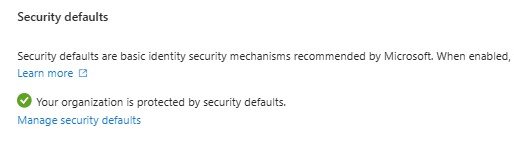
2.1 If you are staying on Security Defaults (temporary path)
-
Keep Security Defaults Enabled and don’t build overlapping CA baseline policies yet.
2.2 If you are moving to Conditional Access baseline (CalderCloud path)
Microsoft states that orgs implementing Conditional Access policies that replace Security Defaults must disable Security Defaults.
But do not disable yet until your CA replacement is ready (see “Switchover moment” below).
Step 3: Confirm you can use Report-only mode (your safety mechanism)
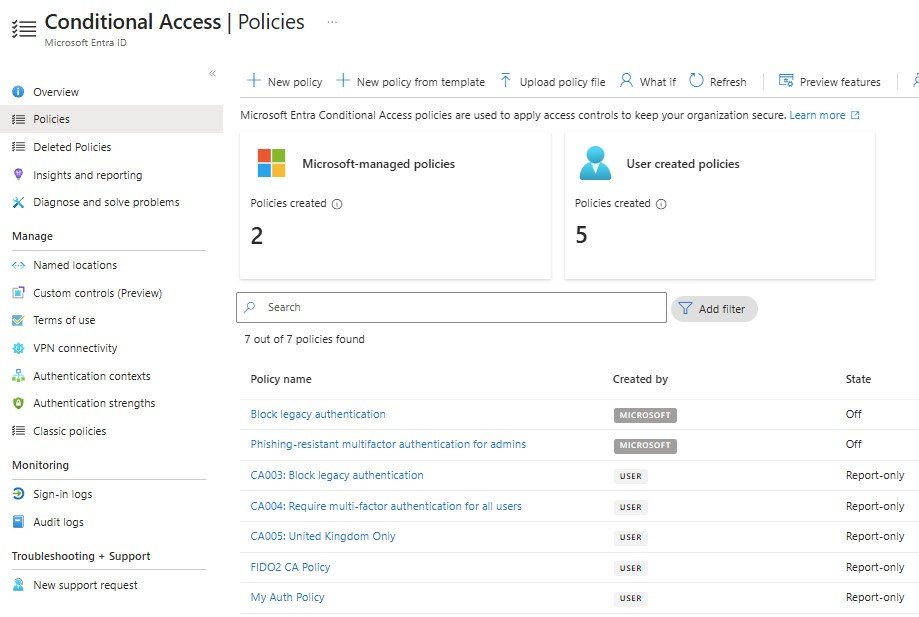
-
In Microsoft Entra admin centre, go to Entra ID.
-
Select Conditional Access.
-
Select Policies.
-
Open an existing policy (or create a new “test” policy scoped only to your admin pilot group).
-
Find Enable policy and set it to Report-only.
-
Select Save.
What you should see: the policy exists, but users are not challenged/blocked by it yet. Instead, you’ll see it evaluated in sign-in logs as “Report-only” results. Microsoft explains these report-only result states (Success/Failure/User action required/Not applied).
Step 4: Define the CalderCloud “switchover moment” (so you don’t create gaps or double-prompts)
This is the operational “go/no-go”.
You disable Security Defaults only when:
-
Emergency access accounts exist and have been tested (sign-in verified)
-
You have at least one baseline CA policy created in Report-only
-
You have reviewed sign-ins to confirm the policy is behaving as expected
-
You have a rollback plan (at minimum: revert the policy state and re-check access)
This sequencing prevents:
-
a protection gap (turning off defaults before replacement exists), and
-
confusing overlap (running two baseline systems too long).
What you should feel at the end of this section
You’ve made the first big, confidence-building decision:
- CalderCloud will run one baseline (Conditional Access), not a confusing mix
- you understand the licensing minimum (P1) and what’s optional later (P2/risk-based)
- you know where Security Defaults lives and when to disable it
- you have the safety mechanism (report-only) that prevents “big bang” mistakes
CalderCloud has now made the key pattern decision: Conditional Access will be our long-term policy engine, not a mix of overlapping baselines.
In this post (Day 7), I am deliberately stopping short of building the full Conditional Access policy pack, because the real-world sign-in experience has to be designed first: methods, registration, recovery, and the safety rails that prevent lockouts.
In Day 8, I’ll take the next step: design the Conditional Access baseline architecture, build the starter policy set, and roll it out safely using report-only → pilot → enforce, with the same detailed steps and automation options.
Safety rails first: emergency access and rollback thinking
CalderCloud has now chosen its security baseline (Conditional Access) and agreed to roll it out safely. That’s good. Now we do the bit that keeps the whole journey calm:
We make sure we can always get back in.
Emergency (break glass) access accounts exists because identity controls can fail: a mis-scoped policy, an MFA outage, a conditional access change applied too broadly, a breach or hack of your tenant, or a simple admin mistake. Emergency access is the “fire exit” that lets you recover without improvising.
The CalderCloud safety rule (non-negotiable)
CalderCloud will have exactly two emergency access (“break-glass”) accounts – no more, no less.
Not one (single point of failure). Not four (unnecessary attack surface and operational confusion). Just Two.
Stop and check: did we already do this in Week 1 Day 4?
If you completed week 1’s “Safe by Default” work, you may already have emergency access accounts.
Do not create new break-glass accounts until you’ve validated what exists.
This section is designed to avoid duplication by offering two tracks:
- Track A: Validate & upgrade (preferred if already done)
- Track B: Build (only if missing)
Track A: Validate & upgrade (if break-glass already exists)
Prerequisites
- You can sign into Microsoft Entra admin centre with an account that has permission to view users and role assignments (Global Admin is simplest for validation).
Step A1: Find any existing emergency access accounts
- Microsoft Entra admin centre → Entra ID → Users → All users
- Search for your naming pattern (examples):
- breakglass
- emergency
- bg-
- your CalderCloud prefix (e.g., cc-)
What you’re looking for: accounts that are clearly intended to be emergency-only, not human users.
Step A2: Confirm the count and standardise it
- If you find exactly two: good – continue.
- If you find one: you are missing redundancy; you’ll need to create a second (jump to Track B, but only for the second account).
- If you find more than two: stop and correct. CalderCloud standard is two.
- Pick the best two (cloud-only, clearly named, controlled credentials)
- Plan to retire the extras safely (see “Reducing to two” below)
Step A3: Confirm role assignment
Emergency access guidance describes these accounts as typically assigned Global Administrator.
For each break-glass account:
- Open user → Assigned roles
- Confirm Global Administrator is assigned
What you should see: role assignment visible and consistent across both accounts.
Step A4: Confirm Conditional Access exclusion approach
Microsoft recommends excluding emergency access accounts from Conditional Access policies.
CalderCloud’s maintainable pattern is:
- One exclusion group (example name): GG-Identity-EmergencyAccess-Excluded
- Both break-glass accounts are members
- Every CA policy will exclude that group
Validate:
- Entra ID → Groups → search EmergencyAccess (or your standard name)
- Open the group → confirm both break-glass accounts are members
- Conditional Access → Policies → open each policy → confirm the exclusion exists (you may have none yet; if none exist, this becomes a “future required step” once policies are created)
Step A5: Test access (yes, even if it exists)
- Open an InPrivate/Incognito browser window
- Sign in as break-glass account 1 → confirm you can access Entra admin centre
- Repeat for break-glass account 2
- Go to Sign-in logs (Purview) and confirm you can see those sign-ins
Why we test: emergency access you’ve never tested is just a comforting story.
Step A6: Confirm monitoring stance
It is recommended that you are consistently and frequently monitoring and alerting on emergency access account usage.
Minimum:
- Weekly check of sign-in logs filtered to break-glass accounts
Better: - Alerting via your SIEM / monitoring tool
Pre-flight + drift detection
These commands are designed to prevent duplication and prove current state, not to create accounts.
Prerequisites
- Microsoft Graph PowerShell installed
- You can consent required scopes
Connect-MgGraph -Scopes @(
“Directory.Read.All”,
“RoleManagement.Read.Directory”,
“AuditLog.Read.All”,
“Policy.Read.All”
)
Get-MgContext
1. Pre-flight: detect break-glass accounts and warn if >2
# Adjust the prefix to match your CalderCloud naming standard
$breakGlass = Get-MgUser -All -Filter “startsWith(userPrincipalName,’cc-breakglass-‘)” -Property “id,displayName,userPrincipalName,accountEnabled”
$breakGlass | Select-Object displayName, userPrincipalName, accountEnabled
if ($breakGlass.Count -gt 2) {
Write-Warning “More than two break-glass accounts detected. CalderCloud standard is exactly two. Do not create more.”
}
elseif ($breakGlass.Count -lt 2) {
Write-Warning “Fewer than two break-glass accounts detected. Create/restore to reach exactly two.”
}
else {
Write-Host “Exactly two break-glass accounts detected. Proceed with validation and monitoring.”
}
2. Monitor sign-ins (last 7 days)
Sign-in logs are exposed via Microsoft Graph /auditLogs/signIns, which is the basis of this monitoring approach.
$since = (Get-Date).AddDays(-7)
foreach ($u in $breakGlass) {
Write-Host “Sign-ins for $($u.UserPrincipalName) since $since” -ForegroundColor Cyan
Get-MgAuditLogSignIn -Filter “userPrincipalName eq ‘$($u.UserPrincipalName)’ and createdDateTime ge $($since.ToString(‘o’))” -Top 50 | Select-Object createdDateTime, userPrincipalName, appDisplayName, status, conditionalAccessStatus, ipAddress
}
Reducing to two (if Week 1 Day 4 created more, or history got messy)
If you discover more than two “emergency-like” accounts:
- Select the two you will keep (prefer cloud-only, clearly named, securely stored)
- Confirm they work (incognito sign-in + sign-in log evidence)
- Confirm exclusions (exclusion group membership and CA exclusions)
- Disable extra accounts first (do not delete immediately)
- After a safe period, retire properly (documentation + permanent removal if appropriate)
This approach avoids breaking something you didn’t realise depended on an old “break-glass-ish” account.
Track B: Build (only if emergency access is missing)
Create the two accounts safely
Before you start (two minutes that prevent future pain)
Goal: end this track with exactly two emergency access accounts that:
- can sign in successfully
- are clearly named and documented
- are protected operationally (vault + restricted access)
- are excluded from Conditional Access policies (now or later)
- are monitored (sign-in = incident)
It is recommended to maintain two emergency access accounts and monitor their use.
Step B1: Create break-glass account 01 (cloud-only user)
Open Microsoft Entra admin centre (entra.microsoft.com) and sign in with an admin account.
In the left navigation, go to: Entra ID → Users → All users
Select + New user – Choose Create new user and complete the form:
Identity
- User principal name (UPN): cc-breakglass-01@<yourdomain>
- Display name: <your company> Break-glass 01
Profile (recommended)
- First name/Last name: optional, but keep consistent (e.g., “CalderCloud / Break-glass 01”)
- Job title/Department: set to something obvious like Emergency Access (helps future audits)
Password
- Choose Let me create the password (preferred) or Auto-generate
- Require user to change password at next sign-in: No (this is not a normal person account)
Select Review + create (if present) then Create.
What you should see: a confirmation that the user was created, and the account appears in All users.
Why cloud-only: Microsoft recommends emergency access accounts are cloud-only to reduce dependency on sync/federation during incidents.
Step B2: Create break-glass account 02 (repeat exactly)
Repeat Step B1 with:
- UPN: cc-breakglass-02@<yourdomain>
- Display name: CalderCloud Break-glass 02
What you should see: now two accounts exist and are clearly identifiable.
Step B3: Assign Global Administrator to both accounts
These accounts should typically be assigned the Global Administrator role.
Do this for each break-glass account:
- Entra ID → Users → All users → open xx-breakglass-01
- In the left menu for the user, select Assigned roles
- Select + Add assignments (or Add role)
- Search for Global Administrator
- Tick Global Administrator → Add (or Assign)
Repeat for cc-breakglass-02.
What you should see: each account shows Global Administrator under assigned roles.
Common “looks different” note: If you don’t see role options, you may lack permission (Global Admin or Privileged Role Admin is typically needed). Stop and fix permissions before proceeding.
Step B4: Store credentials safely (and make usage auditable)
This step is operational, not technical, but it’s what makes break-glass trustworthy.
- Put each account’s credentials into your approved secure vault (password manager / privileged access vault).
- Record:
- who has access (keep it tiny and named)
- how access is logged/audited
- when it was last tested
- what “emergency use” means (brief rule)
What you should have at the end: two vault entries with restricted access and a note that any use is treated as an incident.
Step B5: Create the Emergency Access exclusion group
This stops you forgetting exclusions later and prevents “oops, I excluded the wrong account”.
- Entra ID → Groups → All groups
- Select + New group
- Configure:
- Group type: Security
- Group name: xx-Identity-EmergencyAccess-Excluded
- Group description: Exclude from Conditional Access – Emergency access accounts only
- Membership type: Assigned (recommended; keep control tight)
- Select Create
What you should see: the group appears under All groups.
Step B6: Add both break-glass accounts to the exclusion group
- Open the group xx-Identity-EmergencyAccess-Excluded
- Go to Members
- Select + Add members
- Search and add:
- xx-breakglass-01
- xx-breakglass-02
- Save/Confirm
What you should see: exactly two members in the group.
Step B7: If Conditional Access policies already exist, exclude the group now
It is recommended to exclude emergency access accounts from Conditional Access policies.
If you have any CA policies already (even test ones):
- Entra ID → Protection → Conditional Access
- Select Policies
- Open a policy
- Go to Users
- Under Exclude, select Users and groups
- Add: GG-Identity-EmergencyAccess-Excluded
- Save
Repeat for every existing CA policy.
What you should see: the exclusion group listed in each policy’s exclusions.
If you have no CA policies yet: keep the group ready. We will apply it to every baseline policy later in this post.
Step B8: Test both accounts (do not skip)
You’re proving recovery works before you need it.
- Open an InPrivate/Incognito browser window.
- Sign in as xx-breakglass-01 and confirm you can access Entra admin centre.
- Close the session.
- Repeat for xx-breakglass-02.
What you should see: both accounts can authenticate and reach the admin portal successfully.
Step B9: Confirm sign-in logs show the test events
- Entra ID → Monitoring → Sign-in logs
- Filter by User = xx-breakglass-01 (repeat for -02)
- Confirm the sign-in event exists and shows Success
Why: Microsoft recommends monitoring and alerting on emergency account usage. This is your baseline proof trail.
Step B10: Minimum viable monitoring (so this doesn’t rely on memory)
Start simple:
- A recurring admin task: weekly sign-in log check filtered to break-glass users
- A rule: any sign-in to these accounts is treated as an incident and reviewed
Later, when we build out the monitoring subsection, we’ll add Graph/PowerShell reporting to automate this.
Goal
Create the CalderCloud break-glass set only if missing, and stop if you already have more than two.
What this script does
- Checks for existing users with the xx-breakglass- prefix
- If 0, creates 01 and 02
- If 1, creates the missing one
- If 2, does nothing (success)
- If >2, stops and tells you to rationalise to two
- Assigns Global Administrator (where Graph role assignment is permitted)
- Creates the exclusion group xx-Identity-EmergencyAccess-Excluded if missing
- Adds the break-glass users to that group
Prerequisites / permissions
You’ll need an account with permissions equivalent to:
- create users
- assign directory roles
- create/manage groups
Graph permissions (scopes) used:
- User.ReadWrite.All
- Group.ReadWrite.All
- RoleManagement.ReadWrite.Directory
Note: Some tenants require Privileged Identity Management (PIM) activation for role assignment operations. If role assignment fails, the script will warn and you can complete that step in the portal.
Warning: PowerShell Safety Note (testing + responsibility)
This script is shared for educational purposes to support the Modern Workplace Mastery journey. You must test and validate them in a non-production environment (or tightly scoped pilot) before using them in production.
By using these scripts, you accept responsibility for reviewing, adapting, and confirming they fit your environment. SharePointMark / Modern Workplace Mastery cannot be responsible for outages, misconfiguration, data access issues, or security impact caused by running scripts without proper testing and change control.
Run with least privilege (use the minimum role set needed).
Use a test tenant / pilot group first.
Read the script end-to-end before execution (no mystery meat).
Log outputs (export results to CSV/JSON) so you can prove what changed.
Have a rollback plan (or at least a “revert settings” script for key toggles).
This script prints generated passwords to the PowerShell console so you can copy / vault them. Run this script in a secure environment and immediately store secrets. You may prefer to generate passwords inside your own password vault and paste them in, or integrate with a secure secret store. It will refuse to create more than two accounts.
Example Script
<#
Break-glass accounts check and creation (safe / pre-flight)
– Creates xx-breakglass-01 and xx-breakglass-02 only if missing
– Refuses to create if > 2 accounts already exist
– Assigns Global Administrator
– Creates exclusion group and adds accounts
Run in PowerShell 7+ recommended.
#>
$ErrorActionPreference = “Stop”
# ====== CONFIG ======
$UpnPrefix = “xx-breakglass-“
$Domain = “yourdomain.com” # <– CHANGE THIS
$DisplayPrefix = “Secure Break-glass “
$ExclGroupName = “XX-Identity-EmergencyAccess-Excluded”
$ExclGroupDesc = “Exclude from Conditional Access – Emergency access accounts only”
# Choose how you want to set passwords:
# Option A: Prompt securely (recommended for interactive runs)
# ====== CONNECT ======
Connect-MgGraph -Scopes @(
“User.ReadWrite.All”,
“Group.ReadWrite.All”,
“RoleManagement.ReadWrite.Directory”
) | Out-Null
Write-Host “Connected to Microsoft Graph.” -ForegroundColor Green
# ====== FUNCTIONS ======
function New-SecurePassword {
param([int]$Length = 24)
# Simple generator: random base64-ish, then trim. Replace with vault-generated secrets if preferred.
$bytes = New-Object byte[] ($Length)
[System.Security.Cryptography.RandomNumberGenerator]::Create().GetBytes($bytes)
([Convert]::ToBase64String($bytes)).Substring(0,$Length)
}
function Get-BreakGlassUsers {
# Fetch by prefix. startsWith requires eventual consistency headers in some calls; Get-MgUser handles it.
Get-MgUser -All -Filter “startsWith(userPrincipalName,’$UpnPrefix’)” `
-Property “id,displayName,userPrincipalName,accountEnabled”
}
function Ensure-ExclusionGroup {
$grp = Get-MgGroup -All -Filter “displayName eq ‘$ExclGroupName'” -Property “id,displayName” | Select-Object -First 1
if (-not $grp) {
Write-Host “Creating exclusion group: $ExclGroupName” -ForegroundColor Yellow
$grp = New-MgGroup -DisplayName $ExclGroupName `
-Description $ExclGroupDesc `
-MailEnabled:$false `
-SecurityEnabled:$true `
-MailNickname (“xx-” + ([Guid]::NewGuid().ToString(“N”)).Substring(0,12)) `
-GroupTypes @()
} else {
Write-Host “Exclusion group exists: $ExclGroupName” -ForegroundColor Green
}
return $grp
}
function Ensure-GroupMember {
param(
[Parameter(Mandatory)] [string]$GroupId,
[Parameter(Mandatory)] [string]$UserId
)
# Check membership (best-effort). If check is slow in huge tenants, we can skip and just attempt add with try/catch.
$isMember = $false
try {
$members = Get-MgGroupMember -GroupId $GroupId -All -Property “id”
$isMember = $members.Id -contains $UserId
} catch {
# If membership read fails, proceed to add attempt.
$isMember = $false
}
if (-not $isMember) {
Write-Host “Adding user to exclusion group…” -ForegroundColor Yellow
New-MgGroupMember -GroupId $GroupId -DirectoryObjectId $UserId | Out-Null
} else {
Write-Host “User already in exclusion group.” -ForegroundColor Green
}
}
function Ensure-GlobalAdminRoleAssignment {
param(
[Parameter(Mandatory)] [string]$UserId
)
# Get role definition ID for Global Administrator
$ga = Get-MgRoleManagementDirectoryRoleDefinition -Filter “displayName eq ‘Global Administrator'” -Property “id,displayName” | Select-Object -First 1
if (-not $ga) {
Write-Warning “Could not locate Global Administrator role definition. Skipping role assignment.”
return
}
# Check if assignment exists already
$existing = Get-MgRoleManagementDirectoryRoleAssignment -All -Filter “principalId eq ‘$UserId’ and roleDefinitionId eq ‘$($ga.Id)'” `
-Property “id,principalId,roleDefinitionId” | Select-Object -First 1
if ($existing) {
Write-Host “Global Administrator already assigned.” -ForegroundColor Green
return
}
Write-Host “Assigning Global Administrator role…” -ForegroundColor Yellow
try {
New-MgRoleManagementDirectoryRoleAssignment -PrincipalId $UserId `
-RoleDefinitionId $ga.Id `
-DirectoryScopeId “/” | Out-Null
Write-Host “Role assignment completed.” -ForegroundColor Green
} catch {
Write-Warning “Role assignment failed. This may require PIM activation or higher privileges. Assign in the portal if needed.”
}
}
function New-BreakGlassUser {
param(
[Parameter(Mandatory)] [string]$Upn,
[Parameter(Mandatory)] [string]$DisplayName,
[Parameter(Mandatory)] [string]$PasswordPlain
)
$pwdProfile = @{
Password = $PasswordPlain
ForceChangePasswordNextSignIn = $false
}
Write-Host “Creating user: $Upn” -ForegroundColor Yellow
New-MgUser -AccountEnabled:$true `
-DisplayName $DisplayName `
-MailNickname ($Upn.Split(“@”)[0]) `
-UserPrincipalName $Upn `
-PasswordProfile $pwdProfile | Out-Null
}
# ====== PRE-FLIGHT ======
$existing = Get-BreakGlassUsers
Write-Host “Detected $($existing.Count) existing break-glass account(s) with prefix ‘$UpnPrefix’.” -ForegroundColor Cyan
$existing | Sort-Object userPrincipalName | Select-Object displayName,userPrincipalName,accountEnabled | Format-Table -AutoSize
if ($existing.Count -gt 2) {
throw “More than two break-glass accounts already exist. CalderCloud standard is exactly two. Rationalise first; script will not proceed.”
}
# Determine which accounts are missing
$targets = @(“01″,”02”) | ForEach-Object { “$UpnPrefix$_@$Domain” }
$missing = $targets | Where-Object { $existing.userPrincipalName -notcontains $_ }
if ($missing.Count -eq 0) {
Write-Host “Exactly two accounts already exist. No creation required.” -ForegroundColor Green
} else {
foreach ($upn in $missing) {
$suffix = ($upn.Split(“@”)[0]).Split(“-“)[-1] # 01/02
$displayName = $DisplayPrefix + $suffix
$pwd = New-SecurePassword 24
New-BreakGlassUser -Upn $upn -DisplayName $displayName -PasswordPlain $pwd
Write-Host “IMPORTANT: Store this password securely NOW for $upn” -ForegroundColor Red
Write-Host $pwd -ForegroundColor Red
Write-Host “Do not leave this in console history. Move it to your vault immediately.” -ForegroundColor Red
}
}
# Refresh list
$breakGlass = Get-BreakGlassUsers
if ($breakGlass.Count -ne 2) {
throw “Post-creation validation failed: expected exactly two break-glass accounts, found $($breakGlass.Count).”
}
# ====== ROLE ASSIGNMENT ======
foreach ($u in $breakGlass) {
Ensure-GlobalAdminRoleAssignment -UserId $u.Id
}
# ====== EXCLUSION GROUP ======
$grp = Ensure-ExclusionGroup
foreach ($u in $breakGlass) {
Ensure-GroupMember -GroupId $grp.Id -UserId $u.Id
}
Write-Host “Completed: break-glass accounts validated/created, role assignment attempted, exclusion group ensured, membership ensured.” -ForegroundColor Green
Rollback and correction (if something went wrong)
- Created one account only: create the second immediately (the recommended standard is two).
- Accidentally created more than two: stop; keep the best two; disable extras first (do not delete immediately); then delete safely after review.
- Account can’t sign in: do not proceed with CA enforcement work. Fix sign-in first (password, role assignment, account enabled, any unexpected policy scope).
The ultimate safety rail remains: your two tested break-glass accounts.
MFA method strategy: what CalderCloud will prefer, allow, and phase out
Now that CalderCloud has a safe way back, we can finally make the decision that determines whether sign-in feels calm or chaotic:
Which verification methods will we support and why?
This section is not “turn everything on”. It’s a design decision that balances:
- security (resisting phishing and accidental approvals),
- supportability (what your team can actually handle),
- real-world experience (reducing anxiety and prompt fatigue).
A tiny CalderCloud reality check: this is still pre-rollout. We’re building the runway. We’re not trying to make every method perfect for every future scenario – we’re picking a clean baseline that will scale.
Microsoft Entra gives you a menu of methods (Authenticator, passkeys/FIDO2, Temporary Access Pass, OATH, SMS/voice, and more). Our job is to turn that menu into a strategy.
CalderCloud principle
Default to phishing-resistant, low-friction methods where possible, and keep a small set of pressure-valves for real life (lost devices, contractors, accessibility).
We manage these methods in the modern Authentication methods policy. Microsoft is explicit that legacy MFA/SSPR method management has been retired/deprecated and customers should manage methods using this unified policy.
“Already done?” gate (duplication prevention + avoid chasing ghosts)
Before you change anything, pause and check:
- If Security Defaults are still enabled, you may see MFA behaviours that don’t neatly match your method strategy yet. Don’t troubleshoot the wrong system – confirm the baseline decision first.
- If Week 1 Day 4 “Safe by Default” already enabled certain methods, this section becomes: validate → tighten → target with pilot rings, not “enable everything again”.
CalderCloud method tiers (simple, explainable, supportable)
Preferred (the “gold path”)
These are the methods we encourage first because they reduce the chance of approving the wrong prompt or handing credentials to an attacker.
Microsoft Authenticator (push) with modern protections
- Number matching is now the standard behaviour for Authenticator push notifications and users can’t opt out.
- We will enable additional context (application name + geographic location) so prompts are explainable to end users.
Passkeys (FIDO2), including passkeys in Microsoft Authenticator
Entra-specific enablement steps for passkeys in Authenticator and passkey/FIDO2 method configuration exists.
End User lane (what this feels like):
You’ll approve sign-ins using number matching (not “Approve/Deny roulette”), and prompts will show meaningful context; which app and where the sign-in originated.
Allowed (useful, but not our first choice)
These exist because the world is messy, and “perfect” isn’t the same as “operational”.
- Authenticator codes (TOTP/OATH software token): useful when push isn’t possible.
- OATH hardware tokens: good for certain roles, but heavier operationally.
- Temporary Access Pass (TAP): not a daily method, but a brilliant, controlled bridge for onboarding and recovery.
Not preferred / being phased out (CalderCloud will restrict these)
- SMS and voice calls are available as verification methods in Entra.
CalderCloud won’t treat them as a normal default because they’re easier to abuse and create more “I got a code I didn’t request” moments.
Portal configuration
Prerequisites
- Role: Authentication Policy Administrator (minimum) for Authentication methods policy changes (including TAP and passkeys enablement).
- Choose your pilot group (from the identity model created in Week 2 Day 6). Avoid “All users” on day one.
Step 1: Go to the right place (modern policy)
- Entra ID → Authentication methods → Policies
What you should see: a list of methods you can enable and target by group.
✅ Validation checkpoint (now): confirm you can open method policies and see the method list. If you can’t, check your role assignment.
Step 2: Enable Microsoft Authenticator for your pilot ring
Select Microsoft Authenticator
- Basics:
- Enable = Yes
- Add groups = your pilot group (not All users)
- Authentication mode = Any
- Save
✅ Validation checkpoint: return to the method list and re-open Microsoft Authenticator; the pilot group should be listed as included.
Step 2a: Enable additional context (recommended)
Microsoft documents enabling app name and geographic location in notifications via the Configure tab.
- Microsoft Authenticator → Configure
- Enable:
- Show application name…
- Show geographic location…
- Target the same pilot group (initially)
- Save
✅ Validation checkpoint: settings show as Enabled and the correct group is targeted.
Step 2b: Number matching note (so you don’t fight the platform)
Number matching is the standard behaviour for push prompts and users can’t opt out. If Authenticator is outdated, users must update before it will work correctly.
Step 3: Enable Passkeys (FIDO2) for your pilot ring
Microsoft provides Entra guidance for enabling passkeys/FIDO2 and passkeys in Authenticator, including the need to allow self-service set up for user registration.
Authentication methods → select Passkey (FIDO2)
- Enable = Yes
- Add groups = your pilot group
Configure:
- Allow self-service set up = Yes
- Decide on attestation enforcement (optional; affects registration constraints)
Save
✅ Validation checkpoint: method shows enabled and scoped to the pilot group.
Step 4: Enable Temporary Access Pass (TAP) for onboarding and recovery
Microsoft documents TAP in Authentication methods policy, including lifetime and one-time use options.
Authentication methods → Temporary Access Pass
- Enable = Yes
- Scope initially to a small admin/onboarding group
Configure sensible defaults:
- short lifetime (hours, not days)
- consider one-time use for higher assurance onboarding
Save
✅ Validation checkpoint: TAP enabled, correctly scoped, and configuration reflects your intended defaults.
CalderCloud support reality notes (keep it humane)
- Don’t scope everything to All users on day one unless comms and support are ready.
- Number matching + additional context is the sweet spot for user safety without constant annoyance.
- TAP is your calm bridge for onboarding and lost devices; configure it tightly and treat it as controlled.
Registration design: how CalderCloud avoids the “why am I being asked again?” trap
If MFA method strategy (above) is “what methods do we support?”, then this section is the part users actually feel:
When, how, and why do people register their security info?
Get registration wrong and the tenant feels needy, random, and slightly suspicious. Get it right and it feels calm: one clear setup moment, then “it just works”.
Combined registration are built specifically to reduce the old confusion where users registered separate details for MFA and password reset. With combined registration, users register once and it can satisfy both MFA and SSPR requirements.
CalderCloud registration principle
Registration is a planned moment, not an ambush.
That means:
- we stage it (pilot → wider pilot → everyone)
- we explain what’s happening in plain language
- we provide a calm escape route (Temporary Access Pass and a “lost everything” support path)
- we avoid duplicate prompts by aligning MFA + SSPR registration design
“Already done?” gate (avoid confusing overlaps)
Before you change anything, check these three things:
- Are Security Defaults still enabled?
If yes, some prompts may be driven by Security Defaults rather than your planned registration experience. Confirm the baseline first. - Is combined registration already enabled?
If yes, this section becomes: validate settings → start registration rollout (campaign/enforcement), not “enable again”. - Do you already have an SSPR configuration?
If yes, confirm it aligns to the same method strategy so users aren’t maintaining two separate worlds.
What CalderCloud will implement (the “registration stance”)
CalderCloud will run registration as a designed flow with three parts:
- Enable combined registration (single security info journey)
- Run a registration campaign (nudges users to complete it at a sensible time)
- Define enforcement timing (only enforce MFA once registration coverage is healthy)
Portal configuration
Prerequisites
- Role: Authentication Policy Administrator (often needed for registration/method policy work) and/or Global Administrator depending on tenant setup.
- A pilot group ready (from Week 2 Day 6 – identity model), e.g.:
- XX-Identity-Pilot-Registration
- Your methods are already planned (Authenticator + Passkeys + TAP tiers).
Step 1: Confirm the user-facing “security info” entry point (so your support script matches reality)
Users typically manage security info via My Sign-Ins / Security info. Combined registration influences what they see there.
Admin prep task: capture the exact link and wording your tenant shows, so your comms and support script are consistent.
✅ Validation checkpoint: sign in as an admin and locate the “Security info” experience the same way users will (don’t rely on memory).
Step 2: Enable combined registration (MFA + SSPR in one flow)
Combined registration is the way to unify MFA and SSPR registration and reduce repeated prompts.
- Microsoft Entra admin centre
- Go to: Entra ID → Authentication methods (or Security) → find the combined registration settings area
- Enable combined registration (tenant setting)
- Save
What you should see: combined registration enabled, with configuration options visible.
✅ Validation checkpoint: open the setting again after saving and confirm it shows Enabled (not “Enabled but not saved”).
Common “looks different” note: Microsoft has moved registration experiences over time; if you can’t find combined registration where expected, search within Entra for “registration” and confirm you’re not in legacy per-user MFA/SSPR method screens.
Step 3: Configure the registration campaign (CalderCloud’s “nudge, don’t ambush” approach)
Combined registration answers “one flow”. The campaign answers “how do we get people to actually do it?”.
Use a registration campaign to prompt users to set up security info.
- In Entra admin centre, go to the Registration campaign area under Authentication methods / security info registration settings
- Set Enable = Yes
- Target:
- Start with your pilot group (XX-Identity-Pilot-Registration)
- Do not target All users yet
- Choose a sensible prompt frequency / behaviour (keep it supportive, not relentless)
- Save
What you should see: the campaign shows Enabled and the target group is listed.
✅ Validation checkpoint: confirm the pilot group is correctly targeted and no broad groups (e.g., “All users”) are accidentally included.
Step 4: Align registration with your method strategy (avoid “I can’t complete this”)
This is the failure mode that causes tickets: you prompt registration but the allowed methods don’t match what users can do.
Do a quick alignment check:
- In Authentication methods policy, confirm the pilot group has:
- Microsoft Authenticator enabled
- Passkey/FIDO2 enabled if you’re piloting it
- TAP enabled for onboarding/recovery support
- In registration campaign settings, confirm you’re not prompting users who have no permitted path to complete registration.
✅ Validation checkpoint: pick one test account in the pilot group and confirm it has at least one working method path (Authenticator recommended).
Step 5: Define the CalderCloud enforcement rule (so you don’t create a Monday morning incident)
This post isn’t enforcing Conditional Access MFA for everyone yet – we’re preparing the runway. So we set a clear rule:
CalderCloud will not enforce broad MFA until registration coverage is healthy.
We’ll measure coverage (and sign-in outcomes) first, then tighten.
(The enforcement mechanics land in the Conditional Access baseline policy sections in Day 8, but the decision belongs here.)
This is the language CalderCloud will use internally. It’s calm and specific:
- “You’ll be asked to set up security info once. This helps protect your account and helps you recover access if you lose your phone.”
- “Most people will use Microsoft Authenticator with number matching.”
- “If you get stuck, don’t panic – we have a safe setup code (Temporary Access Pass) to help you complete registration.”
Support script must include:
- what the prompt looks like
- what to do if you don’t have your phone
- how to request TAP / recovery support
Troubleshooting (what actually breaks and how to fix it)
These are the top issues you’ll see in pilot:
Issue 1: User says “I’m being asked again”
Likely causes
- Combined registration not fully enabled, or user registered only one side previously
- Method policy changed after initial setup
Fix
- Confirm combined registration setting state
- Confirm the user’s allowed methods match what you expect
- Re-run registration for that user if needed
Issue 2: User can’t complete setup (Authenticator problems)
Likely causes
- Authenticator app outdated; number matching behaviour requires a modern version
- User has no permitted method path
Fix
- Update Authenticator
- Confirm method policy targeting
- Use TAP as a bridge if they’re stuck
Issue 3: Pilot prompts are too aggressive
Fix
- Tighten the registration campaign scope / frequency
- Keep it to pilot group until support feels steady
SSPR baseline: recovery without ticket storms (and without dead ends)
If MFA is the “front door lock”, then Self-Service Password Reset (SSPR) is the spare key you plan for; not the spare key you hide under the plant pot and hope nobody notices.
CalderCloud’s goal isn’t just to reduce helpdesk calls (although it will). The deeper goal is psychological safety: when someone can’t sign in, they should feel guided, not trapped.
Microsoft’s SSPR capability is designed to let users reset or unlock their account without helpdesk intervention, and it pairs cleanly with combined registration so users don’t have to maintain two separate “security info” worlds.
CalderCloud SSPR principle
Most people should recover without a ticket.
When they can’t (“lost everything”), the escalation path should be clear, calm, and secure.
“Already done?” gate (avoid duplicate/conflicting settings)
Before you change anything:
- Do we already have SSPR enabled from Day 4 “Safe by Default”?
If yes, this section becomes validate → tighten → align methods. - Is combined registration already enabled?
If yes, align SSPR methods to match the same security info experience. - Are Security Defaults still enabled?
If yes, don’t assume every prompt / recovery behaviour is driven by your planned CA baseline yet. Confirm baseline pattern first.
CalderCloud’s SSPR stance (what we are choosing)
CalderCloud will:
- enable SSPR in a pilot ring first
- configure methods that match our MFA strategy, so users don’t feel like they’re registering “again”
- document a “lost everything” path (what happens if a user has no working factors)
- validate outcomes using sign-in logs and SSPR reporting (so we’re not guessing)
Portal configuration
Prerequisites
- Role: Global Administrator is simplest for initial SSPR configuration (other roles can work depending on tenant setup).
- Pilot group ready (e.g. XX-Identity-Pilot-SSPR)
- You have decided your “Preferred / Allowed” methods.
Step 1: Navigate to Password reset (the SSPR control centre)
- Microsoft Entra admin centre
- Go to: Entra ID → Password reset
What you should see: configuration sections such as Properties, Authentication methods, Registration, Notifications, and (in some tenants) On-premises integration.
✅ Validation checkpoint: you can open the Password reset blade and see the settings sections. If you can’t, stop and confirm roles/permissions.
Step 2: Enable SSPR for a pilot group (not everyone yet)
- Password reset → Properties
- Set Self service password reset enabled to:
- Selected (not All)
- Select your pilot group: XX-Identity-Pilot-SSPR
- Save
What you should see: SSPR enabled for “Selected” with your pilot group listed.
✅ Validation checkpoint: reopen Properties and confirm the setting stuck.
Step 3: Choose SSPR authentication methods
- Password reset → Authentication methods
- Select methods that are:
- realistic for users to complete
- consistent with your MFA method strategy
- minimal (too many options increases confusion)
CalderCloud baseline guidance: keep options tight and supportable. Treat “weak fallback” as an exception path, not a default.
✅ Validation checkpoint: you can explain, in one sentence, why each method is allowed.
Step 4: Set registration behaviour (planned, not surprising)
- Password reset → Registration
- Configure the two key behaviours:
- Require users to register when signing in: CalderCloud recommends Yes (pilot-first, comms-ready).
- Reconfirm security info: choose a sensible interval (commonly 90–180 days in many orgs; pick what your support capacity can handle).
Why this matters: if you force registration unexpectedly, you can create a “can’t start work” moment. CalderCloud prefers “planned setup”, aligned to the registration approach.
✅ Validation checkpoint: your registration behaviour matches your rollout plan (pilot-first, support script ready).
Step 5: Configure notifications (reduce risk and reduce panic)
- Password reset → Notifications
- Enable notifications that fit your model:
- Notify users when their password is reset: recommended
- Notify admins (where applicable): recommended for awareness, depending on your support model
✅ Validation checkpoint: you know who receives the notifications and where they go.
Step 6: Customise the helpdesk link (this prevents dead ends)
This is one of the most underrated “calm tenant” controls.
Customising the “Contact your administrator” helpdesk link so users have a clear route when SSPR isn’t available or fails is imperative.
- Set the helpdesk link to your real support route (ticket portal, email alias, or internal page).
- Make sure it contains exactly what the user needs: “what to include” and “what happens next”.
✅ Validation checkpoint: confirm the link appears in the user experience (see Step 8 test).
Step 7: The “lost everything” path (mandatory, not optional)
SSPR covers most cases. It does not cover all cases.
CalderCloud will document what happens when a user:
- has no access to their phone
- has no secondary factor available
- can’t complete the SSPR flow
CalderCloud escalation pattern:
- Service desk verifies identity (your business process)
- Admin issues a Temporary Access Pass (TAP) to re-establish access safely
- User completes registration, then resets password or signs in and changes password
This is how you stay secure without resorting to shaky shortcuts.
Step 8: Validate SSPR end-to-end (pilot user test)
Use the official reset entry point (make tests repeatable)
Microsoft’s SSPR experience uses the standard password reset portal, including localisation options.
Use: https://passwordreset.microsoftonline.com
Test plan (do this with a non-admin pilot user first):
- Confirm the user is in XX-Identity-Pilot-SSPR
- Browse to the reset portal and start the flow
- Complete verification using one of the allowed methods
- Set a new password
- Sign in with the new password
- Confirm expected notifications arrived (user/admin)
- If you intentionally fail the flow, confirm the helpdesk link is visible and points somewhere useful
✅ Validation checkpoint: a pilot user can complete SSPR without admin intervention.
Important gotcha: admin accounts behave differently by design – Microsoft documents that administrator accounts have a stronger, fixed SSPR policy (a “two-gate” requirement) and that the admin reset policy differs from standard users.
So:
- test with a standard pilot user first
- then test an admin account separately so you understand the different behaviour
Rollback (safe exit)
If pilot testing creates unexpected friction:
- Password reset → Properties: set to Disabled or narrow the pilot group
- Adjust SSPR methods so users have a working path that matches 2.5
- Re-run the pilot test before widening scope
Rollback should be calm, not heroic.
What you’ll experience (simple and reassuring)
CalderCloud user messaging:
- “If you forget your password, you can reset it yourself.”
- “You’ll be guided through a short verification step to keep your account safe.”
- “If you’re stuck (lost phone/new number), we have a safe assisted route — you won’t be locked out forever.”
What users will experience on Day 1 (Sign-in edition)
This is the “End user reality” checkpoint for CalderCloud. By this point we’ve designed methods, registration and recovery. Now we make sure the first real experience feels predictable and safe.
Day 1 for a New User shouldn’t feel like “Microsoft 365 is interrogating me”. It should feel like: one clear setup moment, then a normal working day.
Scope note: this is the pilot sign-in experience (methods, registration and recovery). Broad enforcement via Conditional Access policy packs is covered in Day 8.
What you’ll see and what to do
Your first sign-in might ask you to “set up security info”
If you’re in the pilot group, you may be nudged by the registration campaign to set up your security info. The point is to register once so it supports both MFA and password reset (combined registration).
What to do
- Follow the prompts and set up Microsoft Authenticator first (CalderCloud’s preferred path).
- Take your time. It’s normal to pause and read the screen.
What’s normal
- Being asked to register only once (not repeatedly) when combined registration is working as intended.
When you approve a sign-in, you’ll likely see number matching
If you’re using Microsoft Authenticator push, you should see number matching as the standard behaviour.
What to do
- Only approve if you initiated the sign-in and the numbers match.
Red flag
- You receive a prompt when you are not signing in. Don’t approve.
Use your helpdesk route and report the app name and location shown in the prompt (if displayed).
Prompts may show “what app” and “where from”
CalderCloud enables additional context (app name + location) to make prompts explainable and reduce accidental approvals.
What to do
- If the app/location looks wrong, stop and contact support (include what you see on-screen).
If you forget your password, you can reset it yourself
You’ll use the standard password reset portal: https://passwordreset.microsoftonline.com.
SSPR is enabled for a pilot group first, with notifications and a clear helpdesk link if you can’t complete the flow.
What’s normal
- A short verification step, then a reset.
- A notification afterwards (depending on settings).
If you’re stuck (new phone, no signal, lost device), there is a calm “bridge”
CalderCloud uses Temporary Access Pass (TAP) as a controlled way to help users complete registration or regain access without weakening the overall model.
What to do
- Contact support and ask for the “safe setup code” (Temporary Access Pass).
- You’ll use it to get back in and re-register methods.
Gotchas, edge cases, and “don’t do this” warnings
This section exists because Microsoft 365 rarely fails in exciting ways. It fails in subtle, unexpected ways:
mismatched scopes, a policy tweak that breaks registration for a subset of people, a pilot group that quietly turned into “everyone”, or a well-meaning change that creates infinite prompts.
CalderCloud’s rule: if it’s easy to misread, we add a guardrail and a validation step.
“don’t do this” (and what to do instead)
- Don’t approve prompts you didn’t initiate.
If you weren’t signing in, don’t approve – report it. Include the app name and location shown in the prompt if available (that context is there to help you make a safe decision). - Don’t rush registration on a bad day.
If you’re stressed, travelling, or have poor signal, pause and do it later. If you need to work now, support can provide a safe bridge (Temporary Access Pass). - Don’t panic if password reset asks for more than you expected.
Admin accounts behave differently by design and can require stronger verification (two-gate policy). Test flows with a standard user first.
The Top 10 CalderCloud gotchas (with fixes)
1. The “pilot group accidentally became everyone”
Symptom: sudden spike in tickets; users outside pilot group get registration prompts.
Cause: targeting drift (method policy / registration campaign / SSPR “Selected group” changed).
Fix: tighten scope back to pilot; re-check every targeted setting that accepts groups.
Guardrail: every change should include a “Scope screenshot” and a quick group membership check before saving.
2. Users don’t see number matching (and you assume it’s broken)
Symptom: some users see number matching, others don’t.
Cause: number matching applies when Authenticator push is the user’s default method; if their default is TOTP or something else, the experience differs.
Fix: don’t “fight” it – confirm default method behaviour and align user guidance accordingly.
3. “Additional context” doesn’t show up in prompts
Symptom: users only see a basic approve prompt, no app / location.
Cause: feature settings not enabled for the user scope, or the user isn’t in the targeted group.
Fix: confirm the Authenticator method policy “additional context” settings are enabled and scoped to the pilot group.
4. Combined registration expires mid-setup
Symptom: user gets halfway through setup and is asked to sign in again.
Cause: combined registration sessions are time-bound (15 minutes) and some actions (like adding/modifying passkeys/FIDO2) require a recent strong authentication window.
Fix: tell users to do setup when they have 10–15 uninterrupted minutes; avoid multi-device juggling; if they time out, just restart calmly.
5. You change SSPR requirements and strand users
Symptom: users who used to reset passwords can’t anymore.
Cause: raising required methods from 1 → 2 (or changing available methods) can break users who only registered one method or don’t have the required data populated.
Fix: before changing method requirements, check how many users have enough methods registered; stage the change; communicate; provide a “catch-up” period.
Guardrail: never increase “required methods” without a pilot report + a rollback plan.
6. You test SSPR with an admin account and think “SSPR is wrong”
Symptom: admin reset behaves differently (or requires more).
Cause: Microsoft enforces a strong default two-gate policy for administrator accounts that can’t be changed, and it doesn’t depend on the Authentication methods policy.
Fix: always test SSPR with a non-admin pilot user first; test admin behaviour separately so you understand the difference.
7. Temporary Access Pass exists… but users can’t use it
Symptom: support issues TAP, user still can’t sign in / register.
Common causes:
- TAP method isn’t enabled in Authentication methods policy
- user isn’t included in the TAP policy scope
- TAP expired (or was deleted)
- TAP lifetime settings too short for real onboarding
Fix: confirm TAP is enabled, scoped correctly, and configured with sensible lifetimes.
Guardrail: TAP is a controlled bridge – support can issue it, but only after verifying the user is in-scope and the settings support the scenario.
8. You try to use TAP for the wrong kind of guest
Symptom: errors when issuing TAP to a guest account.
Cause: TAP can be added to an internal guest (UserType = Guest) but not an external guest in the resource tenant.
Fix: treat guest recovery as a separate scenario and don’t assume the internal user process applies.
9. “Helpdesk link” wasn’t set, so users hit a dead end
Symptom: user can’t complete SSPR, and the UI offers no useful next step.
Cause: helpdesk contact / custom link not configured.
Fix: set it, test it, and keep it current. This is a small change with huge impact on calmness and ticket quality.
10. You try to solve a “sign-in experience” issue with Conditional Access… before you read Day 8
Symptom: prompt fatigue and unexpected blocks appear during pilot.
Cause: introducing CA too early (or mixing baselines) turns a registration/design problem into an enforcement problem.
Fix: in this post (Day 7) we stabilise methods + registration + SSPR + safety rails. In Day 8 we enforce with Conditional Access carefully (report-only → pilot → enforce). Combined registration itself can be secured with CA user actions later.
Remember: “do this before you change anything” – A quick, repeatable safety checklist
Scope check: which groups are targeted for Authenticator, TAP, registration campaign, and SSPR?
- User impact check: if you change SSPR required methods, will any users be stranded?
- Admin exception check: are you testing with a standard user, not an admin?
- Rollback ready: can you narrow scope or disable the campaign without hunting?
- Proof: run one pilot user through sign-in, registration, and reset end-to-end.
Decision recap + readiness checklist
This is the “close the loop” moment for Day 7. We’ve been building towards one outcome:
A sign-in experience that is secure, calm, and recoverable before we start enforcing access at scale.
Day 7 deliberately focuses on what people feel first: MFA methods, registration, and password recovery. We’ve kept Conditional Access enforcement work for Day 8, because enforcement without a stable registration and recovery runway is how tenants end up with panic, tickets, and brittle workarounds.
What CalderCloud decided (and why)
- We will not “turn everything on”
We chose a pilot-first approach to reduce risk, validate experience, and keep support realistic. - Conditional Access is the long-term policy engine (but the policy pack is in Day 8)
We made the decision earlier. In Day 7 we used it for direction, not for enforcement.
Day 8 is where we design and roll out the CA baseline policy set safely (report-only → pilot → enforce). - Emergency access is non-negotiable (two accounts, tested)
We standardised on exactly two break-glass accounts, with validation-first to avoid duplication, a clear exclusion model, and monitoring expectations. - Our method strategy is simple and supportable
Preferred:
– Microsoft Authenticator push with number matching and additional context
– Passkeys (FIDO2), piloted carefully
Allowed:
– TOTP/OATH where needed
– Temporary Access Pass as a controlled bridge for onboarding and recovery
Restricted:
– SMS/voice as exceptions only, not defaults - Registration is designed, not ambush-driven
We aligned around combined registration and a registration campaign so users register once and the organisation can manage rollout and support load. - Recovery is calm and explicit
We enabled SSPR for a pilot ring with clear configuration, notifications, and a helpdesk link to prevent dead ends; plus a “lost everything” route using TAP.
CalderCloud readiness checklist (the “are we actually ready?” list)
- Pilot users can complete registration once without loops (combined registration working)
- Authenticator prompts use number matching (where applicable)
- Prompts display app/location context for safer decisions (where enabled)
- Users have a clear “stuck” route (TAP support path)
✅ Success looks like: End users can get started without fear, and support calls are questions, not emergencies.
- Pilot communications are drafted and sent (what to expect, why it matters, what to do)
- Support has a short script and an escalation route for “lost everything”
- Ownership is assigned (who runs the pilot, who approves scope expansion)
✅ Success looks like: the pilot feels managed, not accidental.
- Authentication methods policy:
- Microsoft Authenticator enabled and targeted correctly
- TAP enabled and scoped to the right support/onboarding group
- Passkeys enabled only where intended (pilot-first)
- Registration:
- Combined registration enabled
- Registration campaign enabled and scoped only to the pilot group
- SSPR:
- Enabled for Selected group only (pilot)
- Methods and registration settings aligned to the plan
- Notifications enabled as decided
- Helpdesk link configured and tested
- Emergency access:
- Exactly two break-glass accounts
- Tested sign-in
- Exclusion approach ready for Conditional Access policies
✅ Success looks like: no “All users” accidents, no dead ends, and a clear rollback path.
What we deliberately have not done yet (by design)
This matters, because it prevents “why isn’t it enforcing?” confusion.
- We have not rolled out the full Conditional Access baseline policy pack.
- We have not enforced broad MFA policies via Conditional Access across the tenant.
- We have not tuned session controls and sign-in frequency rules.
- We have not expanded beyond pilot rings.
This is restraint, not delay: enforcement comes after stability.
The handoff into Day 8 (Conditional Access baseline)
Day 8 will pick up from here and answer the next set of practical questions:
- Which signals and scope boundaries does CalderCloud standardise on?
- What’s the minimal baseline policy set that gives real protection without prompt fatigue?
- How do we roll it out safely using report-only → pilot → enforce?
- How do we monitor outcomes and detect drift with portal + PowerShell/Graph?
In other words: we’ve built the runway in Day 7 – Day 8 is where we start flying, without stalling the engine on take-off.
Outcome: What you now have
CalderCloud now has a pilot-ready sign-in baseline that’s designed to feel calm for all employees, contractors and guests, and is controllable for sysadmins:
- A clear MFA method strategy (preferred vs allowed vs exception methods) that avoids turning sign-in into a roulette wheel.
- Combined security registration so people register once, not repeatedly, and you can manage the experience intentionally.
- SSPR (Self-Service Password Reset) enabled in a controlled way so “I can’t sign in” doesn’t instantly become an urgent ticket.
- Temporary Access Pass (TAP) available as a safe option for onboarding and “lost everything” recovery scenarios.
- Exactly two emergency access accounts (break-glass), validated and ready; so changes can be made without fear-driven firefighting.
The practical result: sign-in becomes predictable, and predictable is what lets you scale without burning out your users or your IT team.
Risks and rollback
This work improves security, but it can still create sharp edges if it’s rushed or scoped badly. Here are the risks that matter and how CalderCloud rolls back safely.
Key risks
- Scope drift: a pilot suddenly becomes “everyone”, causing unexpected prompts and support spikes.
- Recovery gaps: users can’t complete registration or SSPR because requirements don’t match the methods enabled.
- Lockout risk: emergency accounts aren’t tested.
- Prompt fatigue: too many prompts leads to blind approval behaviour (which is basically security theatre).
- Support overload: no clear “lost everything” path means the helpdesk becomes the recovery mechanism.
Rollback / mitigation options
- Stop the bleeding fast: pause/disable the registration campaign and reduce your scope back to the pilot group only.
- Restore access routes: temporarily broaden allowed methods for the pilot (as a controlled exception) while you fix the underlying mismatch.
- Use TAP as the short-term option: issue TAP for stuck users, get them registered cleanly, then remove the need for TAP once stable.
- SSPR back to “Selected group”: keep SSPR controlled during early rollout; only expand when the end-to-end flow is proven.
- Re-validate emergency access: confirm both break-glass accounts can sign in and are documented before you move to Conditional Access enforcement in Day 8 post.
Honesty note: some rollbacks are simple (scope), some are not (undoing user confusion). That’s why CalderCloud treats comms and pilot pacing as part of the technical design, not an afterthought.
Sources
- Microsoft Learn (Reviewed: 21 Jan 2026) – Microsoft Entra ID documentation for:
- Authentication methods policy (Authenticator, FIDO2/passkeys, OATH/TOTP, SMS/voice options)
- Temporary Access Pass (TAP)
- Self-Service Password Reset (SSPR)
- Combined security information registration + registration campaigns
- Emergency access (break-glass) account guidance
Next steps and related posts
Next CalderCloud step – Week 2 – Day 8 : Conditional Access baseline
Day 8 is where we turn today’s calm sign-in baseline into enforceable protection safely. We’ll design the baseline approach, build a starter policy pack, and roll it out the CalderCloud way: report-only → pilot → enforce, with monitoring so you can see impact before you lock anything down.
Do this before you move on
- Run 2–3 full “day in the life” tests with pilot users: register → sign in → reset password → recover access.
- Capture friction points and update your comms/support script.
- Confirm both break-glass accounts still work and are secured.
Mental health note (because it’s real): account lockouts and confusing sign-in loops can genuinely spike stress and anxiety – especially for new starters or people already under pressure. If this work is landing during a tough week, slow the rollout and reduce scope; security that breaks people isn’t “secure”, it’s just loud.
Remember – if you or someone on your team is struggling beyond the tech side of it, UK support is available via NHS 111, 999 in an emergency, or Samaritans (116 123).
🧭 Follow the full journey: You’re welcome to follow along quietly, Questions, disagreements and “we tried this and it hurt” stories are all part of the point. You can catch each post right here and can follow along on LinkedIn, Instagram, or Bluesky.
Thank you for joining me on this journey.
🔗 SharePointMark – Modern Workplace Mastery
#ModernWorkplace #ModernWorkplaceMastery #MentalHealthAtWork #SharePointMark