
Modern Workplace Mastery: Day 8 – Conditional Access Baselines
Security Defaults were fine when CalderCloud was small and the threat landscape was simpler. Now they’re not enough. Admins can change the tenant from a browser tab, staff work from anywhere on a mix of devices, and attackers treat “password + basic MFA” as table stakes.
Week 2 – Day 7 tackled that first step: getting a robust MFA baseline in place. This post takes the harder step: turning Conditional Access into a calm, layered baseline that protects real people doing real work.
We follow CalderCloud as it designs and tests a Conditional Access baseline that replaces hidden magic with explicit rules: a global “everyone, everywhere” MFA policy, a stricter admin and high-risk layer, clear decisions about managed vs personal devices and known vs unknown locations, and a safer, narrower world for guests.
Along the way, you’ll see how I usually pilot the changes, use report-only without getting stuck there, monitor drift, and avoid the classic “locked out the tenant” mistakes.
Whether you’re reading this as a colleague, a manager, or the person who actually has to click through the Entra blades, the aim is the same: give you a Conditional Access blueprint you can understand, explain and evolve, instead of a pile of policies you’re scared to touch.
Table of Contents
TL;DR – Modern Workplace Mastery - Conditional Access Baseline at CalderCloud
Some readers won’t have the time (or brainspace) to read the full story. The TL;DR slides are for them – a fast, visual walkthrough of how CalderCloud moved beyond Security Defaults and built a layered Conditional Access baseline that normal humans can live with.
Think of this TLDR section as the “meeting you were pulled into at 16:55” version of the post: it doesn’t show every step, but it leaves people with a clear mental model of what CalderCloud has done, why it matters, and what they could copy in their own tenant.
The aim is simple: you should be able to mirror this journey in your own tenant or dev environment, learning from CalderCloud’s choices without exposing any real organisation or real people, and without wading through yet another pile of shallow “how-to” snippets.
Modern Workplace Mastery: CalderCloud’s Conditional Access Baseline
• How CalderCloud moved past Security Defaults without breaking Monday • What a calm, layered Entra Conditional Access baseline looks like • Concrete patterns you can adapt in your own tenant
Why Security Defaults Weren’t Enough
• Hidden, one-size-fits-all rules worked when CalderCloud was small • Hybrid work, powerful admin portals and modern attacks need more nuance • We needed explicit policies we could explain, monitor and change on purpose
Three Pillars of Conditional Access
• Identity: staff, admins, guests, emergency accounts - all treated differently • Context: device and location turn “same user” into very different risk • Safety nets: break-glass, pilots, monitoring and rollback are designed in • Everything in this post hangs off those three pillars
From Security Defaults to Explicit Rules
• Mapped what Security Defaults were really doing in the tenant • Turned that behaviour into a few clear Conditional Access policies • No more mystery: each layer has a name, a purpose and an owner
The “Everyone, Everywhere” MFA Policy
• One global policy: all end users, all cloud apps, MFA required • Emergency access and small pilot-exclude groups are the only exceptions • Starts in Report-only, tested with real sign-ins before enforcement • Becomes the new normal once logs and pilot users agree it’s safe
Admins and High-Risk Apps Get a Roll-Cage
• Privileged roles and crown-jewel apps sit on top of the global baseline • Admins use stronger MFA from compliant devices in known locations • Break-glass accounts are locked down, monitored and rehearsed - not mythical • Admin sign-ins feel deliberately “heavier” than normal user sign-ins
Devices and Locations: “Known” vs “Unknown”
• Managed, compliant CalderCloud devices are the fast lane for access • Personal and unknown devices can work, but see tighter limits for sensitive apps • Office / VPN locations carry more trust than generic home or café networks • Some places are “we don’t work from here” and are treated as suspicious by design
Guests Are Welcome, but Live in a Smaller Room
• Guests always pass through strong sign-in checks before seeing CalderCloud data • They’re invited into specific Teams/sites/apps - never the whole tenant or admin portals • Certain systems (HR, payroll, regulator-sensitive data) remain staff-only on purpose
Pilots, Report-Only and an End User-Centric Rollout
• Pilot group = real mix of roles, devices, locations and a few admins • Report-only used as a dress rehearsal: “what would have happened?” • Communication and service-desk prep happen before enforcement, not after • There’s a documented escape hatch for genuine “I can’t do my job” cases
Validation and Monitoring: Staying Honest Over Time
• Entra sign-in logs and CA insights show where policies actually fire • Regular checks catch drift: new apps, new locations, new roles outside the baseline • Service-desk tickets and champions’ feedback reveal human friction the logs miss • CA health becomes part of business-as-usual, not a project deliverable
Gotchas and “Please Don’t Do This” Moves
• Avoid mega-policies trying to solve everything in one rule • Keep exclusions tiny, documented and reviewed; not “temporary forever” • Don’t tick “require compliant device” until compliance actually means something • Never test risky admin changes live on the only accounts that can fix them
What You Can Steal for Your Tenant Tomorrow
• Sketch your own one-page sign-in flow: who, what, from where, on what • Build a single, clear “everyone, everywhere” MFA CA policy and run it in Report-only • Plan a small, honest pilot and start learning from how people really sign in
Why CalderCloud Is Moving Beyond Security Defaults
For CalderCloud, turning on strong sign-in protection felt like a milestone. On Day 7 we made sure that “just a password” was no longer good enough: multifactor authentication became the norm and legacy authentication was pushed to the sidelines. That’s exactly what Microsoft’s Security Defaults (and their modern equivalents) are designed to do; switch on a basic bundle of protections like MFA and legacy auth blocking for everyone, with a single toggle.
The problem is that CalderCloud has already grown past “basic”. Security Defaults are deliberately one-size-fits-all: they’re on or they’re off. There’s no way to roll out by department, no way to treat your finance team differently from your student helpers, no way to handle those stubborn line-of-business apps that still rely on odd sign-in patterns, and no way to shape different policies for high-risk roles.
Microsoft’s own guidance is clear: if you have more complex requirements and P1/P2 licences, Security Defaults are a good starting point, but Conditional Access is where you should live.
For an IT Manager, this is about risk and governance. CalderCloud needs to know who can access what, from where, and under which conditions and be able to prove that to auditors, regulators and sometimes insurers.
Conditional Access is Microsoft Entra ID’s “if–then” policy engine:
- if a user signs in from an unmanaged device, then require MFA;
- if a privileged role tries to access admin portals, then demand a compliant device;
- if the sign-in looks risky, then block or step up authentication.
It’s the technical core of Microsoft’s Zero Trust approach:
Never trust, always verify, and only allow the minimum that’s needed for that moment.
For the sysadmins out there, moving beyond Security Defaults is also about control and predictability. Instead of a black box that “does security things”, you get explicit policies you can read, test, put into report-only mode, and roll out in phases. You can mirror and then improve on what Security Defaults were doing (MFA, legacy auth blocking, admin protection) with your own Conditional Access policies, and you can tune them over time as CalderCloud’s devices, locations and external collaboration patterns evolve.
For the rest of us, the actual end users and their managers, this shift is about reducing chaos. Sudden lockouts, surprise prompts, and unclear error messages are more than an inconvenience; they’re stress triggers that can damage trust in IT and in the wider organisation.
By moving to a deliberate Conditional Access baseline, CalderCloud can design policies and communications together:
Predictable prompts, clear explanations, and a rollout plan that doesn’t torch everyone’s mental bandwidth.
In other words, we’re leaving the training wheels of Security Defaults behind; not to make life harder, but to make sign-in safer, calmer and easier to manage for the long haul.
Design Principles for a CalderCloud Conditional Access Baseline
Before CalderCloud touches a single policy toggle, we need to answer a simple question:
What exactly is Conditional Access for?
If we treat it as “that screen where you turn things on until nobody can sign in”, we’ll hurt people and stall adoption.
If we treat it as the organisation’s sign-in brain – making simple, consistent decisions, thousands of times a day – then it becomes one of the most powerful tools we have.
For CalderCloud, that sign-in brain rests on three Pillars of Conditional Access:
- Zero Trust by default
- Least privilege in practice
- Minimum friction for maximum risk reduction
These pillars are why we’re using Conditional Access instead of just leaving Security Defaults on and hoping for the best.
For a business leadership team, these pillars are how we show regulators, insurers and our own board that we’re not just ‘doing MFA’; we’re making risk-based decisions we can explain.
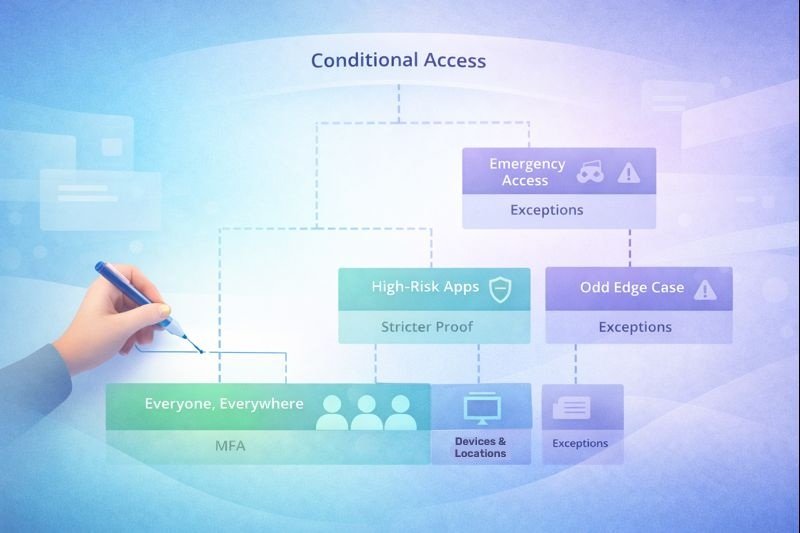
To keep these pillars real, CalderCloud designs Conditional Access as a layered decision flow:
Broad, simple policies at the bottom (everyone, everywhere), with narrower, stricter layers for admins, sensitive apps and odd edge cases.
Later in this post we’ll walk through a workshop-style way to sketch that flow – more like a Visio decision tree than a list of random rules and then translate it into actual policies.
Zero Trust is often explained in buzzwords. For CalderCloud we can put it plainly:
No sign-in gets a free pass. Knowing a password, being “on the office network”, or using a familiar app is not enough to assume a user is safe.
Conditional Access is what lets us turn that philosophy into rules. Each time someone signs in, we can look at the context:
- Who is this user and what role do they hold?
- Which app and data are they trying to reach?
- Which device and location is in play?
- How risky does this sign-in look compared to their normal behaviour?
Security Defaults takes a generic stance on all of this.
Conditional Access lets CalderCloud say:
“For this combination of factors, here’s what we think is safe.”
That’s the first reason we use it: it’s how we stop relying on blind trust and move to evidence-based decisions at sign-in.
Least privilege means people only get the access and the level of trust they actually need in that moment.
In a PowerPoint slide deck, everyone nods at that idea. In real life, it’s Conditional Access that makes it stick.
For CalderCloud staff, least privilege might just mean:
- You can sign in from more places, but you prove it’s really you with MFA.
- You can access most apps on personal devices, but not the “crown-jewel” business data.
For admins and highly privileged roles, least privilege is harsher by design:
- You can only reach admin portals from compliant or very well-understood devices.
- High-risk sign-ins are blocked completely until they have been investigated.
This is the second reason we use Conditional Access:
it’s the only realistic way to make “least privilege” more than a poster on the wall.
Security Defaults protects everyone the same;
CalderCloud needs to protect people and apps according to what they can break.
The third pillar is the bit end users actually feel:
How painful is this going to be?
If we push security so hard that every sign-in is a battle, people will look for workarounds, projects will slip, and the helpdesk will drown.
That’s not just an IT cost; it’s a wellbeing problem. Confusing prompts, random lockouts and unexplained “access denied” errors are stress triggers, especially for colleagues who already find change or uncertainty difficult.
Conditional Access lets CalderCloud be deliberate here:
- We can demand extra proof only where it genuinely cuts risk (new device, risky sign-in, sensitive app) instead of hammering everyone, all the time.
- We can use report-only mode to see the impact of new policies before people feel it.
- We can group policies and rollout plans with clear communication, so staff know what normal looks like for them on their first day.
This is the third reason we use Conditional Access: not just to tighten security, but to shape security into something predictable and survivable for all end users.
Pulling the pillars together
When you put those three pillars together, CalderCloud’s direction becomes clear:
- Security Defaults were a great set of training wheels for basic protection.
- Conditional Access is where we decide, explicitly, what “safe enough” means for our people, our data and our risk appetite.
The rest of this post is about turning those pillars into an actual baseline: the concrete policies, scopes, pilot strategy and “don’t do this” warnings that let CalderCloud move beyond defaults without triggering a sign-in meltdown.
When we start building actual policies in later sections, we’ll keep coming back to these three pillars: if a policy doesn’t support them, it doesn’t make it into CalderCloud’s baseline.
If you’re not a security person, the takeaway is: the system will ask you for extra proof only when it really needs to, and we’ll tell you what ‘normal’ looks like.”
Mapping Security Defaults to Conditional Access Policies
Before CalderCloud can design its own Conditional Access baseline, we need to answer a simple but important question:
“What exactly are we replacing?”
In Day 7, Security Defaults were our “good enough for now” safety net: they gave us multifactor authentication, blocked legacy authentication and added extra protection for admin accounts with one switch. That was a great starting point, but it was also a black box. To move forward, we have to pull that box apart and turn it into policies we can see, name and control.
At a high level, Security Defaults bundle together a handful of behaviours:
- Requiring MFA for all users.
- Applying stronger sign-in requirements to privileged roles.
- Blocking older legacy authentication protocols.
- Steering sign-ins towards modern, more secure authentication paths.
When you enable them, you are essentially accepting Microsoft’s view of a “basic secure posture” for a smaller organisation that doesn’t want to design its own model. For CalderCloud’s current size, risk and ambition, that’s no longer enough.
Our first design move is to mirror those behaviours with Conditional Access, one concept at a time. Instead of one hidden bundle, we’ll create clear, separately named policies.
- Where Security Defaults said “everyone uses MFA”, CalderCloud will define an “All users – require MFA” policy that targets standard staff, deliberately excludes break-glass accounts, and uses sensible sign-in conditions.
- Where Security Defaults silently block legacy auth, we’ll introduce an explicit “Block legacy authentication” policy and apply it organisation-wide, documenting the decision and any tightly controlled, time-limited exceptions for awkward older systems.
The same pattern applies to admins. Under Security Defaults, privileged roles simply get “extra protection”.
With Conditional Access, CalderCloud will introduce a dedicated “Privileged roles – strong sign-in” policy (we’ll refine the exact naming later), forcing those accounts to meet stricter conditions:
- Compliant or known-good devices,
- Stronger session controls, and
- No access at all from clearly risky sign-ins.
The end result is similar to (or better than) the old default, but now the rules are visible, explainable and tuneable instead of wrapped in magic.
For IT Management, this mapping step proves we’re not weakening security; we’re taking ownership of it. For sysadmins, it turns a single “on / off” switch into a set of policies that can be tested, put into report-only mode and rolled out in phases. For everyday staff, it means fewer surprises:
When behaviour changes, it’s because CalderCloud made a conscious choice, not because Microsoft quietly adjusted the black box.
This mapping work matters for two reasons:
- First, it keeps everybody calm: we aren’t throwing away the safety net, we’re rebuilding it in a form CalderCloud can actually understand and support.
- Second, it gives us a solid stepping stone for improvement.
Once we’ve recreated what Security Defaults was doing, we can start to go further; shaping policies for different user groups, locations and devices, introducing the layered design we’ll explore in the next section, and weaving in our three Pillars of Conditional Access. By the time we switch Security Defaults off, it shouldn’t feel like a risky leap. It should feel like an honest label:
CalderCloud has grown up and moved its safety into Conditional Access, where it belongs.
Building the Core User Baseline: Everyone, Everywhere (With Safety Nets)
The first job for CalderCloud’s Conditional Access baseline is boring on purpose:
Make sure that everyday sign-ins for everyday people are predictably safe.
This is the layer that replaces the “hidden” behaviour of Security Defaults with something explicit:
A small set of clearly named, clearly scoped policies that apply to almost everyone, almost everywhere, without melting their brains or the helpdesk.
Technically, this baseline is centred on one idea:
Every end user must meet a minimum bar (usually MFA) for any cloud app, unless we’ve very deliberately carved out an exception.
Around that idea we wrap safety nets:
Emergency access accounts, pilot groups, report-only mode, and monitoring.
Conditional Access evaluates all matching policies together and merges their requirements – there is no admin-controlled “order of rules” – so our job is to design layers that combine cleanly rather than fight each other.
For end users, this layer should feel like a seatbelt – present, occasionally noticeable, but not constantly shouting at you. For IT leads and sysadmins, it becomes the anchor point for everything else we build in this post.
In the section above we mapped what Security Defaults were doing; this section now turns that into CalderCloud’s first explicit Conditional Access layer.
What “Everyone, Everywhere” Actually Means at CalderCloud
“Everyone” sounds simple until you list who exists in Entra ID. For this baseline, CalderCloud is deliberately clear about who is in and who is handled elsewhere.
Included by default
- Normal staff across CalderCloud (UK and EU core user population).
- Managers and senior leaders (but not treated as “admins” yet).
- real-linked shared mailboxes and similar accounts with real end user owners.
Handled differently / excluded from this layer
- Break-glass / emergency access accounts – covered by their own extremely locked-down rules.
- Highly privileged roles – they will sit on top of this baseline with stricter controls in the next section.
- Non-human identities – service principals, automation accounts, old integrations. They move into a separate “non-end-user identity” track.
On the app side, CalderCloud follows modern guidance and goes broad:
All Microsoft 365 / Entra-protected resources are in scope for the baseline MFA requirement.
Narrowing comes later through extra policies for specific apps, not by punching holes in the baseline itself.
For the non-techy readers, the takeaway is simple:
“If you’re a CalderCloud person signing in to a CalderCloud app, you will sometimes be asked for extra proof that it’s really you. We’ll do that consistently, and we’ll tell you what ‘normal’ feels like so you don’t have to guess.”
Predictable friction beats random lockouts, especially for colleagues already running on a low mental health issue.
The CalderCloud Conditional Access Workshop: Designing Layers as a Flow
Before anyone opens the Entra admin centre, CalderCloud runs a Conditional Access baseline workshop. The aim isn’t to argue about every tick-box; it’s to sketch a business-friendly decision flow that later becomes a small, coherent set of policies.
Typical attendees (roles, not names):
- Modern Workplace / Identity Lead – chairs the discussion, owns the design.
- Security Lead / CISO delegate – brings risk appetite and standards.
- Device / Endpoint Lead – defines what “known-good device” actually means.
- Service Desk Lead – explains what tends to break people on Monday morning.
- HR / People representative – understands joiner/leaver patterns and vulnerable moments.
- At least one end-user champion – with permission to say “that sounds awful” early.
On a whiteboard (or in Visio), they draw a simple decision tree of the questions that matter for baseline sign-ins:
- Is this an internal CalderCloud user, or a guest?
- Is this account in a privileged role?
- Is the sign-in coming from a typical location for this user, or somewhere unusual?
- Is the device “known good” (managed / compliant / hybrid joined) or not?
- Is there any obvious risk signal attached to this sign-in (if licensed)?
Each path down the tree ends in a plain-language rule, such as:
“If this is a normal employee on a typical device, using normal apps, require MFA and let them work.”
“If this is a normal employee user on a completely new device or odd location, step up with MFA and keep an eye on risk.”
“If this isn’t a normal employee at all, this baseline doesn’t apply; we deal with it via the non-normal identity framework.”
Everyone in the room understands that this flow is for end users / employees, not for Entra’s engine. Entra evaluates all matching Conditional Access policies at once; there is no “first match wins”. The workshop exists to design clean layers so that when those policies combine, the outcome still makes sense to real people.
By the end, CalderCloud leaves with (added to the tenant charter):
- A one-page “Baseline sign-in flow” diagram.
- A short list of candidate policies, e.g. GLOBAL Baseline – Require MFA for all users.
- A first view of who may need exclusions or pilot treatment.
Later in the post, when we introduce stricter layers, we’ll refer back to this as the foundation every other policy builds on.
Now we translate the whiteboard into a real baseline policy in the Microsoft Entra admin centre. This is the bit a new sysadmin should be able to follow click by click.
Pre-checks (for IT leads / sysadmins)
- Confirm you have a Microsoft Entra ID P1 or P2 License – Conditional Access needs at least P1.
- Make sure at least two emergency access accounts exist and are documented.
- Run this first in a test or low-risk period and keep it in Report-only until you understand the impact.
To create the baseline MFA policy:
Note!! This is based on the current UI, early 2026
- Sign in to the Microsoft Entra admin centre
- Use an account with the Conditional Access Administrator or equivalent rights.
- Navigate to Conditional Access policies
- In the left-hand menu, go to:
Entra ID → Conditional Access → Policie
- In the left-hand menu, go to:
- Create a new policy
- Select “+ New policy” (or Create new policy, depending on the header text).
- Name the policy clearly
- In Name, enter something like:
“GLOBAL – Baseline – Require MFA for all users” - CalderCloud will stick to this Scope – Layer – Summary style in later posts.
- In Name, enter something like:
- Assign users and exclusions
- Under Assignments, select Users or workload identities.
- Under Include, choose All users.
- Under Exclude, choose Users and groups, then:
- Add your break-glass / emergency accounts group.
- Optionally add a small, temporary “CA Baseline – Excluded (Pilot Only)” group for troubleshooting.
- Don’t exclude normal admins here; they’ll get extra policies later, but still need this baseline.
- Target all resources / cloud apps
- Under Target resources or Cloud apps or actions (name varies slightly):
- Choose All resources (formerly ‘All cloud apps’).
- Under Target resources or Cloud apps or actions (name varies slightly):
- Set the grant controls
- Under Access controls, select Grant → Grant access.
- Use one of:
- (preferred) Require authentication strength → choose the built-in Multifactor authentication strength; or
- Require multifactor authentication (classic control), if you aren’t ready for authentication strengths yet.
- Select “Select” to save.
- Leave conditions broad (for now)
- Don’t add device, location or sign-in risk conditions to this policy yet.
- We’ll create narrower, more specific policies for those later to avoid confusing overlaps.
- Set the policy to Report-only
- At the bottom, set Enable policy to Report-only.
- Select “Create” to save the policy.
- Explain what to expect
- Tell pilot users and the service desk that you’ve created a report-only baseline MFA policy.
- Nobody should be blocked yet, but sign-in logs will now show what would have happened if the policy were enforced.
For the reader, this answers two questions at once:
- “What exactly is this baseline doing?” – everyone, all resources, MFA required.
- “How does it look in the real portal?” – a clear, single policy rather than a tangle.
For a new or nervous sysadmin, this is the “do exactly this, in this order” comfort blanket. For more experienced admins, it’s still useful because it matches Microsoft’s own recommended baseline shape:
All users, all resources, require MFA, starting in report-only mode.
For Day 8, CalderCloud is happy to create this first baseline in the portal. But as soon as multiple policies appear – admin layer, high-risk apps, guests, pilots – clicking around stops scaling. This is where PowerShell and Microsoft Graph step in.
Building blocks & safety rails
Under the hood we’re using:
- Microsoft Graph PowerShell (New-MgIdentityConditionalAccessPolicy).
- The conditionalAccessPolicy schema (conditions, grantControls, state).
- The built-in “Multifactor authentication” authentication strength, which has a fixed ID across tenants:
00000000-0000-0000-0000-000000000002.
Key safety decisions:
- We create policies in report-only mode via state = “enabledForReportingButNotEnforced” – matches our narrative and the Entra UI.
- We require Policy.ReadWrite.ConditionalAccess in Connect-MgGraph.
- We assume you already know your break-glass group and any pilot exclude group object IDs.
Script: create the CalderCloud baseline MFA policy
This script:
- Connects to Graph.
- Builds a policy equivalent to our “GLOBAL – Baseline – Require MFA for all users”.
- Uses All users, All resources, MFA auth strength, and report-only state.
# 1. Install and import Microsoft Graph PowerShell (once per machine)
Install-Module Microsoft.Graph -Scope CurrentUser -Force
Import-Module Microsoft.Graph
# 2. Connect with the right scopes
Connect-MgGraph -Scopes “Policy.ReadWrite.ConditionalAccess”,”Directory.Read.All”
# 3. IDs for special groups (replace with your real IDs)
$breakGlassGroupId = “00000000-0000-0000-0000-000000000000” # e.g. ‘XX-BreakGlass-Admins’
$pilotExcludeGroupId = “11111111-1111-1111-1111-111111111111” # optional: ‘XX-CA-Pilot-Exclude’
# 4. Build the baseline policy payload
$baselinePolicy = @{
displayName = “GLOBAL – Baseline – Require MFA for all users”
state = “enabledForReportingButNotEnforced” # Report-only to start
conditions = @{
users = @{
includeUsers = @(“All”)
excludeUsers = @(
$breakGlassGroupId,
$pilotExcludeGroupId
)
}
applications = @{
includeApplications = @(“All”) # All resources / all cloud apps
}
clientAppTypes = @(“All”)
}
grantControls = @{
operator = “OR”
authenticationStrength = @{
# Built-in ‘Multifactor authentication’ strength – same ID in all tenants
id = “00000000-0000-0000-0000-000000000002”
}
}
}
# 5. Create the policy in Entra (Report-only)
New-MgIdentityConditionalAccessPolicy -BodyParameter ($baselinePolicy | ConvertTo-Json -Depth 10)
This mirrors exactly the JSON pattern from the official conditionalAccessPolicy examples and the 2025 “authentication strength via Graph” guidance.
Once created, you’ll see it in Entra ID → Conditional Access → Policies, state = Report-only.
Protecting Admins, High-Risk Roles and Sensitive Apps
If the “Everyone, Everywhere” baseline is CalderCloud’s seatbelt, this section is the roll-cage.
The people and systems in scope here can do real damage quickly:
Change tenant-wide settings, delete data, turn off protections, or expose information that should never leave the building.
They need stronger guardrails than the rest of the organisation and those guardrails must be designed carefully so that they don’t lock CalderCloud out of its own tenant.
The key design move is simple:
Admins and high-risk apps never rely on just the global baseline. They sit on top of it, inside their own, stricter Conditional Access layer.
Normal users still hit the “require MFA for all users” policy from above; admins and sensitive apps hit that plus extra rules about devices, locations, roles and risk, all designed in the same layered, flow-based way we used for the baseline.
For end users who never touch admin portals, this section should be invisible. For IT leads and sysadmins, it is one of the most important safety decisions a business will ever make.
Who Counts as “Admin” or “High-Risk” at CalderCloud?
“Admin” means more than “has a fancy title in Entra ID”. For this layer, CalderCloud focuses on what someone can break rather than what they are called.
In scope for this stricter layer:
- Directory and tenant-wide roles, for example:
- Global Administrator
- Privileged Role Administrator
- Security Administrator
- Exchange / SharePoint / Teams Administrator
- Privileged device and app roles, where a misstep could expose or destroy large amounts of data.
- Service and automation identities that can change configuration at scale (for example, DevOps pipelines with tenant-level permissions).
- High-risk apps and portals, such as:
- Microsoft 365 admin centre, Entra admin centre, security portals
- Line-of-business apps with access to financial, HR, or sensitive client data
Deliberately not in this bucket:
- Team-level owners of normal collaboration spaces (Teams/SharePoint owners for everyday sites).
- Power users with local admin rights on a handful of devices but no tenant-wide control.
- Guest admins in partner tenants (they are handled via a separate “external admin” design later in the series).
CalderCloud’s rule of thumb is:
“If this account, portal or app can make tenant-wide changes or touch crown-jewel data, it belongs in the admin/high-risk layer, even if the job title doesn’t say ‘admin’.”
That framing stops the conversation getting stuck on job labels and keeps it focused on impact.
Design Goals for the Admin / High-Risk Layer
Using the same workshop approach from above, CalderCloud defines a handful of clear goals for this stricter layer:
- Admins never sign in like normal users.
If an account can change the tenant, it should always feel slightly more constrained and more closely watched. - Strong proof of identity is non-negotiable.
Admins should use stronger factors than basic SMS or app notification where possible, and they should expect MFA prompts more often than standard users. - Admin sessions should come from known-good places.
Tenant-level changes should originate from compliant or hybrid-joined devices, from locations CalderCloud trusts, not random BYOD or café Wi-Fi. - Risky admin sign-ins are blocked first and explained later.
For admin roles, the balance between “don’t lock people out” and “don’t get breached” tilts heavily towards safety. - There is always a safe way back in.
A small number of carefully protected emergency access accounts exist outside most Conditional Access policies, with their own manual guardrails and governance.
These goals shape how CalderCloud layers Conditional Access: not hundreds of clever policies, but a small set of clearly named rules that together make admin access safer, more predictable and more auditable.
From Flow to Policies: Admin Layer Design
In the Conditional Access workshop, once the baseline “Everyone, Everywhere” flow is sketched, the group adds an extra branch for admin and high-risk scenarios:
- Is this an internal user or a guest?
- Is this account in a privileged role, or accessing an admin / high-risk app?
- Is the device compliant / hybrid-joined, or something else?
- Is the sign-in from a named, known-good location, or from somewhere unexpected?
- Is there a risk signal attached to this sign-in (if Entra ID Protection is in play)?
From that branch, CalderCloud writes a few plain-language rules, for example:
“If a privileged role signs in to any admin portal from a non-compliant or unknown device, block access.”
“If a privileged role signs in from a named, known-good location on a compliant device, require strong MFA and allow, but keep sessions shorter.”
“If a sign-in to an admin portal is flagged as high-risk, block access until an investigation or secure re-registration has taken place.”
Those rules then become a small set of admin-focused policies, layered on top of the baseline. For example:
- ADMIN – Privileged roles – Require strong MFA on compliant devices
- ADMIN – Block admin portals from non-compliant or unknown devices
- ADMIN – Block high-risk sign-ins to admin portals
Each policy is designed so that if more than one applies, the combined outcome still makes sense and matches the plain-language rules, rather than creating surprises.
Step-by-Step: Creating a Strong Admin Sign-In Policy
Now we take the “roll-cage” idea for admins and turn it into an actual Conditional Access policy in the Microsoft Entra admin centre. As with the baseline, this is written so a new sysadmin can follow it click by click.
Goal for this policy
Any user in key privileged roles must use strong MFA from a trusted device when accessing admin portals and other high-risk apps. Risky sign-ins should be blocked or challenged. Normal users should not be affected.
Pre-checks (for IT leads / sysadmins)
- You have a Microsoft Entra ID P1 or P2 license and Conditional Access is available.
- You have already:
- Created the baseline “Require MFA for all users” policy.
- Identified which directory roles you consider “admin” for this layer (e.g. Global Administrator, Security Administrator, Exchange Administrator, etc.).
- Confirmed that emergency access (“break-glass”) accounts are not used for day-to-day admin work.
Create a dedicated admin Conditional Access policy
- Sign in to the Microsoft Entra admin centre
- Use an account that has permission to manage Conditional Access (for example, Security Administrator, Global Administrator or Conditional Access Administrator).
- Go to Conditional Access policies
- In the left-hand navigation, choose:
Entra ID → Protection → Conditional Access → Policies
- In the left-hand navigation, choose:
- Create a new policy
- Select + New policy (or Create new policy, depending on the header text).
- A new, blank Conditional Access policy page will open.
- Name the policy clearly
- In Name, enter something like:
“ADMIN – Privileged roles – Strong sign-in requirements” - Keep to the Scope – Layer – Summary pattern to match the baseline policy naming.
- In Name, enter something like:
Target the right admin accounts
We’ll scope this policy directly to directory roles, rather than a random group, so it always follows the roles that can change the tenant.
- Choose the users / roles this policy applies to
- Under Assignments, select Users or Users and workload identities.
- In the Include tab:
- Choose Select users and groups.
- Then select Directory roles (there’s usually a tab or link for Directory roles in the picker).
- Tick the roles you want to protect, for example:
- Global Administrator
- Privileged Role Administrator
- Security Administrator
- Exchange Administrator
- SharePoint Administrator
- Teams Administrator
- Select “Select” to confirm your choices.
- In the Exclude tab:
- If you have a specific emergency access account that holds one of these roles, add it here so it is not affected by this day-to-day admin policy.
- Keep exclusions very small and well-documented.
This keeps the policy focused: it applies only to users in those directory roles, not to every power user in the tenant.
Target admin portals and high-risk apps
- Choose the apps this policy protects
- Under Assignments, select Target resources or Cloud apps or actions (the wording varies slightly).
- Choose Select apps.
- In the app picker, search for and add at least:
- Microsoft Entra admin center
- Microsoft 365 admin center
- Any dedicated Microsoft security portals you use (e.g. “Microsoft Defender XDR”, “Microsoft Purview compliance portal”)
- Add any line-of-business apps that you have already identified as high-risk (for example, HR or payroll systems that rely on Entra SSO).
- When you’ve added the apps, select Select to save the list.
We’re intentionally not selecting “All cloud apps” here; this policy is about admin and crown-jewel apps, not every sign-in.
Set the conditions for safer admin sign-ins
- Decide which device types are allowed
- Under Conditions, choose Device platforms if you need to limit specific OS types (for example, only Windows/macOS).
- For many tenants, you can leave platforms alone here and focus on compliance in the next step.
- Require known-good devices for admin work (optional but recommended)
- Still under Conditions, select Filter for devices or Device state / Device (depending on what’s shown in your tenant).
- If you have Intune / device compliance in place:
- Use the Device state / Filter for devices options so that only compliant or hybrid-joined devices can be used for admin sign-ins to these apps.
- If you aren’t ready for this yet:
- You can skip this step for now, but plan to revisit it once your Intune baseline is in place.
- Add a location rule if CalderCloud uses “known locations”
- Under Conditions, select Locations.
- Turn the toggle On.
- Under Configure, choose Include → Any location.
- Under Exclude, add any trusted named locations (for example, CalderCloud HQ public IP ranges) where you’re comfortable allowing slightly less friction.
- For a first version, many organisations leave location conditions off and rely on MFA + device, then tighten later.
- Add sign-in risk (if licensed)
- If CalderCloud has Entra ID Protection:
- Under Conditions, select Sign-in risk.
- Turn the toggle On.
- Choose Low and above or Medium and above, based on risk appetite.
- This will let you later block or step up for risky admin sign-ins.
- If CalderCloud has Entra ID Protection:
Require strong MFA and safer sessions
- Configure the grant controls
- Under Access controls, select Grant.
- Choose Grant access.
- Then:
- If your tenant uses Authentication strengths:
- Tick Require authentication strength.
- In the drop-down, choose Multifactor authentication or a stronger custom strength CalderCloud has defined for admins.
- If you’re not using strengths yet:
- Tick Require multifactor authentication.
- If your tenant uses Authentication strengths:
- Optionally add further controls, such as:
- Require device to be marked as compliant (if you set that up in Conditions).
- Make sure Require all the selected controls is chosen if you want MFA + compliant device together.
- Select Select to save.
- Tighten session controls for admins (optional)
- Under Access controls, choose Session.
- For admin accounts you might:
- Enable Sign-in frequency and set a shorter duration (for example, every 8 hours or every day).
- Consider enabling Persistent browser session off for admin sign-ins, so browsers don’t “remember” admin sessions for days.
- Keep these settings modest at first and adjust based on real-world feedback.
Start in Report-only and pilot safely
- Set the policy state to Report-only
- At the bottom of the policy page, find Enable policy.
- Choose Report-only.
- Select Create (or Save) to store the policy.
- Communicate with admins and support
- Let the affected admin roles know that a report-only admin protection policy now exists.
- Service desk and security operations should know:
- Which policy name to look for in sign-in logs.
- What behaviour the policy is intended to enforce once it’s turned on.
- Review the impact before enforcing
- After a few days, use the Sign-in logs and Conditional Access insights in Entra to see:
- Which admin sign-ins would have been blocked or challenged.
- Any surprising edge cases (for example, vital admin tasks being done from unmanaged devices).
- Adjust conditions if needed, then plan a move from Report-only → On with a clear change window.
- After a few days, use the Sign-in logs and Conditional Access insights in Entra to see:
Once enforced, this policy will:
- Not affect standard CalderCloud users signing in to normal apps.
- Always apply on top of the global “Require MFA for all users” baseline for the chosen admin roles and apps.
- Give admins a consistent experience: they know that admin work means strong MFA, safer devices, and shorter sessions – every time.
Mental Health, Lockouts and “No Meltdown” for Admins
Admin access is stressful at the best of times. If Conditional Access is misconfigured, it can make that stress worse: sudden lockouts, 2 a.m. pager alerts, and the fear of “what if I break the tenant” every time someone changes a policy.
CalderCloud’s admin layer is designed to keep people safe and sane:
- Clear expectations:
Admins know that their sign-in will be stricter than everyone else’s. They expect more prompts, shorter sessions, and tighter rules and they understand why. - Practised break-glass process:
The emergency access accounts are not mystical objects that “someone set up once.” There is a documented, rehearsed process for using them in a real incident, with clear hand-off back to normal operations once the issue is resolved. - No solo heroics:
Changes to admin Conditional Access policies are planned, reviewed and made visible, rather than tweaked quietly by one tired person on a Friday afternoon. That spreads the emotional load and reduces the risk of burnout. - Support that understands the stakes:
Service desk and on-call teams are briefed on what admin Conditional Access policies are supposed to do, and what “normal” looks like. When something goes wrong, admins are met with informed help, not suspicion or blame.
Protecting admins and high-risk apps is as much about how it feels to work here as it is about technical controls. Done well, this layer gives CalderCloud’s admins confidence that the system will back them up when something goes wrong, rather than making them the weakest link by default.
Devices, Locations, and the Story of “Known” vs “Unknown”
By now, CalderCloud has two big pieces in place:
- a baseline that makes passwords alone useless, and
- an admin layer that stops the people who can break things from doing it accidentally.
The next question Conditional Access quietly asks, every time someone signs in, is:
“What sort of device is this, and where in the world does it appear to be?”
Not to snoop, but to decide how cautious to be.
When those answers are familiar i.e. a managed CalderCloud laptop on a normal connection – sign-in should feel almost boring.
When they’re strange i.e. an unmanaged machine in an unexpected country – the system needs to behave very differently.
This section covers how CalderCloud uses devices and locations to tell the difference between “we know you” and “we don’t”, and what that means for everyday work, leadership decisions and sysadmin design.
Seeing It from the Keyboard
Think of Sian again, a project manager at CalderCloud.
On a normal weekday she opens her CalderCloud laptop in the office, signs in, approves an MFA prompt and gets on with her day. Nothing surprising, nothing stressful.
The next morning she does the same thing at home. Same laptop, same account, different broadband router. She might get an extra MFA prompt after the weekend, but otherwise it feels identical. From Conditional Access’ point of view, nothing about her device has changed; the system still sees “managed, compliant CalderCloud laptop”. The location has shifted, but in a way CalderCloud expects.
Now imagine her laptop dies mid-project. While IT arrange a replacement, she borrows a family laptop. To Sian it’s just another machine with a browser. To Entra and Intune it’s a black box: no join state, no compliance, no record of who else uses it. When she signs in, she can still reach Teams and email, but when she tries to open a finance app the system says:
“To use this application, you need to be on a managed CalderCloud device. Right now you’re on an unmanaged device.”
From her perspective that’s frustrating but understandable, and importantly, it’s explained. She isn’t staring at a blank “Access denied” and wondering if she’s in trouble.
That’s all this section really is: making sure every reader understands why those three sign-ins – office, home, borrowed laptop – should feel different, and how Conditional Access makes that happen on purpose.
Devices – Managed, Lightly Managed, and Unknown
Behind the scenes, CalderCloud stops talking about “laptops and phones” and starts talking about device categories. This makes the design discussion much clearer for IT leads and sysadmins.
The first category is the easy one: managed CalderCloud devices. These are the machines the organisation is willing to stake its reputation on. They are joined to Entra ID or hybrid-joined to on-prem AD, enrolled in Intune, and evaluated against real compliance policies – things like encryption, minimum OS level, and basic health checks. When Intune says these devices are compliant, Conditional Access can treat that as a genuine safety signal, not just a tick-box.
On these devices, the rules can be generous. Staff can reach most of their apps, and admins can reach their portals, because the device itself is pulling its weight in the security story.
The second category is lightly managed devices. Often these are personal phones with app protection policies, or temporary machines that are in the process of being brought under management. They’re good enough for day-to-day collaboration – email, Teams, SharePoint, low-risk line-of-business apps, but CalderCloud does not treat them as equal to a fully managed laptop. When Conditional Access sees these devices, it allows normal work but holds back access to the crown-jewel business systems.
The last category is the awkward one: unknown devices. These are home PCs, borrowed laptops or machines Intune simply cannot see. Technically they may be perfectly fine; the point is that CalderCloud has no trusted, ongoing visibility of them. From a Conditional Access perspective, they are allowed for the basics – sign in, do low-risk tasks in the browser – but they are not allowed anywhere near admin portals or the most sensitive data. If someone genuinely needs to work with high-risk systems from such a device, they do it through a safer pattern (for example, a virtual desktop), not by giving the device full trust.
For end users, the message is simple: your CalderCloud device is your best friend; your personal devices are useful but limited; random machines are for emergencies only.
For sysadmins, these three categories become actual rules: which apps accept which devices – something later Week 2 posts will turn into concrete Intune compliance policies and Conditional Access filters.
Locations – Home, CalderCloud, and “Everywhere Else”
Devices tell Conditional Access what you’re using. Locations tell it something about where you appear to be.
CalderCloud keeps its location model deliberately small. First, there are the CalderCloud locations – the office egress IPs and VPN exits that are firmly under the organisation’s control. Sign-ins from there are still MFA’d, but they are expected. When an admin opens the Entra portal from HQ on a managed device, nobody is surprised.
Next, there is normal working life: home broadband in Halifax, co-working spaces in Leeds, hotel Wi-Fi on a UK client visit, mobile data on the train. CalderCloud does not try to track every IP address those produce. In Conditional Access they all fall into “the general internet”. That doesn’t make them unsafe by default; it just means they do not carry the extra trust that comes from being behind CalderCloud’s own network.
Finally, there is a short list of “we don’t work from here” locations. CalderCloud isn’t a global conglomerate. There are countries and regions where it has no staff, no offices, no clients. Any sign-in from there, especially to admin portals or HR/finance systems, is suspicious by definition. Conditional Access policies for those apps can safely say “no” outright or demand extra verification and investigation.
For managers, this is the bit that often clicks: they can see that the system isn’t being picky for the sake of it. It is simply recognising that “CalderCloud HQ on a managed laptop” and “unknown café Wi-Fi in a country we never travel to” should never be treated as equivalent.
How Conditional Access Uses “Known” and “Unknown” Together
Putting the pieces together, every sign-in at CalderCloud now goes through a quiet mental flow chart:
- Who is signing in? Is this a normal employee, a guest, an admin, or an emergency account?
- What are they trying to reach? Is it a standard business app, a sensitive system, or an admin portal?
- What are they on, and where are they? Is the device managed or unknown, is the location expected or unusual?
Conditional Access turns that into simple behaviour:
A normal member of staff, on a managed CalderCloud laptop at home, opening Teams or Outlook is hitting exactly the same baseline policy we defined earlier: MFA is required, and once trust is established the experience settles down. Device and location are noted but do not get in the way.
The same person, on a personal laptop in a hotel, trying to open the employee records portal sees a different outcome. The baseline still demands MFA, but a more specific policy for that HR app checks the device category and location and decides this combination is not acceptable. Instead of a mysterious error, they get a clear message telling them they need a managed device or a different route.
When a global admin tries to open the Entra admin centre from an unmanaged desktop in a country CalderCloud never uses, the system is stricter again. The baseline requires MFA, the admin layer requires stronger proof on top, and the device and location rules both disagree with the situation. The safest response is to block the sign-in and trigger an investigation. That is annoying in the moment, but far less painful than cleaning up a compromised tenant.
For everyday colleagues, the pattern becomes predictable: managed devices feel smooth, personal kit feels slightly fenced, and really odd situations trigger stronger reactions, with explanations.
For IT leads, the combination of device categories and location tiers is something they can explain to a board without diving into technical jargon.
For sysadmins, this section gives the mental map they need to build concrete Conditional Access and Intune configurations in the next posts, without turning the tenant into a maze of conflicting rules.
The rest of Week 2 will zoom in on those mechanics – especially how Intune and Conditional Access work together, but the important thing is now on the page:
CalderCloud has agreed what counts as “known”, what counts as “unknown”, and how identity, devices and locations share the work of keeping people safe without breaking their day.
Guest Access and External Collaboration in the Baseline
So far, everything in this post has been about people with CalderCloud accounts: staff, managers, admins, emergency access identities.
Real life is messier. Projects need freelancers. Legal needs external counsel. Teams need partners who sit outside the organisation entirely.
From a Conditional Access point of view, that’s where guests come in: accounts that live in another organisation’s directory, but are invited into CalderCloud’s Entra ID as B2B guests so they can access Teams, SharePoint and other shared resources.
The tension is obvious:
- Make access too strict and projects grind to a halt while someone “just emails the file”.
- Make access too loose and CalderCloud’s data quietly leaks into places it should never live.
This section sets out what CalderCloud’s baseline does and doesn’t do for guests. It’s intentionally opinionated, and it leaves room for later posts to go deeper into more complex external-collab patterns.
Guests Are Not Just “Less Important Staff”
First, a mindset shift. It’s tempting to think of guests as a cheaper, flimsier version of internal staff:
Same permissions, fewer HR headaches.
Conditional Access doesn’t see it that way, and neither should CalderCloud.
A guest account is really two identities stitched together:
- The “home” identity, managed by the guest’s own organisation.
- The “shadow” identity inside CalderCloud’s tenant, which controls which CalderCloud resources they can see.
CalderCloud can shape what the shadow identity is allowed to do. It cannot control:
- How often the guest organisation resets passwords.
- Whether that organisation enforces MFA.
- Whether the device the guest uses is managed or completely unknown.
Treating a guest like a full internal staff member in Conditional Access would be pretending those gaps don’t exist. So the baseline has to answer two questions honestly:
- What is the minimum we need to know or enforce about a guest sign-in before they touch CalderCloud data?
- What will we never do with a guest, no matter how keen someone is to “just give them admin for a bit”?
What the Baseline Guarantees for Guests
At the “everyone” layer from above, CalderCloud made a simple promise: no one gets in with just a password. Guests don’t get a free pass.
The baseline Conditional Access posture for guests looks like this in plain language:
- Every guest must pass through an MFA-style challenge before they touch CalderCloud resources.
Whether that’s enforced at their home tenant or at CalderCloud’s front door depends on licensing and configuration, but “password-only guest access” is off the table. - Guests never get more trust than they need.
The default experience for a guest is access to specific Teams, sites and apps they’ve been invited to – not a wide-open view of the tenant, not admin portals, not HR or finance. - Guests live in a smaller world than staff.
As a baseline, they can collaborate, not administer. If CalderCloud ever genuinely needs an external admin or specialist, that’s a separate, tightly controlled design and not part of this “day-to-day” baseline.
Technically, this usually translates into:
- Including guests in the global “require MFA for all users” policy – either directly or via a companion policy scoped to B2B guest user types.
- Explicitly excluding guests from the admin / high-risk policies that are meant for internal privileged roles.
- Applying more conservative access patterns for certain apps when the user type is “guest”, even on devices and networks CalderCloud would normally trust for staff.
For the average reader, the important bit isn’t the exact conditions; it’s the shape of the answer: guests are welcome in, but they live in a smaller, better-lit room.
Guests on Real Devices in the Real World
Guests almost always use their own devices. CalderCloud can’t insist that every freelancer’s MacBook is enrolled into CalderCloud’s Intune tenant. That would be unworkable and, in many cases, unacceptable.
Instead, the baseline assumes:
- Guest devices are unknown from CalderCloud’s perspective.
- The guest’s own organisation, if they have one, may or may not be doing the right thing.
To deal with that honestly, Conditional Access does three things.
- First, it leans more heavily on MFA and app-level controls than on device trust. A guest opening a shared Team or site will still be challenged appropriately; once inside, the sensitivity of the content and the sharing rules on that Team or library do a lot of the safety work.
- Second, for particular apps or datasets, CalderCloud is comfortable saying “staff only”. If a system holds information that simply shouldn’t leave the internal population; certain HR records, internal-only risk registers, regulator-sensitive data – the baseline doesn’t try to find clever exceptions. Guests are blocked entirely and told to work through an internal contact instead.
- Third, when guests move into more powerful spaces – for example, contributing to a project that touches client data – CalderCloud relies more on workspace design than on trying to predict the cleanliness of every guest device. Separate, well-scoped Teams, SharePoint sites or project apps mean that if a guest account is compromised, the blast radius is contained. Conditional Access supports that strategy; it doesn’t replace it.
For end users, this often boils down to:
“If I invite an external partner into a Team, they’ll see what’s in that Team and not much else. And that’s by design.”
What This Baseline Explicitly Does Not Cover (Yet)
There’s a lot you can do with guests:
- B2B direct connect,
- cross-tenant sync,
- external admin scenarios,
- structured partner access for long-running relationships.
Those are valuable, but they’re also sharp tools.
In keeping with the spirit of Week 2, CalderCloud is deliberately not solving all of that in this baseline. The v1 posture for guests does not include:
- Turning external partners into quasi-internal admins “just for this project”.
- Giving guests access to the same crown-jewel business apps internal staff use for HR, finance or regulatory reporting.
- Complex cross-tenant Conditional Access designs that try to “inherit” another organisation’s security promises.
Those patterns will appear later in the Modern Workplace Mastery series, but only when the foundations – identity, device, data, lifecycle are strong enough to support them without becoming a source of quiet risk.
For this post, the story is intentionally modest:
- Guests are recognised in the baseline.
- They are covered by strong sign-in expectations.
- Their world is smaller, safer and more clearly bounded than that of internal staff.
Why This Matters for the Real World
It’s easy for guest access to become an argument between “security people” and “project people”. Conditional Access can either inflame that or help defuse it.
A clear baseline for guests does three useful things:
- It gives project owners something they can explain to partners without embarrassment:
“We’ll invite you into a specific workspace, you’ll always have to prove it’s you, and we won’t ask you to hand over your laptop just to work with us.” - It gives security and IT a line they can hold calmly:
“These are the types of data and apps we simply never expose to guest accounts. Not because we don’t trust individuals, but because we don’t control their environment.” - It gives end users a simple mental model:
inviting a guest into a Team is normal; giving them broad internal access is not. If something feels wrong, it probably is.
From a mental health point of view, that clarity matters. People are less likely to sneak around the system if they understand the reasons behind it and can see that guests are treated as first-class citizens of the collaboration story, not as an afterthought that “might work” if they’re lucky.
Later in the series, more advanced external-collaboration scenarios will build on this baseline. For now, the important thing is that CalderCloud’s Conditional Access story doesn’t stop at the office door. It includes the people outside the organisation who make the work possible and it does so in a way that keeps everyone, and everything, a lot safer.
Pilot Testing Your Conditional Access Baseline (Without Breaking Monday)
CalderCloud now has a designed Conditional Access baseline, an admin layer, and a clear idea of how devices, locations and guests fit in. On paper, it looks solid. In the tenant, every new policy proudly sits in Report-only.
This is where most organisations wobble. The temptation is either:
“It’s all in report-only and looks fine – let’s just flip everything to On on Friday afternoon.”
Or: “The logs look scary, so we’ll leave it in report-only forever and quietly forget about it.”
CalderCloud does neither. Instead, it treats Conditional Access as a change programme, not just a configuration task. That means running a deliberate pilot, watching what really happens to people, and adjusting before the entire organisation wakes up to a new sign-in reality.
Here we talk about “that pilot”: who’s in it, what they experience, and how CalderCloud uses it to turn “baseline on paper” into “baseline we trust”.
Who Goes First? – Choosing a Realistic Pilot
A good “pilot” isn’t a handful of IT enthusiasts on the same floor. It has to reflect the places where things will actually break.
CalderCloud’s pilot group deliberately mixes:
- People who live in core business tools (project managers, finance, HR).
- At least one frontline or field role that doesn’t sit at a desk all day.
- A small number of admins and power users, including at least one person who touches a number of admin portals.
- A spread of device types and locations: office, home, occasional travellers, a couple of “always on the road” colleagues.
The point isn’t to cover every possible combination; it’s to make sure the pilot sees real life, not just the happy path in HQ.
From an end user’s perspective, being in the pilot means three things:
- They will hear about it in advance, in normal human language.
- They might see new prompts or blocks before everyone else.
- Their feedback is gold; it directly shapes how the rest of CalderCloud experiences Conditional Access.
From an IT lead’s perspective, the pilot is where risk is managed:
- The blast radius is small enough to fix problems quickly.
- The coverage is broad enough that the results are worth acting on.
Turning “Report-Only” into a Meaningful Dress Rehearsal
Conditional Access’ Report-only mode is perfect for pilots, but only if someone actually looks at the data.
For each key policy in this post; the global baseline, the admin layer, the first device/location rules; CalderCloud does three things.
First, it checks the “would this have applied?” column in the sign-in logs for pilot users. For a week or two, those logs show exactly where the policy would have challenged, blocked or done nothing, without impacting the pilot’s day. That reveals weird patterns immediately:
an app everyone forgot about, a sign-in from an unexpected country, a device that isn’t enrolled where everyone assumed it was.
Second, it looks for clusters of pain, not just individual outliers. One admin with an odd home setup is interesting; the entire finance team seeing “would be blocked” when they log in from home every Thursday is a design problem. The pilot is where those patterns surface before they become organisation-wide support tickets.
Third, it tests messages and runbooks, not just settings. When a pilot user hits a “this app needs a managed device” message, how long does it take them to understand what to do next? How long does it take the service desk to recognise the pattern in the logs? If the answer is “more than a few minutes”, the problem is as much communication as configuration.
The pilot phase turns report-only from a checkbox into a dress rehearsal: the same policies, the same users, but with the safety net still under the tightrope.
Keeping Humans Calm; Communication and Support
A Conditional Access pilot is as much about feelings as it is about tokens and claims. Done badly, it leaves a small group of unlucky people confused, locked out and resentful. Done well, it turns them into your most convincing advocates.
CalderCloud handles this upfront:
- Pilot members get a simple story, not a wall of security jargon.
- “We’re improving how sign-in works so that risky situations get extra checks and normal work stays smooth.”
- “For a few weeks you might see extra prompts or clearer ‘you need a managed device’ messages. Your feedback will shape what everyone else sees later.”
- The service desk knows the pilot is happening.
They know the names of the policies, how to recognise them in the sign-in logs, and when to escalate to the identity team. “Turn it off” is no longer the default answer. - There is a clear escape hatch for genuine blockers.
If a pilot user cannot do their job, there’s a documented way to:- add them temporarily to a “pilot excluded” group,
- or adjust a condition, without silently undoing the entire pilot for everyone.
Emotionally, this matters. Being in a pilot can feel like being experimented on. CalderCloud’s job is to make it feel like being trusted and involved instead.
What Success Looks Like Before the Big Switch
Before CalderCloud touches the “Enable: On” toggle for anyone beyond the pilot, it pauses and asks a very plain question:
“If we turned this on for everyone tomorrow, what would actually happen?”
The answer has to be reassuring, not hopeful.
For the baseline “MFA for all users” policy, success looks quietly boring. When the team reviews the report-only data, they no longer see entire departments that “would be blocked” every time they sign in from home. The odd edge case might still appear, but the big red flags have gone. Conversations with pilot users and the service desk have also calmed down; instead of “this constantly gets in my way”, the feedback has become “this is different, but I know what’s going on now”. In other words, the policy is behaving in line with CalderCloud’s intent, not surprising anyone.
The admin side has its own definition of “ready”. Admins in the pilot can still complete the full range of their normal tasks, but they can all describe how admin sign-in now feels distinct from their everyday access. They expect stronger MFA, stricter device expectations and shorter sessions when they’re in powerful admin portals, and they see that as part of their role rather than an annoyance.
At least one planned “break glass” exercise has been run end to end, proving that emergency access accounts work under pressure and that people know how to use them without improvisation. Security and identity teams have also followed at least one real “risky admin sign-in” through from detection to resolution, so they are not practising for the first time during an incident.
For device and location rules, success is about consistency. A managed CalderCloud laptop behaves the same way on a normal home network as it does on the office network, with only obvious differences like captive portals in hotels causing extra prompts. Unmanaged devices act exactly as designed: they can do basic collaboration, but they hit clear, predictable limits when they try to reach sensitive apps. When someone is blocked, the message they see tells them what to do next rather than leaving them staring at a vague error.
By the time CalderCloud is ready to move beyond the pilot, the sign-in data, the admin experience and the end user stories all line up: the system is cautious where it ought to be and unobtrusive everywhere else.
“In other words, the pilot proves that the baseline, the admin layer and the device/location decisions we designed on paper are behaving the way we intended in real life.”
From Pilot to Roll-Out – Without a Tenant-Wide Shock
Once CalderCloud is satisfied that the pilot reflects reality, the question becomes:
“How do we share this with everyone without creating a Monday morning horror story?”
The answer is not a single big bang, but a set of controlled steps.
The first step is usually to take the baseline MFA policy and enforce it for a clearly defined slice of the organisation; a business unit, region or function that closely resembles the pilot but on a larger scale.
Communication goes out in a normal language, the service desk is briefed on what “normal” now looks like for that group, and the team watches the sign-in logs carefully for the first few days. If this wider wave behaves like the pilot did, confidence grows quickly; if not, the team has time to adjust without the whole organisation feeling it at once.
Next, CalderCloud brings the admin layer out of its pilot bubble. Because admin accounts are relatively few but highly sensitive, this change is often made globally for all admins at once, but only after those pilot admins have been living with the new experience for a while. Admins are reminded of the differences they should expect; stronger authentication, tighter device expectations, clearer separation between admin and everyday work and the “break glass” process is kept fresh in people’s minds. The aim is for the first day of full enforcement to feel like a continuation of what admins already know, not a surprise.
Finally, the organisation starts to enforce device and location rules for selected high-risk apps. This tends to happen app by app rather than in one sweep: perhaps HR and payroll first, then a critical client-facing system, then certain security portals. Each change comes with its own small burst of communication and support preparation. People are told, in advance, that “from next week this system will only be reachable from a managed CalderCloud device”, and the service desk is given simple triage steps for “I used to get in from here and now I can’t”.
Throughout all of this, CalderCloud treats Conditional Access as an ongoing relationship rather than a one-off project. Every wave of enforcement is followed by a brief period of watching and listening:
Looking at sign-in data, talking to affected teams, and checking that what was designed on paper matches what people are living day to day.
That approach doesn’t just avoid a tenant-wide shock; it also builds trust. Staff see that when something changes at the sign-in screen, it has been tested, explained and supported; not simply switched on and forgotten.
Validation and Monitoring – Knowing Your Baseline Still Works
Pilots are great for getting Conditional Access over the line. The problem is that life doesn’t stop afterwards.
New apps appear. People change jobs. Someone adds a new location. Microsoft quietly tweaks a feature. A policy that was perfect in March can be annoying, unsafe or both by October if nobody is watching.
CalderCloud treats Conditional Access as something that needs ongoing validation, not just a one-time “looks fine” verdict. I discuss how the organisation checks, week after week, that the baseline and admin layers are doing what they were designed to do – and how it notices when the world has changed underneath them.
What Are We Actually Checking?
Before talking about tools, CalderCloud is clear about the questions it wants answers to.
For everyday staff, the question is:
“Does sign-in still feel predictable, or have we slowly drifted into ‘why is this being weird now?’ territory?”
For managers and IT leaders:
“Are we still getting the protection we agreed to, without quietly building friction that drains productivity?”
For sysadmins and security teams:
“Are the policies firing in the right places, at the right rates, and are we seeing and responding to the risky stuff in time?”
That leads to a small set of things that are worth monitoring:
- Effectiveness – are risky sign-ins and legacy patterns being caught where we expect them?
- Impact – are legitimate users being blocked or challenged more than the design intended?
- Drift – have new apps, locations or roles been introduced that sit outside the original baseline?
- Signals – are the logs and alerts telling us about real problems, or just generating noise?
Everything else – tools, dashboards, KQL queries – exists to answer those questions, not the other way round.
Everyday Telemetry – What a Tenant Tells You
At the heart of CalderCloud’s monitoring are the sign-in logs and the Conditional Access insights & reporting view in the Entra admin centre. Those two together tell the story of which policies actually applied during each sign-in, what they did, and how often.
For the identity and security teams, this becomes a rhythm rather than a special event. At regular intervals – weekly at first, then settling into a monthly frequency – they sit down with a view that shows:
- How often each key policy is granting, challenging or blocking access.
- Which apps and locations are most often involved when something fails.
- Whether new patterns are emerging: a new country that appears in admin sign-ins, a new app that never seems to hit the baseline MFA requirement, a sudden spike in “requires compliant device” failures.
Because Conditional Access insights can filter by policy, user, application and outcome, it allows CalderCloud to inspect one layer at a time:
the global baseline, the admin layer, or a particular high-risk app, instead of staring at a sea of unrelated sign-in attempts.
Over time, the team learns what “normal” looks like for their tenant. When something starts to drift; a policy suddenly firing twice as often, or a new app never showing up at all; it stands out against that baseline.
That’s validation in practice: the design on paper, tested continuously against the reality of how people work.
Risk Signals, Alerts and Not Drowning in Noise
Conditional Access doesn’t just care about what device you’re on or where you are; it can also pay attention to risk; how likely it is that an account or sign-in is compromised.
Microsoft Entra ID Protection calculates those risk levels from things like leaked credentials, unusual locations, unfamiliar sign-in patterns and suspicious consent grants.
CalderCloud uses those signals carefully.
For the sysadmin and security lane, this means:
- Separate, clearly scoped user risk and sign-in risk policies that can force a secure password change or block a sign-in when risk is high, instead of silently letting it through.
- Alerts and dashboards that highlight when those risk-based policies have fired, so that human eyes can follow up and make sure the right thing happened.
What CalderCloud avoids is turning every small blip into an alarm. If the security team is woken up every night for things they later dismiss, they will eventually start to ignore the tools altogether. Instead, they tune the risk policies and alerts so that:
- High-risk events are rare enough to investigate properly.
- Medium- and low-risk events can be handled through self-remediation and routine checks.
- Trends (for example, a gradual rise in risky sign-ins from a particular country) are visible in the dashboards, not lost in a flood of email.
For the rest of the organisation, most of this is invisible. What they experience is the occasional “you need to change your password before you carry on” prompt, or a one-off block that is quickly followed by a clear explanation. The heavy lifting happens in the monitoring, not in their inbox.
Listening Beyond the Logs
Logs and workbooks are only half the picture. They tell CalderCloud what the system did; they don’t automatically tell it how people felt.
To keep the baseline healthy from an end users point of view, CalderCloud builds in a couple of lightweight feedback loops.
The first is the service desk view. Each month, someone takes a quick look at tickets that mention sign-in, MFA, blocked apps or “keeps asking me again”.
The question isn’t “how many tickets did we get?” but “what are they about?” If the same Conditional Access policy or app keeps showing up, that’s a sign either the design or the communication needs attention.
The second is the champion view. Teams that were part of the early pilots often become informal barometers. When a new CA change is rolled out, the identity team checks in with a handful of those champions:
“Does this still feel reasonable? Are people adapting, or is something quietly breaking?”
Those conversations often surface issues that don’t generate tickets because people simply give up or find workarounds.
Taken together, these two views; hard data from the logs and soft data from people let CalderCloud validate not just that Conditional Access is working, but that it’s working in a way people can live with. That matters just as much for mental wellbeing as it does for security. A sign-in system that constantly surprises or frustrates people is a quiet drain on resilience.
Making Conditional Access Health Part of Business as Usual
The final piece of validation is cultural. If Conditional Access is treated as a project deliverable that gets ticked off and filed away, it will slowly decay. If it is treated as part of how CalderCloud runs its tenant, it stays sharp.
In practice, that means CA health shows up in a few regular places:
- In an identity or security operations meeting, where the team briefly reviews the Conditional Access and risk dashboards alongside other signals.
- In change discussions about new apps, mergers, restructures or big shifts in working patterns – someone asks “what does this mean for our baseline and admin layers?” rather than bolting policies on afterwards.
- In an occasional light-touch review with business stakeholders, where IT can show, in plain terms, how the baseline has reduced risky patterns without flooding staff with prompts.
None of this needs to be heavy or over-formal. A simple pattern; “we look at the data, we listen to people, we adjust when the world changes” is enough.
Conditional Access doesn’t end when the last policy flips from report-only to On. A good baseline is something CalderCloud keeps validating and tuning, so that six, twelve, or twenty-four months from now, sign-in still feels fair, predictable and safe and the organisation hasn’t quietly slid back towards either chaos or complacency.
What End Users Should Experience on Day 1
By the time CalderCloud reaches “Day 1” of the Conditional Access baseline, a lot has already happened behind the scenes:
pilots, report-only dress rehearsals, admin dry-runs, tweaks to device and location rules.
Day 1 shouldn’t feel like a surprise twist. It should feel like the moment where what was tested with a few people quietly becomes normal for everyone else.
So what should employees / staff actually experience when they try to sign in, and how does that experience feel in their minds as much as in their browsers.
Before Anyone Touches the Sign-in Screen
From a colleague’s point of view, Day 1 starts before they even open their laptop.
In the week or so leading up to the change, CalderCloud has already laid the groundwork: a short, human explanation in existing channels (intranet, team meetings, email to affected users, maybe a quick video) that says, in effect:
- sign-in is being improved so that risky situations get extra checks and normal work stays smooth
- staff might see slightly more consistent MFA prompts and clearer messages about device requirements
- nothing is happening because CalderCloud distrusts them; it’s happening because the threats from the outside have changed
Managers have had their own briefing, so they’re not hearing about it for the first time from anxious team members. The service desk knows the date, the policy names, and roughly what “normal” should look like after the change.
For most people, this is background noise until the morning itself, but it means Day 1 is preceded by a soft “heads-up” rather than silence.
The First Sign-in on Day 1
On the morning itself, what happens when someone logs in on their usual CalderCloud laptop?
Ideally: almost nothing surprising.
They enter their username and password as usual. They see an MFA prompt that feels familiar; perhaps slightly more predictable than before and then their apps open. Teams loads, Outlook syncs, SharePoint behaves. There might be a tiny delay while new policies settle into the session, but nothing that screams “the world has changed”.
The difference is subtle and mostly emotional:
- Sign-in feels tidier. People who used to get sporadic MFA prompts now see them at more consistent moments.
- People who almost never saw one may now see it a little more often, but in ways that have been tested with the pilot group and explained in advance.
- The MFA prompt feels like it belongs to CalderCloud, not just to a random Microsoft screen.
That quiet “same, but slightly more intentional” feeling is the goal for the bulk of the organisation.
When Things Do Feel Different
Not everyone’s Day 1 will be perfectly smooth, and that’s expected. The important thing is what the system does when something is genuinely different.
The colleague on a managed CalderCloud device, working from home, shouldn’t notice much. But someone trying to access a sensitive system from a personal laptop, or from a place CalderCloud rarely sees, may hit new friction.
Instead of a generic “access denied”, they see clearer guidance:
- a message that explains what is happening (“To open this app, you need to be on a managed CalderCloud device”)
- and, as far as the platform allows, what they can do next (use their work laptop, or speak to IT if that’s not available)
The same is true for risk-based prompts. If Entra decides a sign-in looks unusual enough to demand a password reset or a fresh MFA registration, the user is told that this is about protecting their account, not punishing them. It may be inconvenient, but it is framed as help, not blame.
Behind the scenes, the service desk has quick reference notes:
- what that message usually means,
- how to check the sign-in logs,
- when to reassure,
- when to escalate.
The aim on Day 1 is not perfection; it is predictable responses to predictable issues.
How Managers and IT Should See Day 1
For managers, Day 1 is a trust test.
If they’ve been properly briefed, they should recognise what their teams describe. “I saw an extra MFA prompt here”, “My personal laptop can’t open that system anymore”, “I got a message about needing a managed device” – these are all signs that the design is working, not failing. A manager who understands that can validate their team’s frustration, while still backing the direction of travel:
“Yes, that’s expected. It’s part of the new sign-in protections we’ve tested. Let’s talk about what you need to work comfortably within that.”
IT leaders see Day 1 through dashboards and ticket queues as well as stories. They expect a small bump in sign-in-related tickets; mostly clarifications, not outright breakage. They also expect to see the first wave of Conditional Access policies moving from “Report-only would have applied” to “On and actually applied” without sudden spikes in blocks or abandonments. If something big flares up, they’ve already agreed what can be temporarily loosened and what is non-negotiable.
The distinction matters:
Day 1 should feel managed, not improvised.
How It Should Feel by the End of the First Week
By the end of that first week, staff should be able to answer a few simple questions without needing a runbook / checklist:
- “What device should I use if I need to get into something important?”
- “Roughly when do I expect MFA to appear?”
- “What does it mean if I suddenly can’t access a particular app from a personal or borrowed device?”
If they can answer those with some confidence, even if they don’t know all the technical phrases, then the Day 1 experience has done its job.
For many, the change will already have faded into the background. They tap approve, things open, life goes on. For admins and people around sensitive data, the shift will stay more visible:
using a managed device becomes non-optional, admin sign-ins feel more serious, and people treat their own accounts with a little more care.
From a mental health perspective, the key measure is subtle:
does sign-in feel safer and more understandable, or more random and stressful?
If the answer is the former, the baseline is not just technically sound; it is emotionally sustainable.
The rest of this post – especially the gotchas and “please don’t do this” pitfalls – exists to protect that experience. A good Day 1 can be undone very quickly by one rushed change later. The aim is for CalderCloud’s Conditional Access story to stay calm and predictable, not just on the first morning, but every morning after that.
Gotchas, Edge Cases, and “Please Don’t Do This” Warnings
By now, CalderCloud’s Conditional Access baseline looks sensible on paper and survivable in real life. That’s the good news.
The bad news is that Conditional Access is still one of the easiest places to cause real trouble with a single rushed click. Most horror stories don’t come from attackers; they come from tired humans, a vague change request, and just enough privilege to make it stick.
Here is my opinionated list of the things CalderCloud (and any business) should learn to treat with suspicion:
edge cases, tempting shortcuts and outright anti-patterns.
It’s here so that someone, somewhere, reads it before they try to “just tweak a policy quickly” on a Friday afternoon.
The “One Mega Policy” Trap
The first trap is the urge to build a single, clever policy that does everything:
“We’ll just have one rule that covers all users, all apps, all devices, all risks. Easy to manage!”
On day one, it might even work. Then someone asks for an exception. Then a new app arrives. Then a merger happens. Before long, that “simple” policy contains ten nested conditions, half the tenant depends on it, and nobody dares touch it.
CalderCloud’s baseline deliberately avoids mega-policies. Instead, it keeps:
- one broad baseline that’s hard to get wrong
- a small set of admin/high-risk policies
- a few well-named, focused policies for very specific apps or scenarios
That way, when something odd happens, you can actually see which layer did it. If you’re ever about to add “just one more condition” to a policy whose name already fills the screen, that’s a sign the design, not the rule, needs attention.
Excluding the Wrong People (and Forgetting About Them)
Exclusions are another sharp edge. During pilots or emergency fixes, it’s easy to say:
“Let’s just exclude this group for now and sort it later.”
Later rarely comes on its own.
Common failure modes:
- A pilot-excluded group that quietly becomes a permanent bypass for senior people.
- Admins who remain excluded from new protections because “they were breaking a thing during testing”.
- Service accounts and automations sprinkled into exclusions “just to get them working” with no follow-up design.
CalderCloud’s rule is simple:
- Exclusions are temporary unless proven otherwise.
- Any group or user excluded from a Conditional Access policy must be:
- written down,
- reviewed regularly,
- and have a documented reason that still makes sense.
If you can’t explain, in one sentence, why an account is excluded, it shouldn’t be.
Testing in Production with Live Admins
Another classic pattern:
using live admin accounts as the first place to try new ideas.
Sometimes it happens innocently: a security engineer wants to tighten a rule “just for admins” and flips it straight to On. Then someone finds out they can’t reach Entra, Exchange or Intune at all, and the only account that can fix it is equally blocked.
CalderCloud’s baseline assumes two things are always true:
- No matter how clever the design, a Conditional Access change can lock the tenant out.
- You do not want to discover this using the same accounts you need to undo it.
That’s why:
- break-glass accounts sit outside most policies and are tested on purpose, not assumed
- new admin layers are piloted with a subset of admins before becoming global
- any change that affects admin sign-in is made with at least one person watching the logs in real time, not “we’ll check how it went tomorrow”
The warning here is blunt:
if you are changing how admins sign in, treat it as surgery, not as a casual UI tweak.
“Require Compliant Device” Without Real Compliance
“Require compliant device” is a tempting checkbox. It sounds wonderfully strict:
“That’ll fix BYOD, right?”
Only if compliance actually means something.
If Intune has no real compliance policies, or most devices aren’t enrolled, turning on “require compliant device” simply means “block lots of people, randomly”. It doesn’t magically turn unknown devices into safe ones; it just creates stress.
CalderCloud only uses device-based access rules where:
- there is a clear definition of what “compliant” means
- the majority of relevant devices are actually enrolled and healthy
- there is a fallback path for people who genuinely can’t reach a managed device that day
Until that’s true, Conditional Access relies more on MFA and app controls than on pretending unknown devices are fine. A half-built compliance story is worse than none at all when tied directly to a “block access” control.
Silent Blocks and Vague Messages
From an end user point of view, one of the worst things Conditional Access can do is block someone with no explanation.
A blank “Access denied” or a vague “Something went wrong” is more than an annoyance; it’s a mild panic button. People don’t know whether they typed something wrong, whether their account is compromised, or whether they’ve just been quietly cut off.
CalderCloud doesn’t control every string in Microsoft’s UI, but it does what it can:
- It prefers policies and patterns that trigger clearer native messages (“you need to use a different device”, “you must complete MFA”, “your password needs to be changed”) over obscure failures.
- It keeps short internal guides that translate common Conditional Access outcomes into plain language, so the service desk can quickly tell someone, “This is happening because X, and here’s what you do next.”
The gotcha here is simple:
A block without a story invites workarounds.
A block that comes with a reason and a path forward is far more likely to be accepted, even if it’s inconvenient.
Forgetting About Guests and Service Identities
Another edge case that bites later: non-human and non-employee / staff identities.
Guests have already been covered. The two categories that often slip through cracks are:
- Service principals and app registrations used for automation, integration or reporting
- Legacy protocols or devices that still rely on basic auth or awkward sign-in flows
If Conditional Access is only designed with end users in mind, these identities either:
- get dumped into giant exclusion lists, where they quietly bypass protections for years, or
- start failing in confusing ways once older mechanisms are disabled
CalderCloud’s approach is to treat these identities as a separate citizen in the design:
- they get their own patterns, not ad-hoc exceptions
- they are either brought into modern auth and properly governed, or are time-boxed for removal
- every “service account” sitting in an exclusion is on a list that someone owns
The warning here isn’t that robots ruin everything. It’s that forgetting about them does.
Making Conditional Access the Only Control That Matters
Finally, a more subtle gotcha: behaving as if Conditional Access is the only thing standing between CalderCloud and disaster.
It isn’t. It’s one piece of a much larger picture:
- identity hygiene,
- device management,
- data classification,
- user education,
- incident response.
If everything leans on CA, any mistake in a policy feels existential. That’s not a healthy way to run a tenant or a team.
CalderCloud deliberately designs so that:
- a Conditional Access misconfiguration is painful but not fatal – other layers still exist
- security improvements are spread across identity, device, app and data, not stacked precariously in one feature
- people can talk about sign-in issues without shame; “the policy needs tuning” is an acceptable outcome, not a personal failure
The biggest “don’t do this” isn’t about a specific checkbox. It’s about mindset:
Don’t treat Conditional Access as a magic shield or a perfect gatekeeper. Treat it as one of several tools that help real peoples do their jobs with less risk and less anxiety.
If there’s a thread running through all these warnings, it’s this:
Most CA disasters are human stories first and technical stories second.
People were tired, rushed, under pressure, or left alone with too much power. CalderCloud’s baseline, and the whole Modern Workplace Mastery series, exists to tilt the odds the other way – towards controls and day-to-day activities that are understandable, reversible, and designed with actual working lives in mind.
Bringing the Conditional Access Baseline to Life
If Day 7 was about admitting that Security Defaults were no longer enough for CalderCloud, this post has been about answering a harder question:
“What does a grown-up, end user-friendly Conditional Access baseline actually look like in a real tenant?”
By the time you get to read this penultimate section, the pieces are on the table.
CalderCloud has a baseline MFA policy that replaces the hidden behaviour of Security Defaults with an explicit, well-named rule:
Everyone, everywhere, proves who they are with more than a password. It has an admin and high-risk layer that treats powerful roles and crown-jewel apps as a different class of problem, with stronger proof, better devices and more cautious defaults. It understands how devices and locations change the risk of the same person doing the same thing, and it has a clear story about what counts as “known” Versus “unknown”.
It has made a decision about guests: welcome, but in a smaller and better-lit part of the tenant. It treats Conditional Access rollout as a programme, not a panic button, with pilots, monitoring, and a list of “we will not do this” negative patterns.
None of that exists as a single magic policy. It exists as a small set of layered, well-named rules and the human agreements around them.
What CalderCloud Now Has That It Didn’t Before
By the end of this post, CalderCloud is no longer relying on a fuzzy “MFA happens somewhere in the background” story. There is now a designed Conditional Access baseline: a global “everyone, everywhere” MFA layer for all users, a specific layer for privileged roles and high-risk apps, and a deliberate decision to move non-human identities into their own patterns instead of dumping them into exclusions.
For end users, that translates into something deceptively simple: sign-in friction that feels predictable rather than arbitrary. If you are a normal colleague on a normal device, things mostly just work; if something looks unusual, you are challenged in a way that makes sense.
For team leads and IT managers, there is now a named baseline that can be explained in town halls, risk meetings and board meetings without hand-waving. For sysadmins, Conditional Access has shifted from a set of scary toggles to a driven practice they can follow, improve and automate.
Risks and Rollback; How We Avoid Breaking the Tenant
Conditional Access is powerful enough that one rushed change on a Friday afternoon can ruin a lot of weekends.
The biggest risk is not the technology; it’s unmanaged change: enabling “require compliant device” before compliance is real, scoping a new policy to “All users” when you meant “Pilot group only”, or editing an admin policy live without a tested break-glass path. Those are the moments when people hit hard blocks, admins find themselves locked out, and mental health across the organisation disappears into “why can’t I just sign in?”.
The baseline we have built deliberately bakes in guard rails. Every major policy starts in Report-only, with a clear expectation that you watch sign-in logs and CA insights before you flip anything to On. Break-glass accounts are treated as first-class design elements, not folklore. Exclusions are kept in named groups so “just for now” can actually be reviewed and retired.
Rollback is not heroic improvisation; it’s planned reversibility. If a rollout wave goes badly, you can move a policy back to Report-only, temporarily park a small group in a pilot-exclude path, or revert to the last exported configuration, all while knowing that emergency access still works.
For leaders, this matters because it changes the tone of the conversation: Conditional Access becomes something we can tune and evolve, not a brittle switch everyone is afraid to touch. For colleagues and end users, it means we have thought about their stress levels in advance, not only once people are already locked out.
Sources and last verified
Nothing in this post is hand-waved or purely theoretical. The shapes of the baseline, the use of Report-only mode, and the reliance on sign-in logs and CA insights all line up with current Microsoft guidance for Entra ID Conditional Access, authentication strengths and identity protection.
The idea of small, clearly named policies; baseline, admin layer, high-risk apps, guests; mirrors the patterns Microsoft now encourages rather than the old “one mega policy” pattern.
The approach to exporting policies, checking health, and toggling states draws on long-running community practice from resources such as Office 365 for IT Pros.
As Microsoft 365 continually evolves, screens and labels will shift, but the underlying principles here; deliberate ownership, documented decisions, and security as a default should remain solid.
What happens next in the Modern Workplace Mastery series
Week 2 began with Security Defaults and the messy reality of “MFA everywhere, sort of”. Day 7 gave CalderCloud a clear, human explanation of why a deliberate MFA baseline matters. With this post, Conditional Access has moved from an abstract concept to a living baseline:
a global sign-in safety net, a stricter layer for admins and high-risk apps, and a way of rolling it out without torching Monday morning.
Identity sign-in is no longer a dark art; it has language and safety rails.
The next post in Week 2 stays with identity but changes the angle. Instead of asking “who should get in, and under what conditions?”, it looks at what people are actually signing in from.
We shift our attention to devices:
How CalderCloud onboards them, how they become “known good”, and how that status feeds back into the policies you have just built.
The Conditional Access baseline from this post doesn’t get thrown away; it becomes the anchor that device and compliance decisions plug into.
Further along in Week 2, we will come back to the edge cases we have only nodded at here: guests, non-human identities and cross-tenant access.
Those make far more sense once employee / staff identities, sign-in policies and devices all have a clear shape.
By the time you reach the end of Week 2, the aim is that CalderCloud’s identity perimeter feels complete for people, guests and automation – Conditional Access has settled into its proper role as boring, trusted plumbing under everything else we build in later topics.
🧭 Follow the full journey: You’re welcome to follow along quietly, Questions, disagreements and “we tried this and it hurt” stories are all part of the point. You can catch each post right here and can follow along on LinkedIn, Instagram, or Bluesky.
Thank you for joining me on this journey.
🔗 SharePointMark – Modern Workplace Mastery
#ModernWorkplace #ModernWorkplaceMastery #MentalHealthAtWork #SharePointMark